BradyPrinter i5100 29
Cleaning the Label Sensors
Label sensors can be dirtied by fingerprints, debris or accumulation of dust and can impair the detection of the start of the label or the
print marks. Clean the label sensors with a cotton swab dipped in isopropyl alcohol (use Brady part number PCK-6).
Cleaning the Cutter (Auto-Cutter model)
Over time, adhesive from the labels can build up on the cutting blades. If operating in backfeed mode adhesive may be deposited on the
drive roller as well.
Clean the drive roller and the cutter blades often.
1. Turn printer off.
2. Open the cover and unlock and lower the control panel.
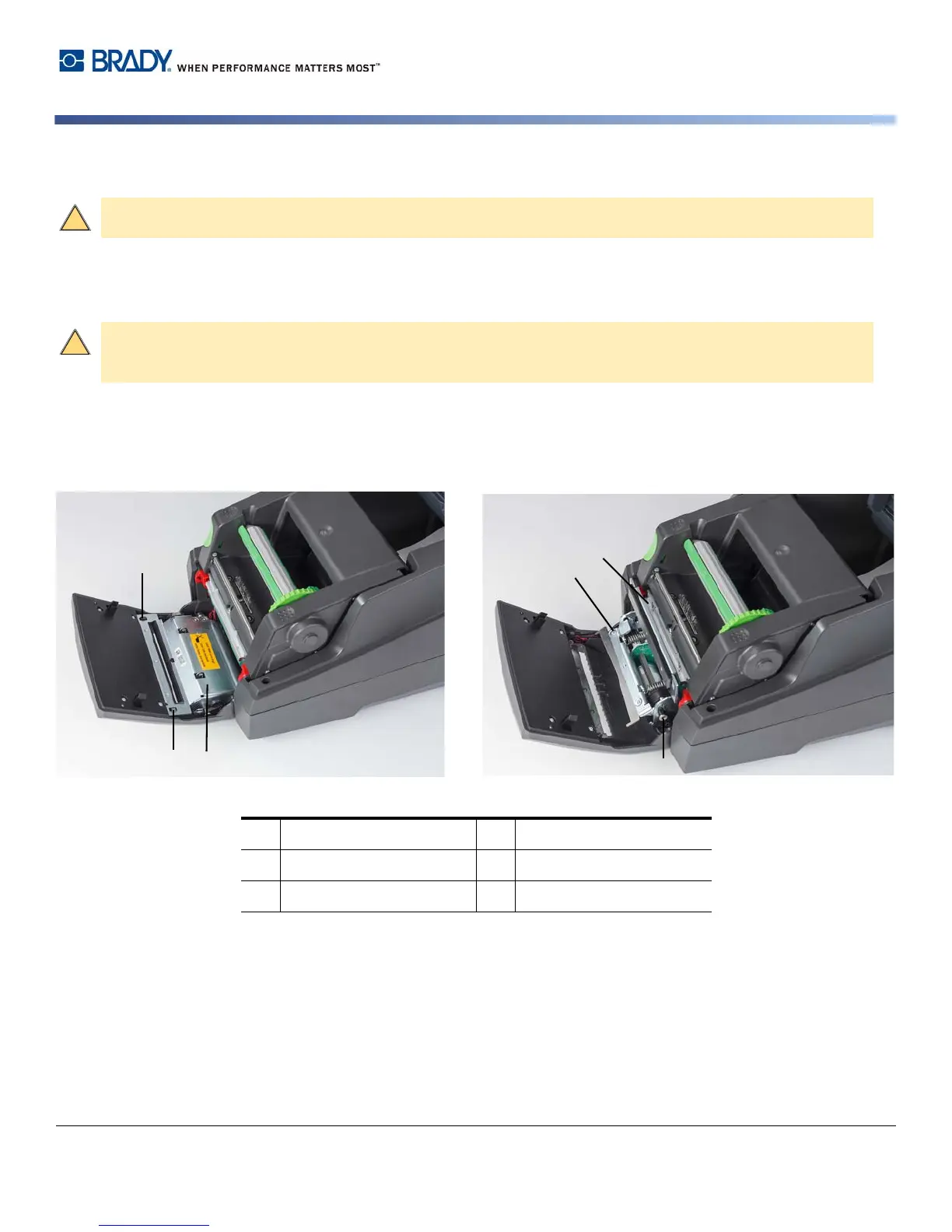
3. Release the cut module (2) by pressing the plastic latches (1) and lifting it up then rotating up and to the right.
4. Turn the screw (5) counterclockwise using a 2.5 mm Allen Wrench and swivel the clamp with the lower blade (3) away from the
upper blade (4). The arc motion of the blade separating is spring-loaded.
5. Remove particles of dust and paper with a soft brush or a vacuum.
6. Remove remains of adhesive with swab dipped in isopropyl alcohol (use Brady part number PCK-6).
7. Remount the cut module in reverse order.
CAUTION!
The light barrier can be damaged! Do not use sharp objects or solvents when cleaning the light barrier.
WARNING!
To avoid injury, do not touch the blade edges with bare hands and keep hands away from the swivel
range of the lower blade.
1 Latches 4 Upper Blade
2 Cut module 5 Screw
3 Lower Blade


 To Next Page