ES Range Product Manual
Version 2.9
© Copyright Brainboxes Limited 2013
Page 33 of 66
If no DHCP Server is detected within 60 seconds (e.g. you are using a direct cable connection
to the PC), the ES device will default to the IP address specified in the static IP Settings as
shown above. By default, this is 192.168.127.254.
Port Settings
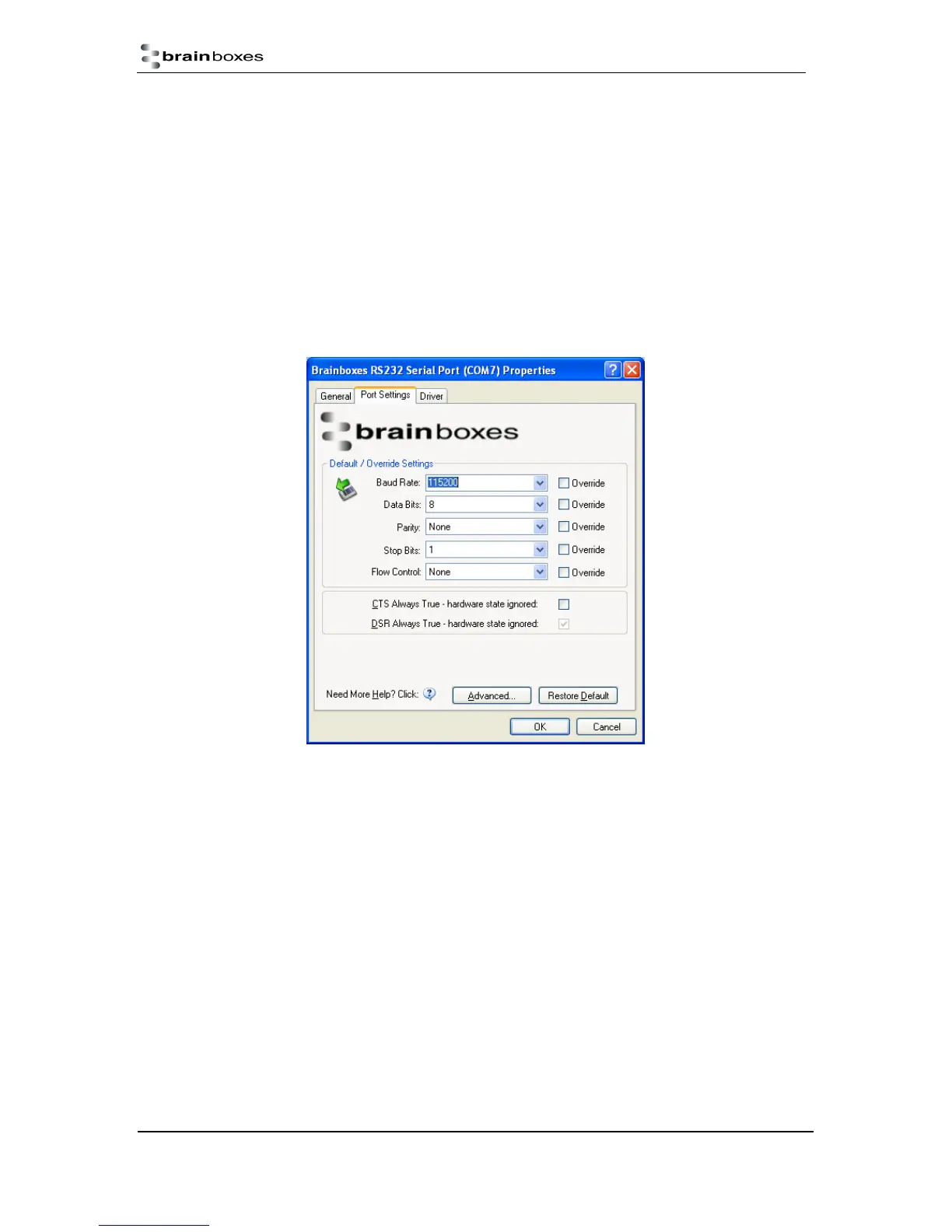
The Port Settings allow you to set Default or Override Settings for the serial communication and how
to deal with incoming hardware handshaking events.
• To open ‘Port Settings’, open Boost.LAN Manager and Double Click on the Brainboxes COM
Port Entry.
• Then Click on the ‘Port Settings’ tab.
• All options can be selected from the Dropdown Menus. In addition, you can enter a non-
standard value into the Baud rate
NB – Once the desired settings have been achieved, you must click OK to activate them. At any time
click the ‘Restore Default’ button to return to the original setup.
Default / Override Settings
• The “Default Settings” will be set if an application does not specify the serial settings when it
opens the COM Port.
o This is sometimes the case with old Legacy applications and you will need to choose
these settings to match the communications that you wish to use.
o The majority of Applications will specify what Serial Settings they wish to use. In this
case, it will not matter what the Default settings are, as the Port will be opened with
the Application’s Settings.
• When the ‘Override’ box is checked next to the Default Setting, the Port will communicate at
this setting whether an application has requested it or not.



 To Next Page