20
Note: Before connection is made ensure Brigade Backsense
®
is powered and activated -
Status Light on the display should show constant green.
Before connecting the Configuration Tool to the display, the correct com port must be
selected. Section “4.3.1 Identifying COM Port Number” describes how to find the correct port
number.
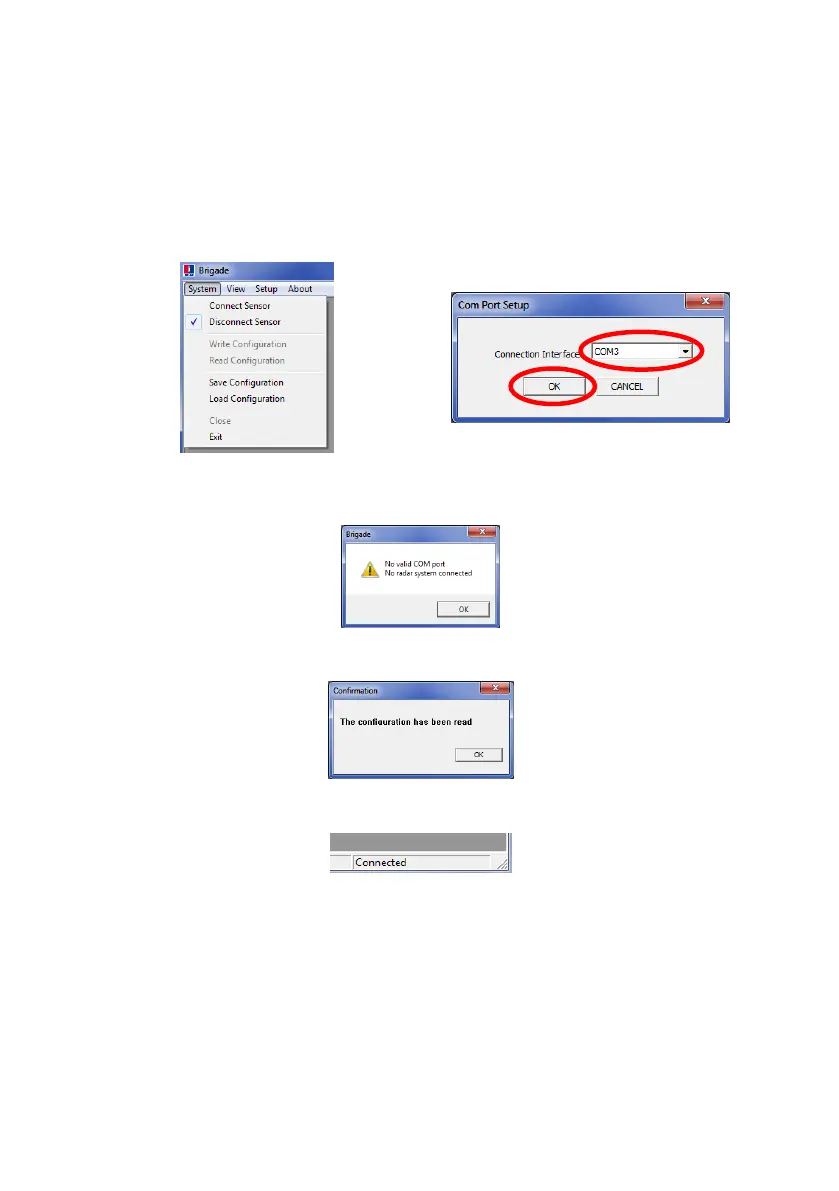
In menu area click “System” then “Connect Sensor”. This will open the Com Port Setup
window (this may take several seconds whilst the PC checks available COM ports). The COM
port indentified before should be used by selecting it from the drop down list and then click
“OK”.
Com Port setup needs to be run every time the Configuration Tool is opened. If the incorrect
COM port is selected the below error window will be shown:
Once connected an automatic read is executed and a configuration window will be shown:
The Status Bar will display “Connected” at the bottom right of the main window:
The Status Light on the display will be off while the Configuration Tool is in connected state.
4.3.5 Disconnecting from Brigade Backsense
®
System
Before physically disconnecting the USB cable from the display or PC a “disconnect”
function in the Configuration Tool must be completed. Click in menu area “System” and
then “Disconnect Sensor”, see image below. The tick option shows the current state of the
data connection.


 To Next Page