102
6
6
DO NOT start your PC with a memory card or USB Flash memory drive installed in the media drive of the
machine. You could lose your data or damage the media.
• The PhotoCapture Center™ will read only the media that was put in first.
• While the machine is printing from the PhotoCapture Center™, your PC cannot access the PhotoCapture
Center™ for any other operation.
• For Windows
®
2000 users, to access the PhotoCapture Center™ features from your PC, you must first
install a Windows
®
2000 update. See the Quick Setup Guide for installation instructions.
Using PhotoCapture Center™ 6
a Put a memory card or USB Flash memory drive into your machine.
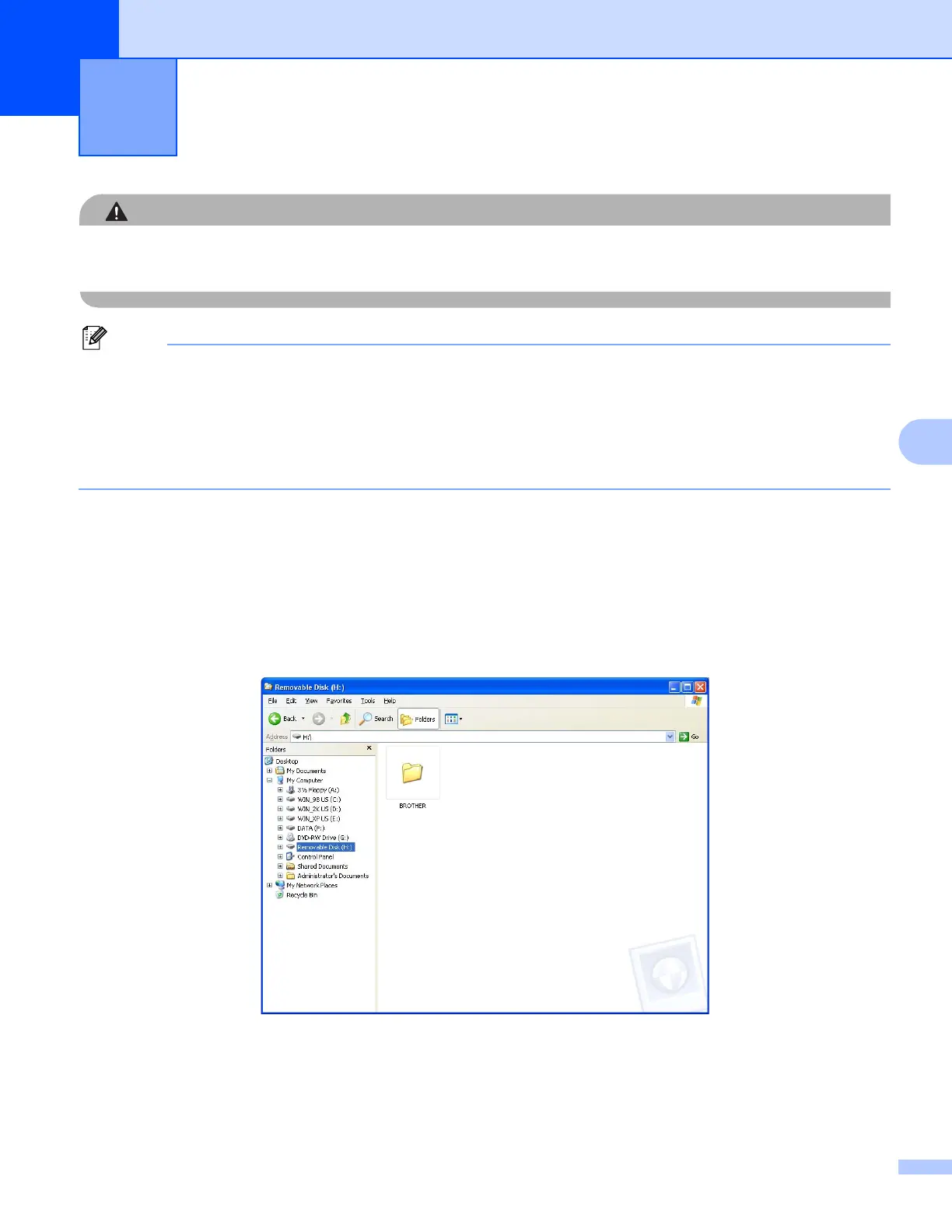
b In Windows
®
Explorer, click the Removable Disk icon
1
. The files and folders on the memory card or
USB Flash memory drive appear on your PC screen.
You can edit a file and save it to another drive on your PC.
1
If you are using Windows
®
XP/Windows Vista
®
/ Windows
®
7 and you create a name for the volume label of the memory card or USB Flash
memory drive, this name appears instead of “Removable Disk”.
PhotoCapture Center™ 6


 To Next Page
 Loading...