ControlCenter4
66
3
Configuring Scan button settings 3
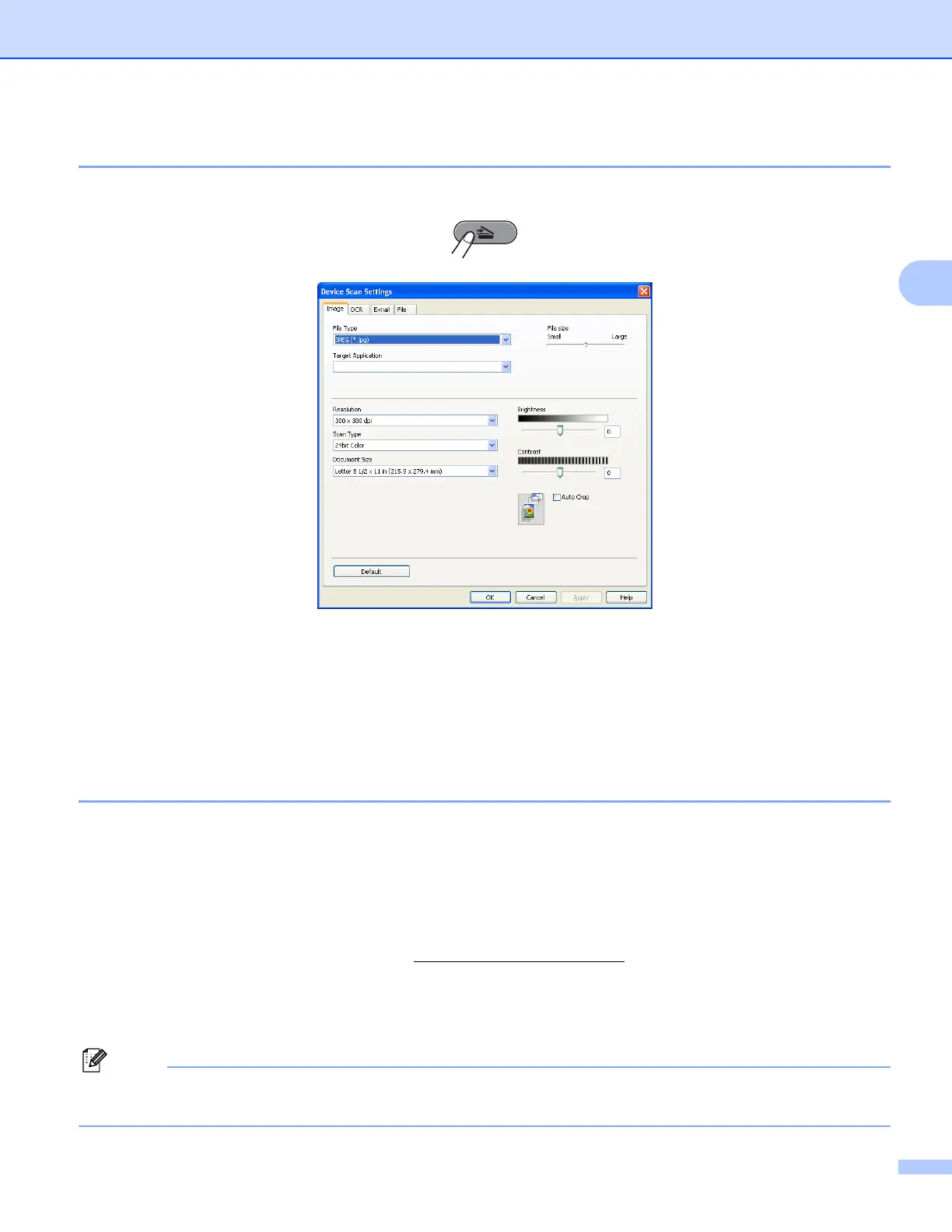
The Device Scan Settings button lets you configure your machine’s SCAN key settings.
a Select the Device Settings tab.
b Click Device Scan Settings.
c The Device Scan Settings dialog will appear. You can change settings of each Scan button function.
d Click OK.
Launching the BRAdmin utility 3
If you have installed BRAdmin Light or BRAdmin Professional 3, the BRAdmin button lets you open the
BRAdmin Light or BRAdmin Professional 3 utility.
The BRAdmin Light utility is designed for initial setup of the Brother network connected devices. It can also
search for Brother products in a TCP/IP environment, view the status and configure basic network settings,
such as the IP address. To install BRAdmin Light from the installation CD-ROM, see the Network User's
Guide. If you require more advanced machine management, use the latest version of BRAdmin Professional
3 utility that is available as a download from http://solutions.brother.com/
.
a Select the Device Settings tab.
b Click BRAdmin. The BRAdmin Light or BRAdmin Professional 3 utility dialog appears.
If you have installed both BRAdmin Light and BRAdmin Professional, ControlCenter4 will launch BRAdmin
Professional 3.


 To Next Page
 Loading...