Scanning
35
2
e Choose TWAIN: TW-Brother MFC-XXXX or TWAIN: TW-Brother MFC-XXXX LAN from the
Available Scanners list.
(Where XXXX is your model name.)
f Check the Display scanner dialog box on the Scan or Get Photo panel.
g Click Scan.
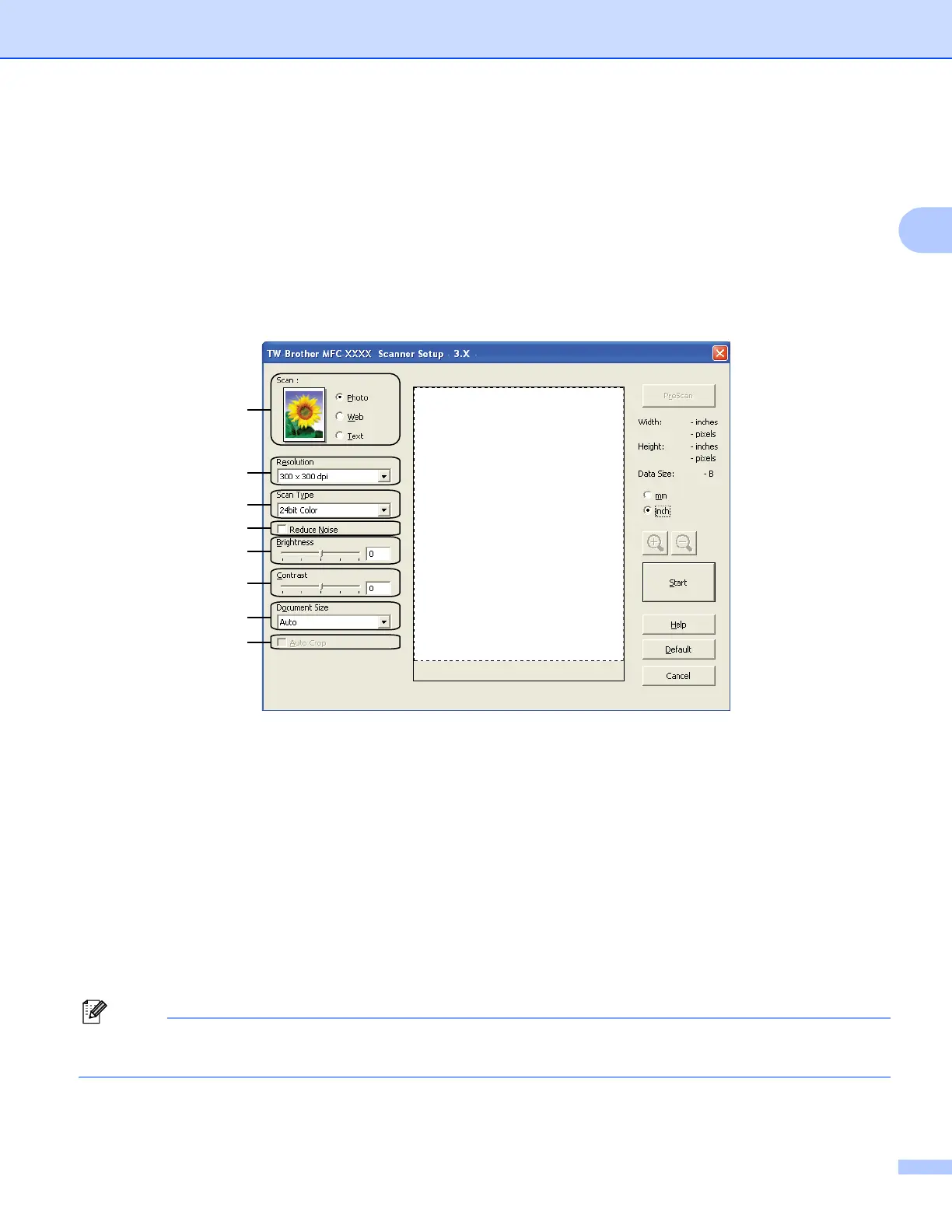
The Scanner Setup dialog box appears.
h Adjust the following settings, if needed, in the Scanner Setup dialog box:
1 Scan (Image Type)
2 Resolution
3ScanType
4 Reduce Noise
5 Brightness
6 Contrast
7 Document Size
8AutoCrop
i Click Start.
When scanning is finished, click Cancel to return to the PaperPort™12SE window.
After you select a document size, you can adjust the scanning area further by clicking the left mouse button
and dragging it. This is required when cropping an image for scanning.


 To Next Page
 Loading...