124
Layout & Editing Inputting Images and Embroidery Patterns
■ If Photo Stitch 2 (Mono) is
selected
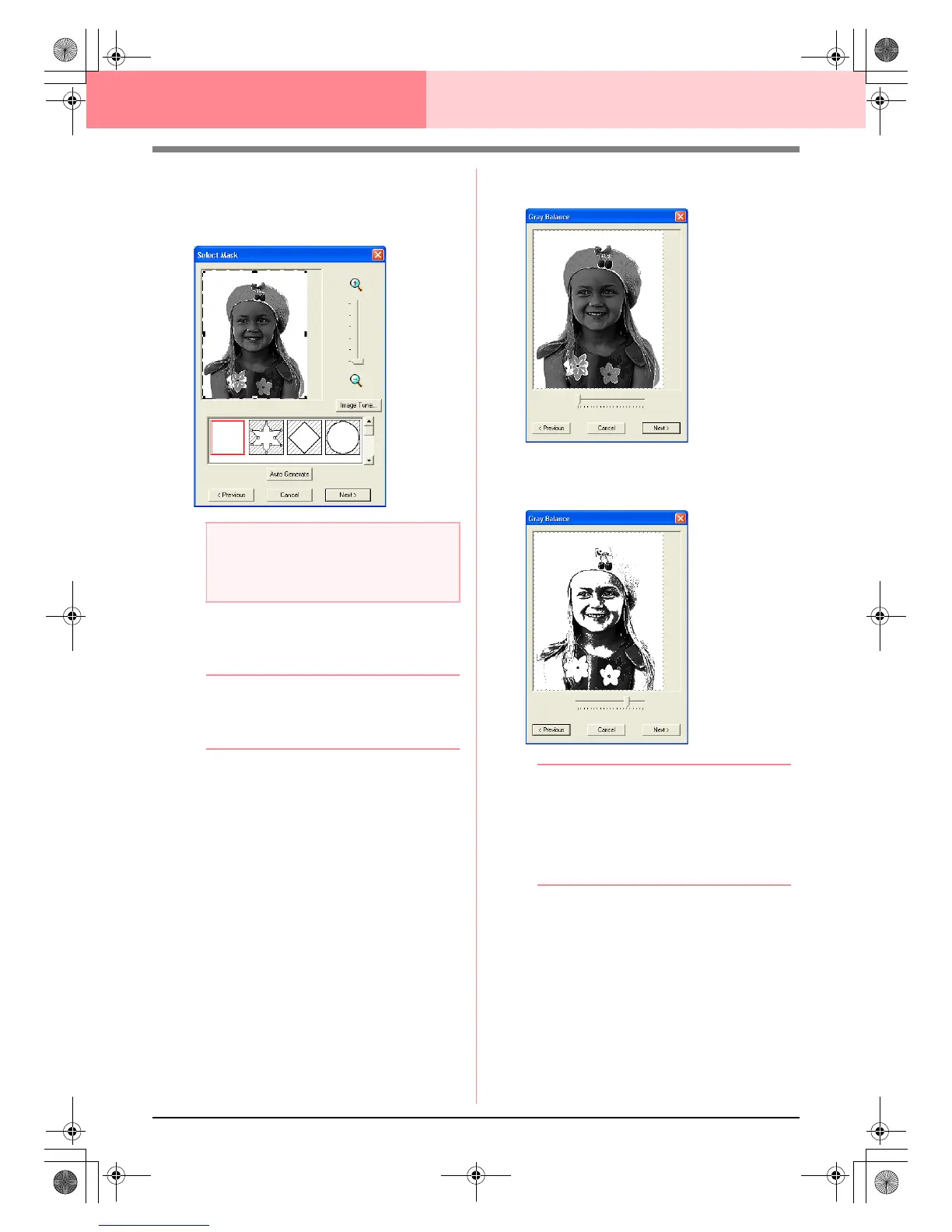
→ A Select Mask dialog box similar to the
one shown below appears.
1. From the list at the bottom of the dialog box,
select the desired shape that the image will be
trimmed to (mask).
b Memo:
To automatically set a mask so that the
background is trimmed off, click
Auto
Generate
.
2. In the image preview box, move the handles of
the mask until it surrounds the desired part of
the image
c
For details on the settings, refer to
page 117.
3. In the Select Mask dialog box, click Next.
→ A Gray Balance dialog box similar to the
one shown below appears.
4. Move the slider to specify which parts of the
image to create the embroidery pattern for.
b Memo:
• An embroidery pattern will be created from
any areas remaining in black.
• To return to the previous dialog box, click
Previous
.
• To quit the operation and close the dialog
box, click
Cancel
.
a Note:
If the width or height of the image exceeds
500 mm, the Photo Stitch functions cannot
be used.
PeDesignV6Eng.book Page 124 Thursday, July 8, 2004 11:59 AM



 To Next Page
 Loading...


