220
Basic Font Creator Operations
Step 2 Creating a font character
pattern
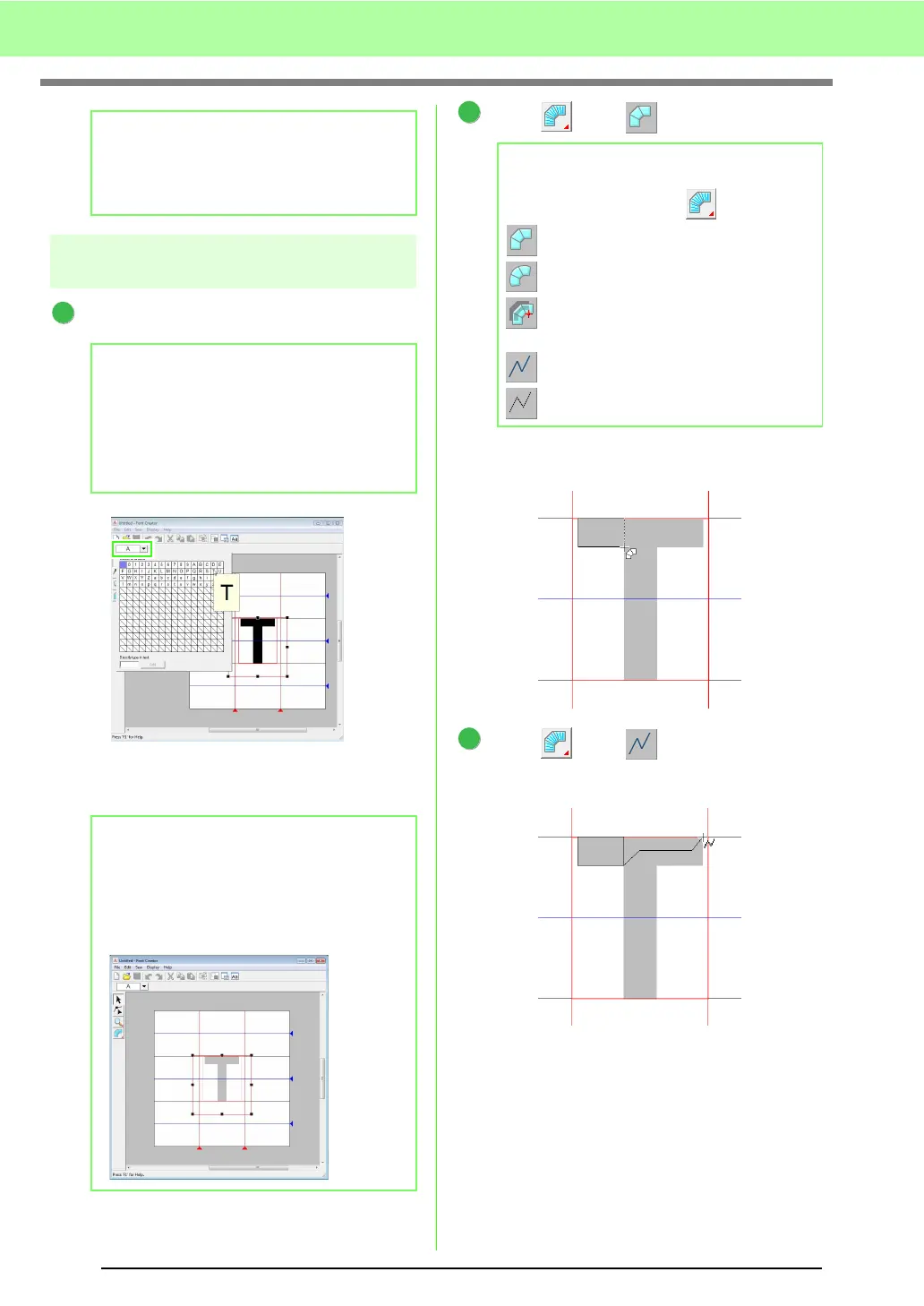
Select the character to be created.
Click the Select character button, and then
select the character to be created. For this
example, select “T”.
Click , then .
Click in the Design Page to specify points 1
(start point) through 4.
Click , then .
And then click point 5 through 7.
b Memo:
If the handles have disappeared, right-click
the image, and then click
Modify Template
in
the menu that appeared.
b Memo:
The character must be registered in the
Select Character
table in order for the
created font to be used in Layout & Editing.
c
“Entering text/Small text” on
page 80.
b Memo:
The template image that remains in the work
area can be displayed or hidden, or a faded
copy of the image can be displayed. For this
example, click
Display-Display Template
,
then select
25%
.
1
b Memo:
Five buttons appear when is clicked.
: Straight block-type pattern
: Curved block-type pattern
: Semi-automatically created straight
block-type pattern
: Running-type pattern
: Feed-type pattern
2
24
3
1
3
6
7
5



 To Next Page
 Loading...


