59
Arranging Embroidery Designs (Layout & Editing)
Arranging Embroidery Designs (Layout & Editing)
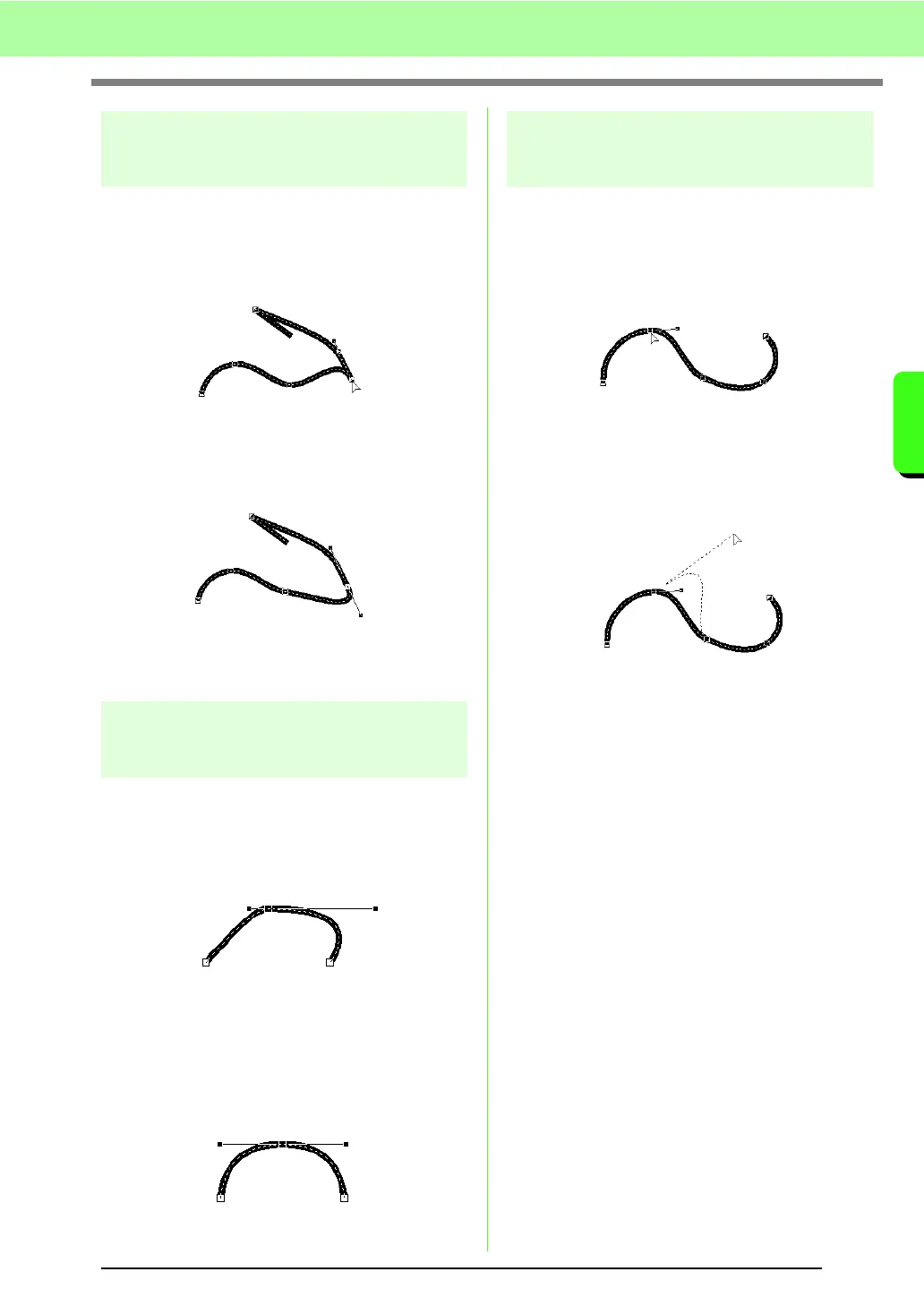
Smoothing out the path at a
point
1. Select the point where the path is to be
smoothed out.
c
“Selecting points” on page 56.
2. Click Edit, then Point, then To Smooth.
→ The path at the point is smoothed out.
3. Drag the path to adjust it.
Symmetrically adjusting the
control handles of a point
1. Select the point where the control handles are
to be adjusted symmetrically.
c
“Selecting points” on page 56.
2. Click Edit, then Point, then To Symmetry.
3. Drag the path to adjust it.
→ The control handles of the point are
moved symmetrically.
Transforming to a pointed
path
1. Select the point where the path is to be
transformed to a pointed one.
c
“Selecting points” on page 56.
2. Click Edit, then Point, then To Cusp.
→ The path is transformed to a pointed one
at the selected point.
3. Drag the path to adjust it.



 To Next Page
 Loading...


