5.1 The input interface
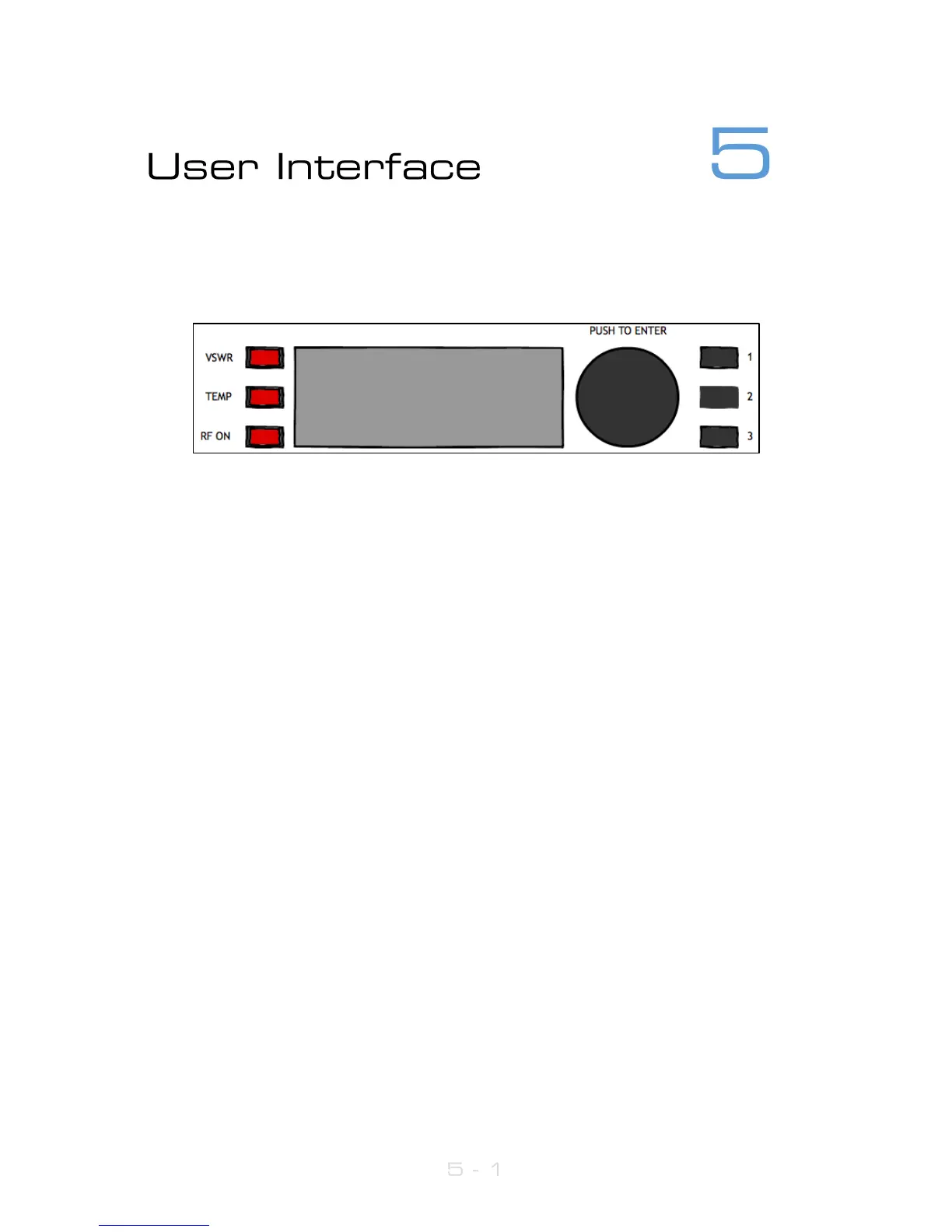
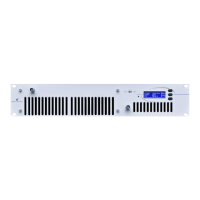
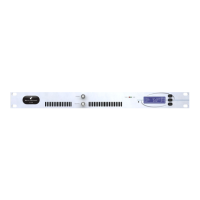
The V3 series has an intuitive interface based around a pushable scroll knob and six
buttons:
The buttons on the right of the scroll knob interact with the menu system, usually button 1
is ‘exit’, button 2 is ‘help’ and button 3 is ‘meters’. In some menus however their functions
change. The indicators on the left show RF on, and VSWR and TEMPerature warnings.
5.1.1 Navigating the menu
The menu is navigated by rotating the scroll wheel, and pushing it to open a submenu.
When in a submenu, pressing the ‘exit’ button will return to its parent menu.
5.1.2 Editing a parameter
To edit a parameter, navigate to it in the menu using the knob - square brackets [ … ]
will surround the currently highlighted parameter. Press the knob to select the
parameter, then rotate the knob to change it. When the desired value is attained, press
the knob to accept, then press exit to return to navigation mode.
Some parameters require a bit more space to edit – like text fields. For these parameters,
a dialog box will pop up allowing more space.
5.1.3 Text fields
When editing a text field, a ‘qwerty’ keyboard graphic will appear allowing entry or
modification of the full text. Turn the knob to select the letter, press it to set the letter. In
this menu, button 2 will toggle the ‘keyboard’ between upper case and lower case, and
button 3 acts as backspace/delete.
Scrolling through the text – the selected character will have a yellow rectangle around
it;
Modifying the current character – the character will be highlighted (it’ll be black on a
yellow background).



 To Next Page