Setup
20 ©2021 CAE 905K720652 v1.0
CAESimEquip
4. If the tablet(s) does not automatically connect to the simulator’s network follow these
instructions:
a. From the home screen, tap the Network icon located in the lower-right corner of the
screen in the taskbar.
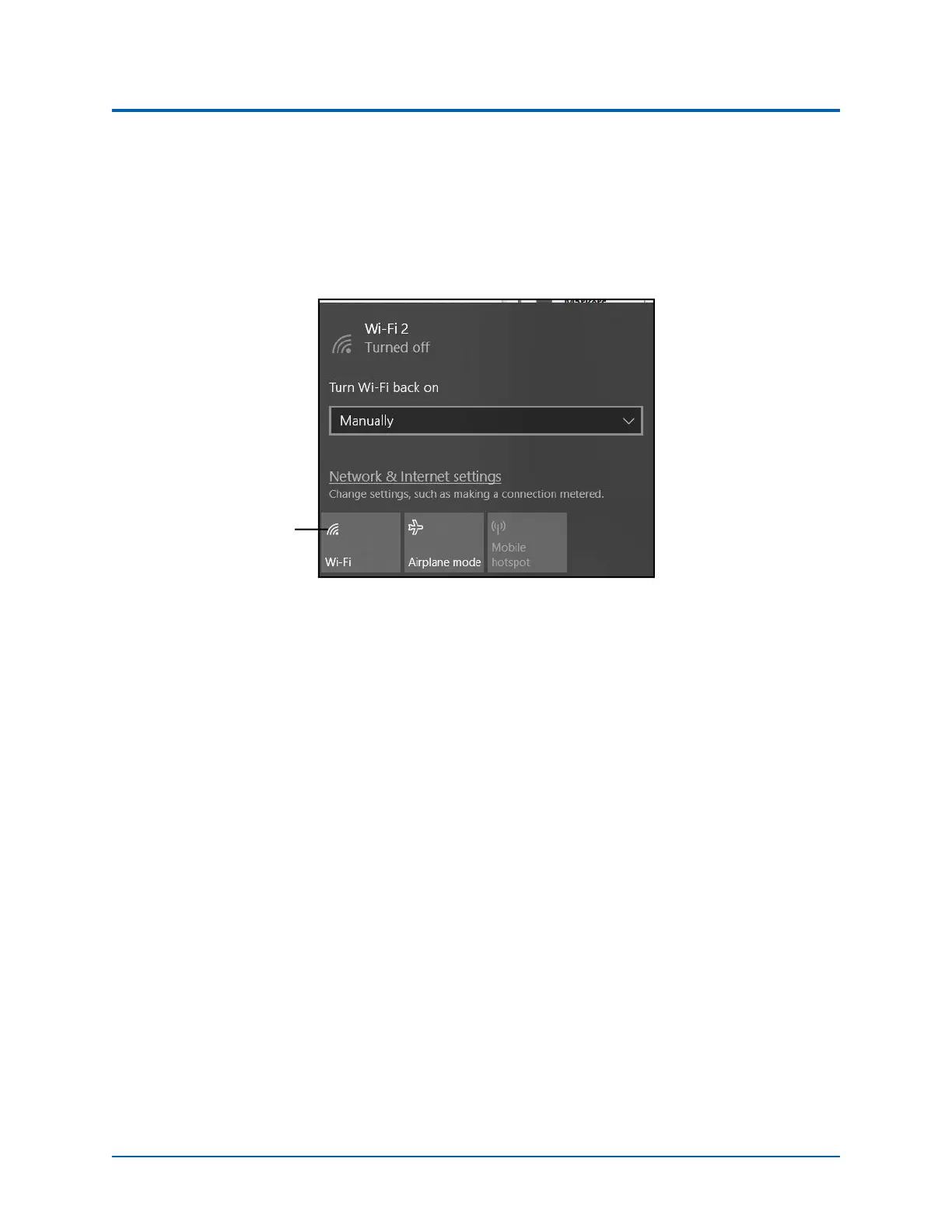
The Network window appears.
The Network Window
b. Tap WiFi button to turn on WiFi (button turns blue).
c. In the Network window, locate the simulator network from the list of available
networks. The type of patient simulator that is being used, will determine the name
of the network and where the name appears on the simulator. For example, the Ares
network name is ARE00XXXX (where XXXX is the last 4 digits of Ares’ serial number
and is found on a label attached to Ares’ side).
The WiFi button



 To Next Page