©2021 CAE 905K720652 v1.0 19
Setup
13. Proceed to Step 3. Power On Equipment to complete setup for Transport Ventilator.
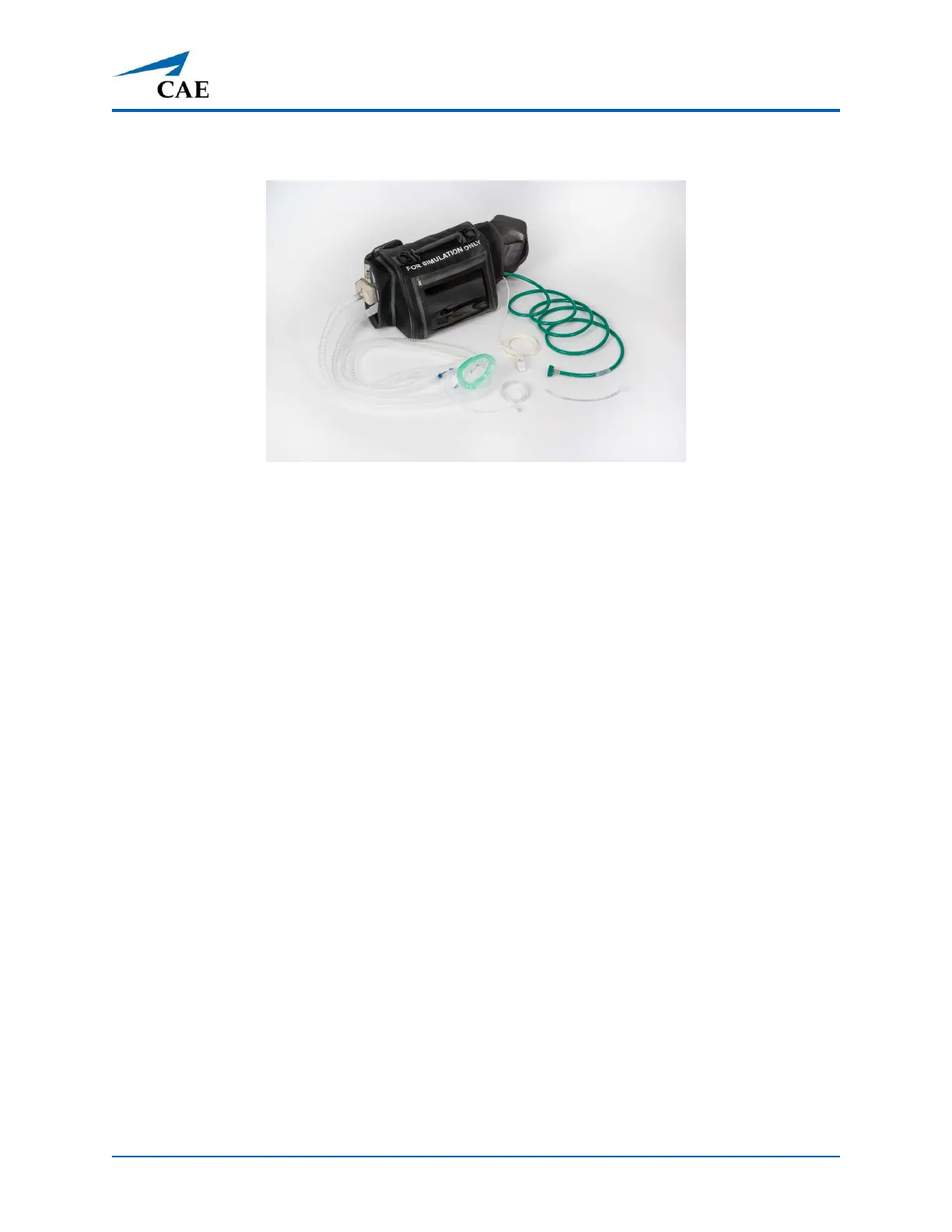
Transport Ventilator Assembled
Step 3. Power On Equipment
Power on the tablet in the Transport Bag by pressing and holding the button at the top of
the tablet.
Step 4. Connect to WiFi
Connection to WiFi may be done in two ways. The way to connect will be determined by whether the
type of simulation running is:
• using a patient simulator or
• standalone (and requiring a router)
Using a Patient Simulator
If the simulation will include a patient simulator, the system will use the manikin’s WiFi.
1. Turn on the patient simulator.
Note: The power switch may be in different locations on the manikin depending upon the
patient simulator being used. Reference the patient simulator User Guide if there is
difficulty locating the power switch.
2. If this is the first time running SimEquip, it may be necessary to update Maestro on the
patient simulator. See Appendix B - Software Upgrades for more information on upgrading.
3. If there is an Instructor tablet, power this tablet on also.



 To Next Page