©2021 CAE 905K720652 v1.0 27
Setup
Step 6. Launch SimEquip Software
To launch SimEquip:
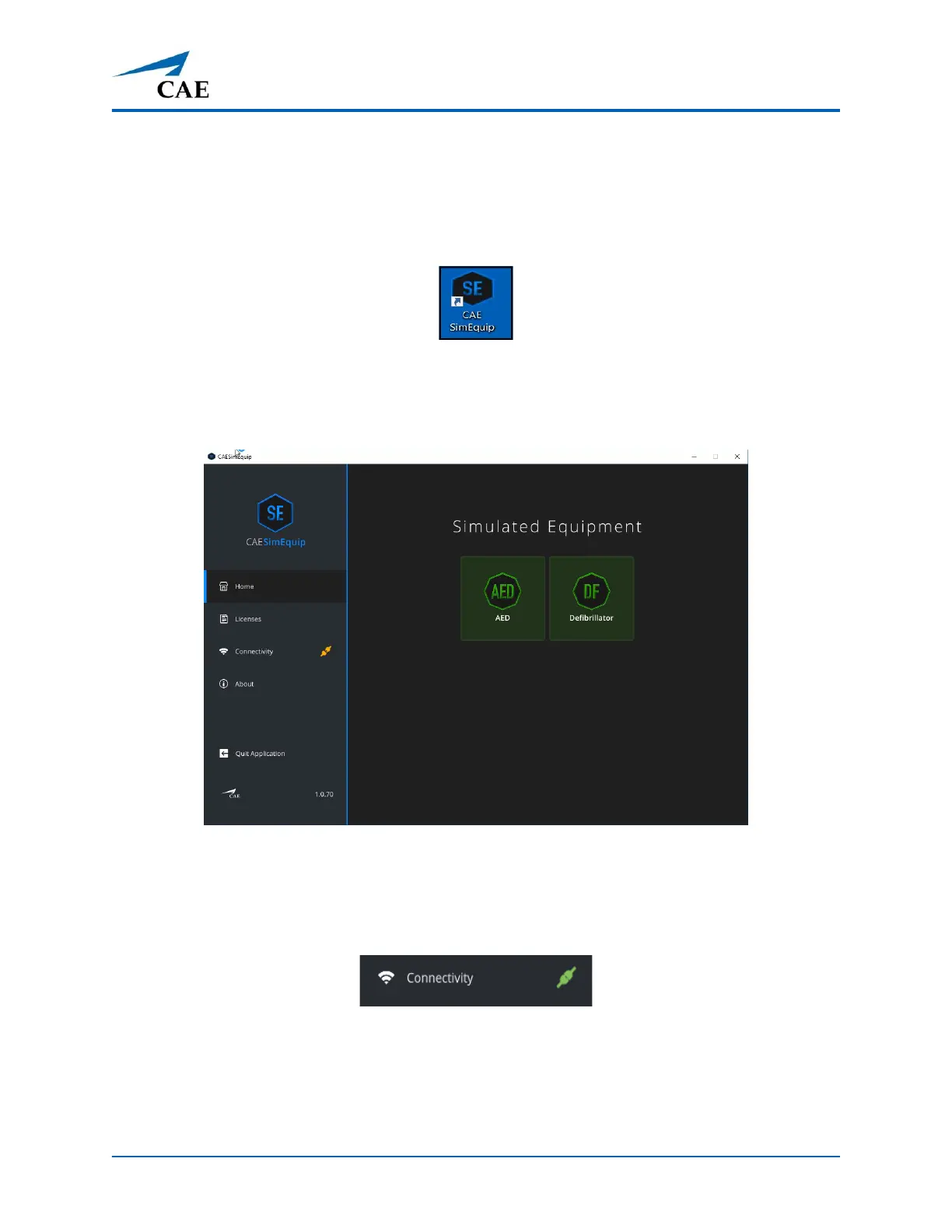
Using the tablet that is in the Transport Bag, tap the CAE SimEquip icon on the desktop screen.
The SimEquip Icon
The SimEquip app opens and the SimEquip Home screen appears. Virtual equipment for which
licenses are activated, will be displayed on the Home screen.
SimEquip Home Screen
AED and Defibrillator
On the left panel, the Connectivity status will appear green, indicating that SimEquip is connected to
a WiFi.
Connectivity - Connected Status



 To Next Page