Setup
46 ©2021 CAE 905K720652 v1.0
CAESimEquip
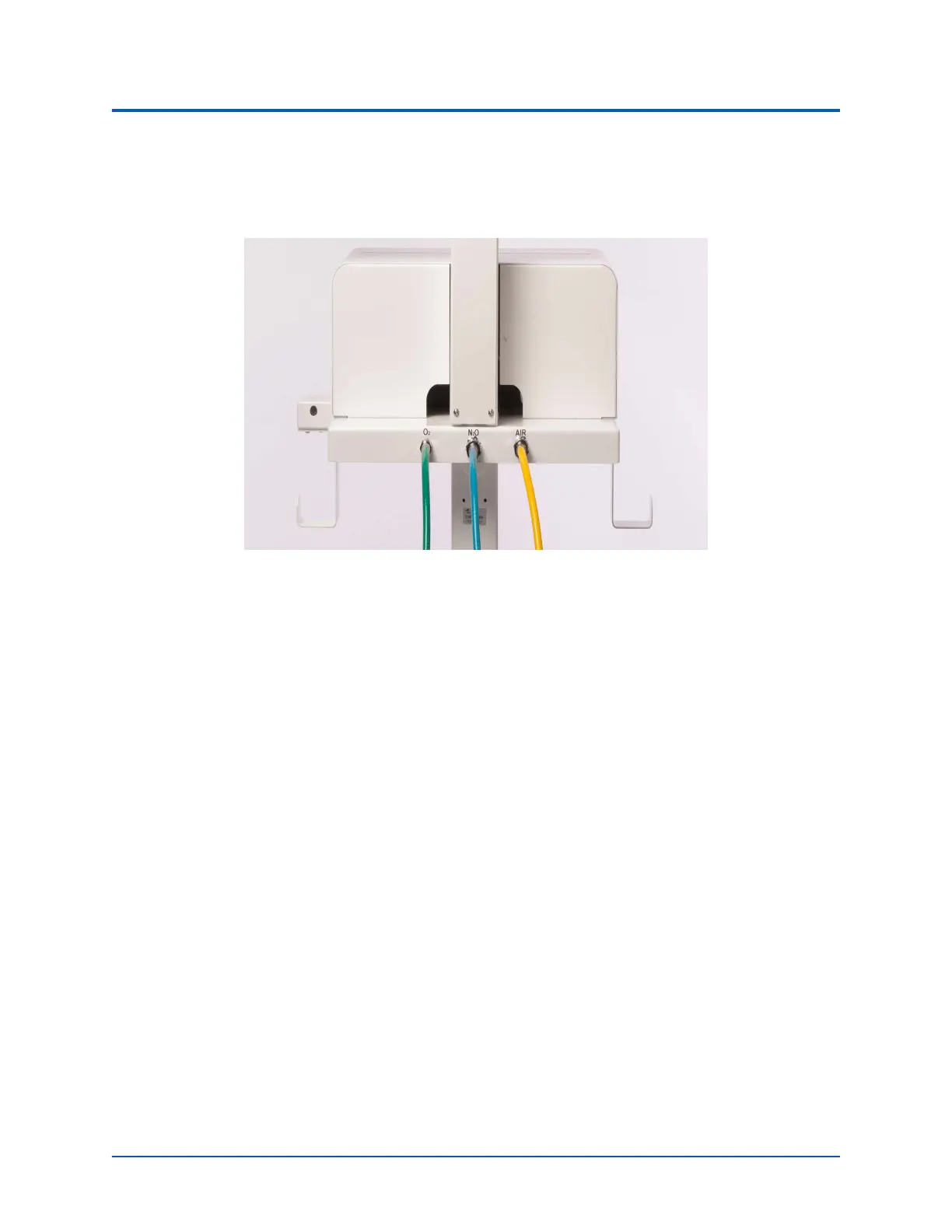
11. Attach the Medical Air hose to the AIR port in the back of the Medical Cart by twisting the
fitting. Attach the opposite end of the Medical Air hose to a simulated Medical Air source.
Back of Medical Cart - Anesthesia Machine Configuration
USA Colors Shown
Step 5. Power on Equipment
1. Locate the power cord from the back of the Medical Cart, on the power bar and plug into
an outlet.
2. Power on Monitor(s).
3. Power on the Tiny Computer on the back of the monitor.
Step 6. Connect to WiFi
Using a Patient Simulator
If the simulation will include a patient simulator, the system will use the manikin’s WiFi.
1. Turn on the patient simulator.
Note: The power switch may be in different locations on the manikin depending upon the
patient simulator being used. Reference the patient simulator User Guide if there is
difficulty locating the power switch.
2. If this is the first time running SimEquip, it may be necessary to update Maestro on the
patient simulator. See Appendix B - Software Upgrades for more information on upgrading.



 To Next Page