1717
1
2
3
4
Introduction
Contents at
a Glance
Downloading
Images
Camera
Settings
Remote
Shooting
Reference
Preferences
Index
Customizing Picture Styles and Applying to
the Camera
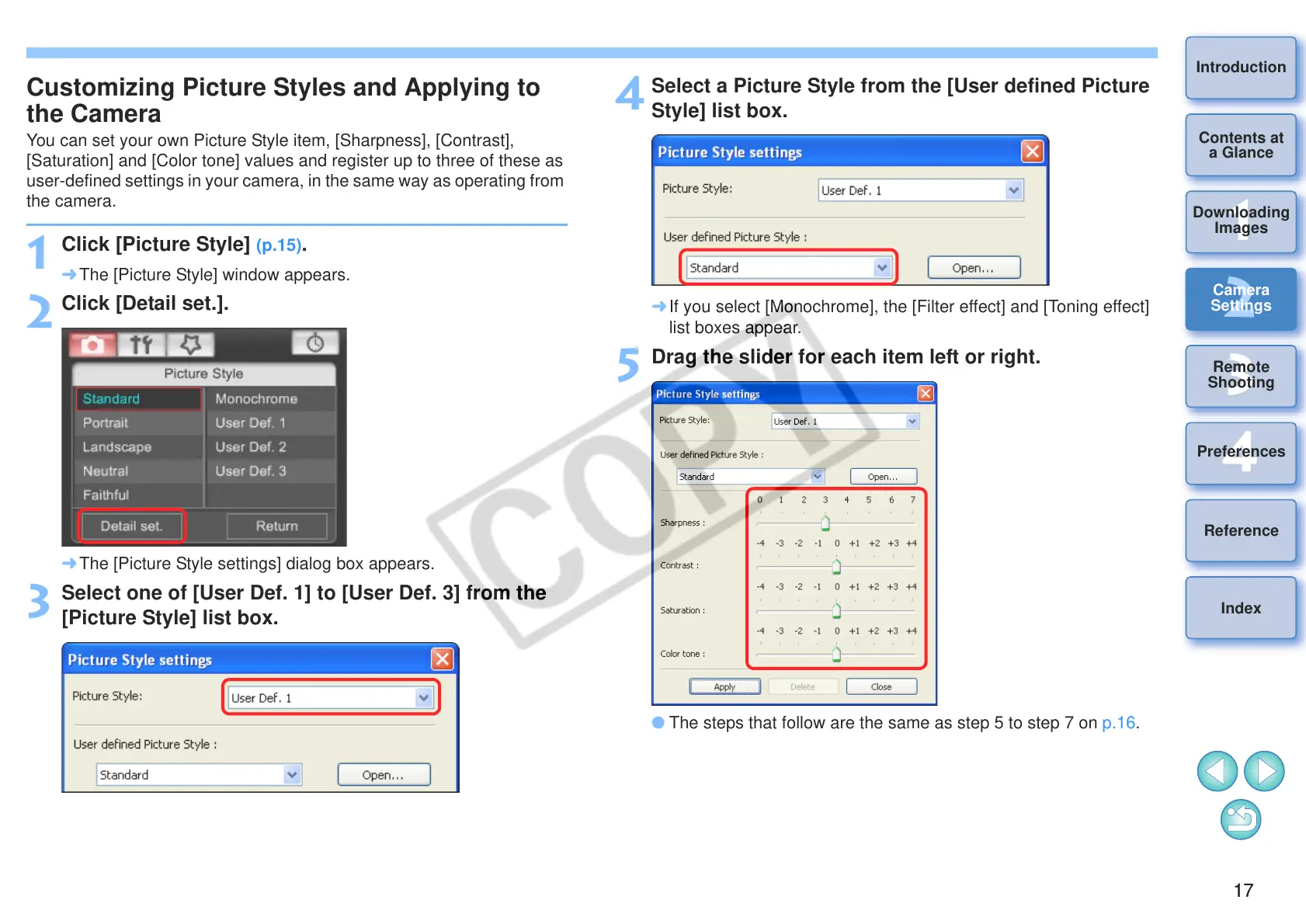
You can set your own Picture Style item, [Sharpness], [Contrast],
[Saturation] and [Color tone] values and register up to three of these as
user-defined settings in your camera, in the same way as operating from
the camera.
1
Click [Picture Style] (p.15).
¿ The [Picture Style] window appears.
2
Click [Detail set.].
¿ The [Picture Style settings] dialog box appears.
3
Select one of [User Def. 1] to [User Def. 3] from the
[Picture Style] list box.
4
Select a Picture Style from the [User defined Picture
Style] list box.
¿ If you select [Monochrome], the [Filter effect] and [Toning effect]
list boxes appear.
5
Drag the slider for each item left or right.
O The steps that follow are the same as step 5 to step 7 on p.16.



 To Next Page