3030
1
2
3
4
Introduction
Contents at
a Glance
Downloading
Images
Camera
Settings
Remote
Shooting
Reference
Preferences
Index
2
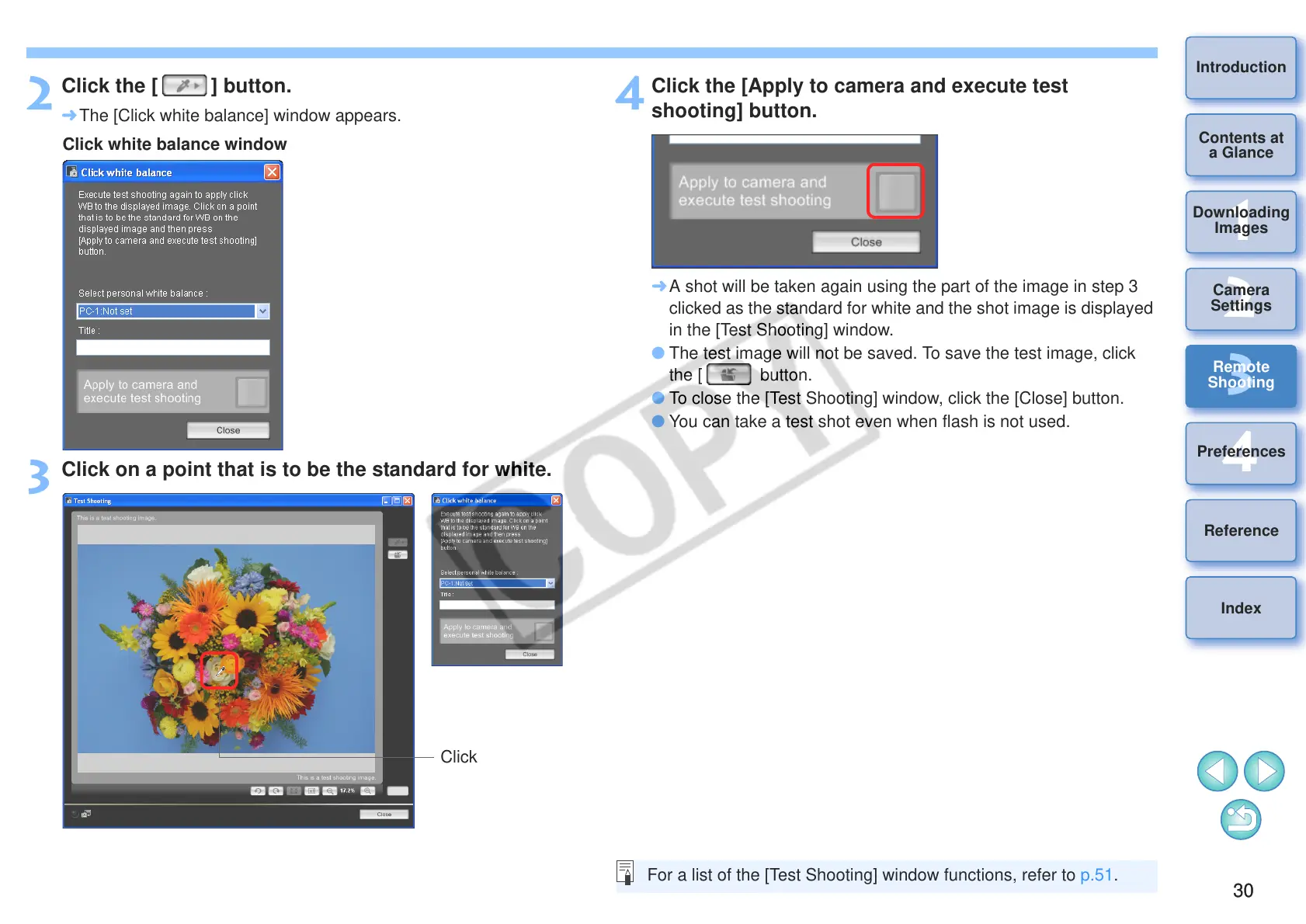
Click the [ ] button.
¿ The [Click white balance] window appears.
3
Click on a point that is to be the standard for white.
Click white balance window
4
Click the [Apply to camera and execute test
shooting] button.
¿ A shot will be taken again using the part of the image in step 3
clicked as the standard for white and the shot image is displayed
in the [Test Shooting] window.
O The test image will not be saved. To save the test image, click
the [ button.
O To close the [Test Shooting] window, click the [Close] button.
O You can take a test shot even when flash is not used.
For a list of the [Test Shooting] window functions, refer to p.51.



 To Next Page