25
1
2
3
4
Introduction
Contents at
a Glance
Downloading
Images
Camera
Settings
Remote
Shooting
Reference
Preferences
Index
Remote Live View Shooting
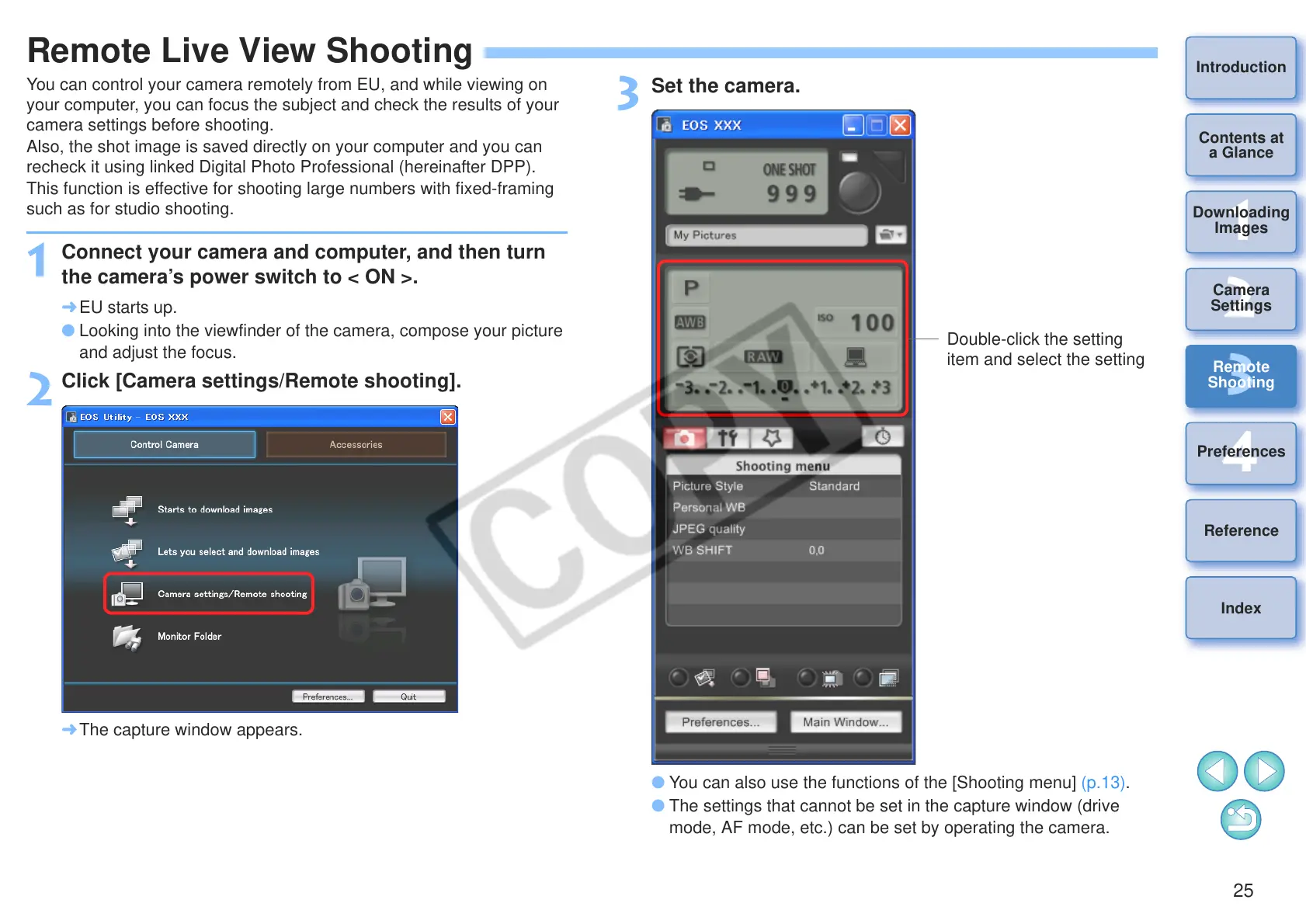
You can control your camera remotely from EU, and while viewing on
your computer, you can focus the subject and check the results of your
camera settings before shooting.
Also, the shot image is saved directly on your computer and you can
recheck it using linked Digital Photo Professional (hereinafter DPP).
This function is effective for shooting large numbers with fixed-framing
such as for studio shooting.
1
Connect your camera and computer, and then turn
the camera’s power switch to < ON >.
¿ EU starts up.
O Looking into the viewfinder of the camera, compose your picture
and adjust the focus.
2
Click [Camera settings/Remote shooting].
¿ The capture window appears.
3
Set the camera.
O You can also use the functions of the [Shooting menu] (p.13).
O The settings that cannot be set in the capture window (drive
mode, AF mode, etc.) can be set by operating the camera.
Double-click the setting
item and select the setting



 To Next Page