2626
1
2
3
4
Introduction
Contents at
a Glance
Downloading
Images
Camera
Settings
Remote
Shooting
Reference
Preferences
Index
4
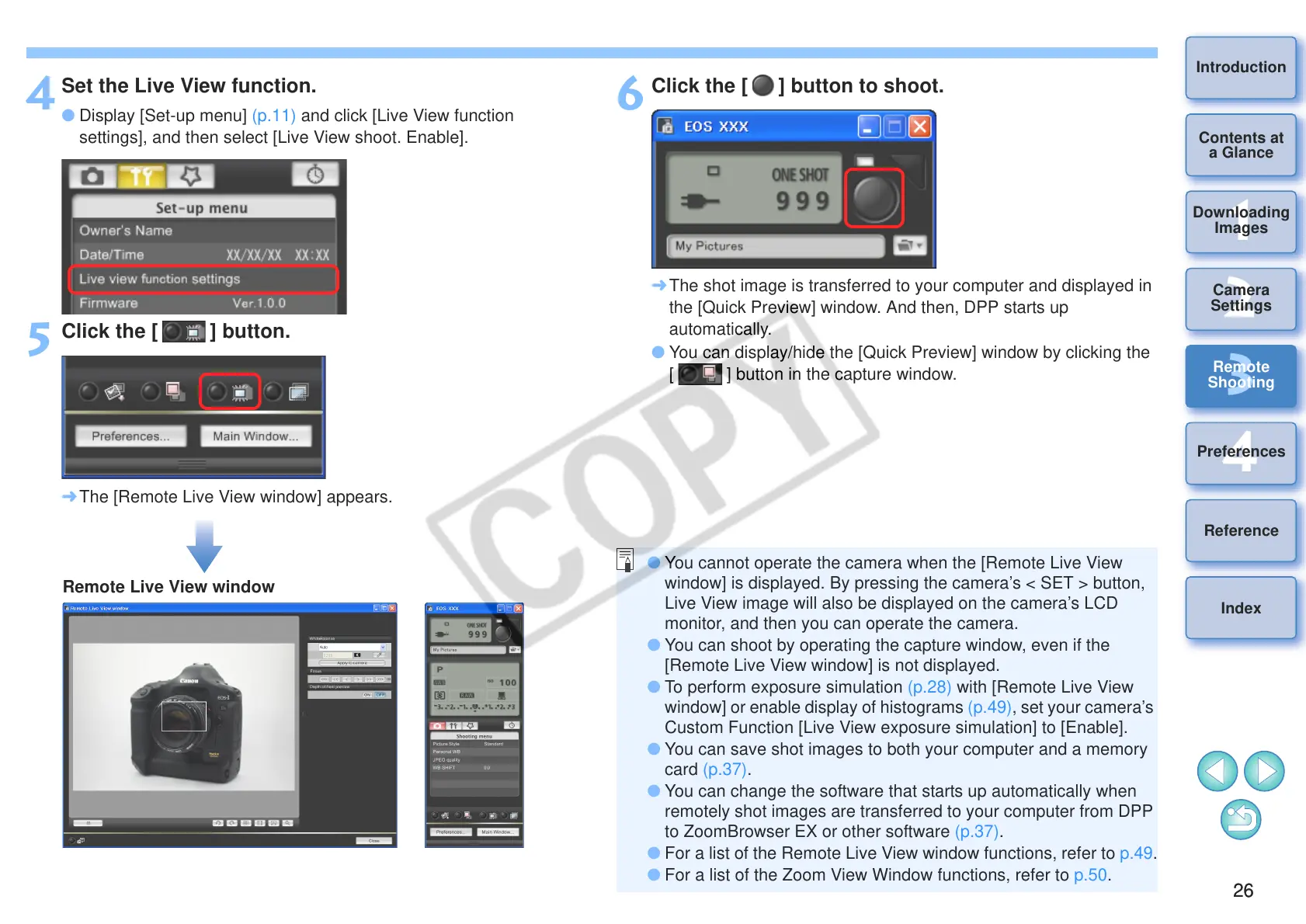
Set the Live View function.
O Display [Set-up menu] (p.11) and click [Live View function
settings], and then select [Live View shoot. Enable].
5
Click the [ ] button.
¿ The [Remote Live View window] appears.
6
Click the [ ] button to shoot.
¿ The shot image is transferred to your computer and displayed in
the [Quick Preview] window. And then, DPP starts up
automatically.
O You can display/hide the [Quick Preview] window by clicking the
[ ] button in the capture window.
O You cannot operate the camera when the [Remote Live View
window] is displayed. By pressing the camera’s < SET > button,
Live View image will also be displayed on the camera’s LCD
monitor, and then you can operate the camera.
O You can shoot by operating the capture window, even if the
[Remote Live View window] is not displayed.
O To perform exposure simulation (p.28) with [Remote Live View
window] or enable display of histograms (p.49), set your camera’s
Custom Function [Live View exposure simulation] to [Enable].
O You can save shot images to both your computer and a memory
card (p.37).
O You can change the software that starts up automatically when
remotely shot images are transferred to your computer from DPP
to ZoomBrowser EX or other software (p.37).
O For a list of the Remote Live View window functions, refer to p.49.
O For a list of the Zoom View Window functions, refer to p.50.



 To Next Page