3131
1
2
3
4
Introduction
Contents at
a Glance
Downloading
Images
Camera
Settings
Remote
Shooting
Reference
Preferences
Index
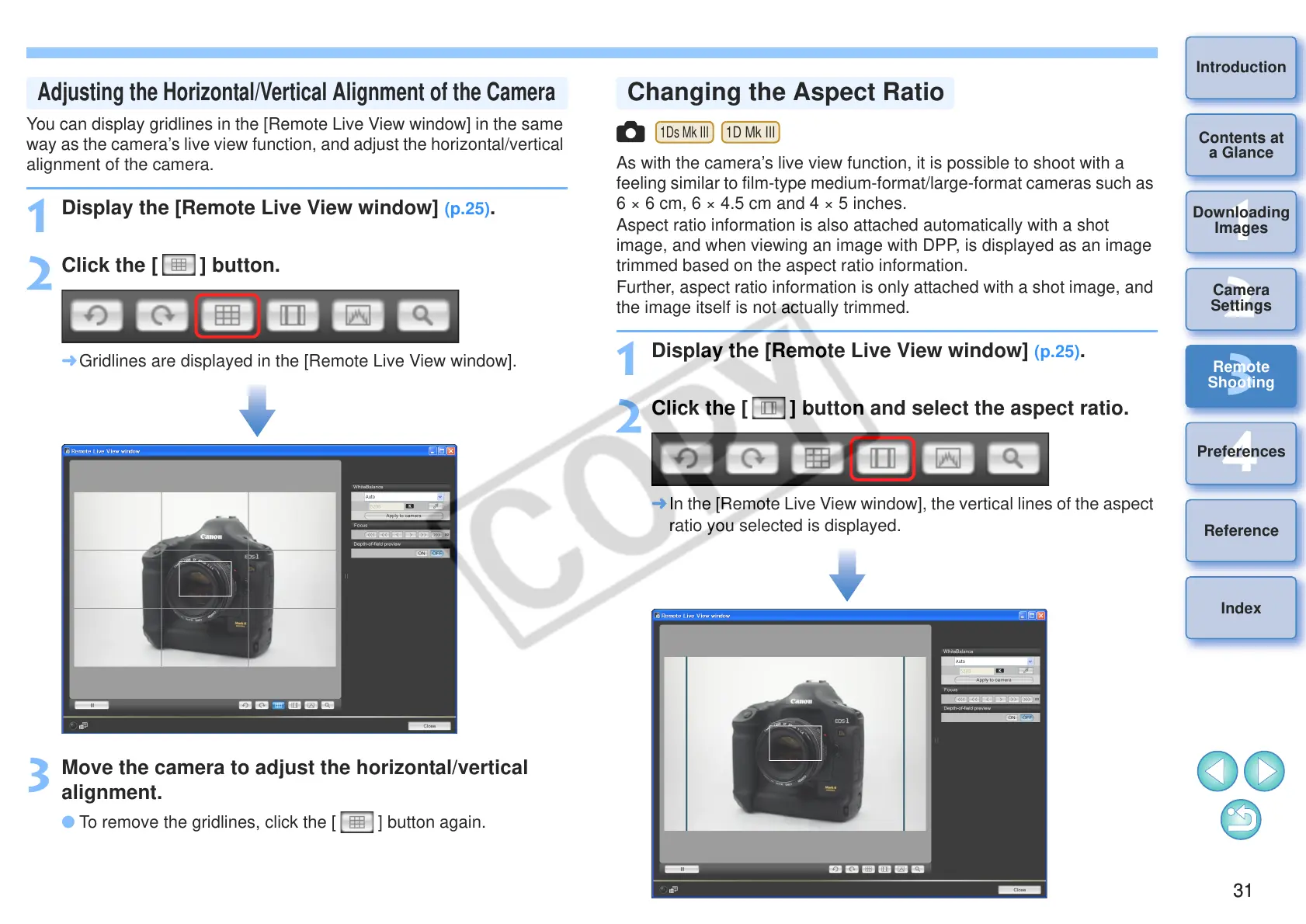
You can display gridlines in the [Remote Live View window] in the same
way as the camera’s live view function, and adjust the horizontal/vertical
alignment of the camera.
1
Display the [Remote Live View window] (p.25).
2
Click the [ ] button.
¿ Gridlines are displayed in the [Remote Live View window].
3
Move the camera to adjust the horizontal/vertical
alignment.
O To remove the gridlines, click the [ ] button again.
Adjusting the Horizontal/Vertical Alignment of the Camera
As with the camera’s live view function, it is possible to shoot with a
feeling similar to film-type medium-format/large-format cameras such as
6 × 6 cm, 6 × 4.5 cm and 4 × 5 inches.
Aspect ratio information is also attached automatically with a shot
image, and when viewing an image with DPP, is displayed as an image
trimmed based on the aspect ratio information.
Further, aspect ratio information is only attached with a shot image, and
the image itself is not actually trimmed.
1
Display the [Remote Live View window] (p.25).
2
Click the [ ] button and select the aspect ratio.
¿ In the [Remote Live View window], the vertical lines of the aspect
ratio you selected is displayed.
Changing the Aspect Ratio



 To Next Page