88
1
2
3
4
Introduction
Contents at
a Glance
Downloading
Images
Camera
Settings
Remote
Shooting
Reference
Preferences
Index
2
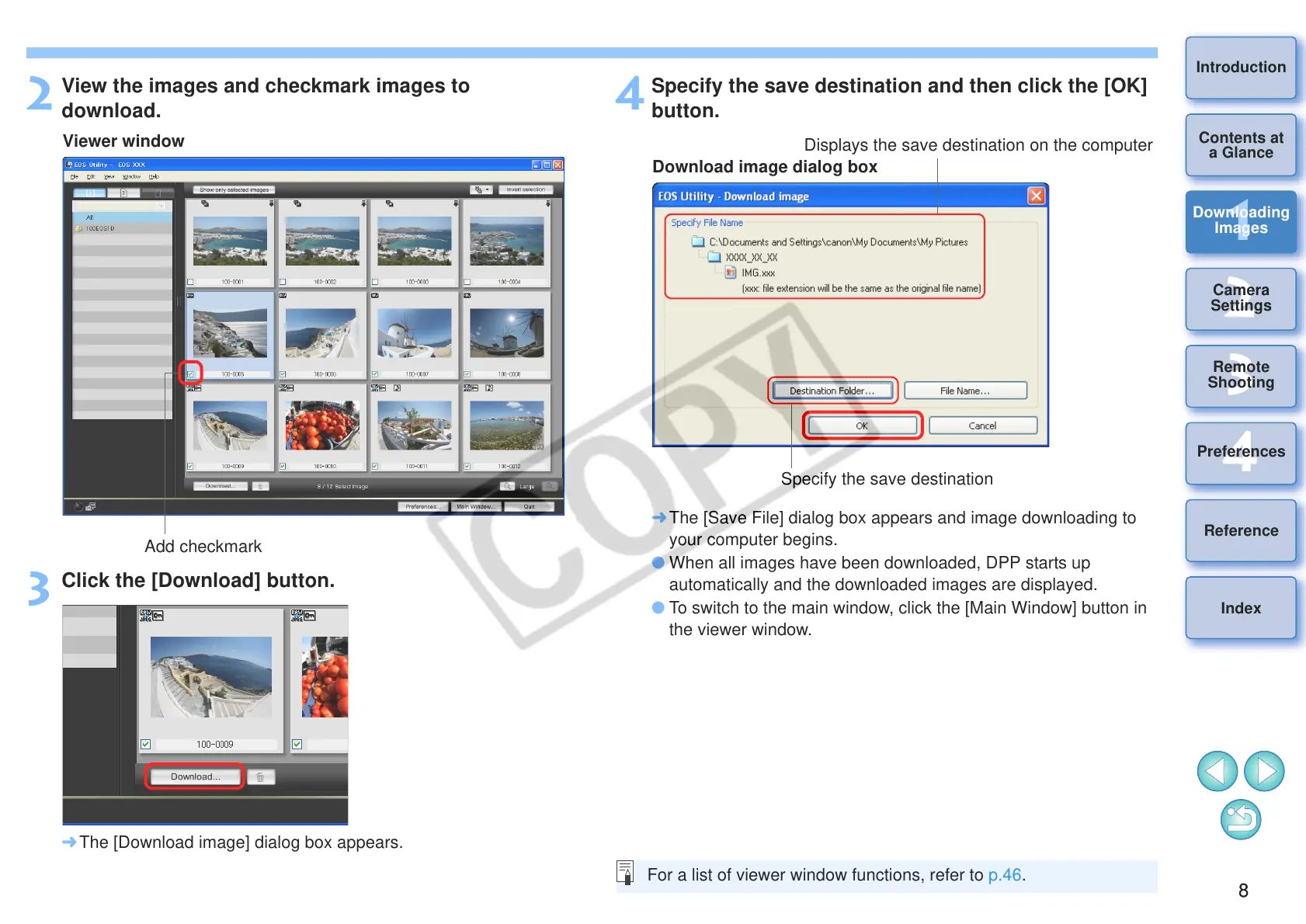
View the images and checkmark images to
download.
3
Click the [Download] button.
¿ The [Download image] dialog box appears.
Viewer window
Add checkmark
4
Specify the save destination and then click the [OK]
button.
¿ The [Save File] dialog box appears and image downloading to
your computer begins.
O When all images have been downloaded, DPP starts up
automatically and the downloaded images are displayed.
O To switch to the main window, click the [Main Window] button in
the viewer window.
Download image dialog box
Specify the save destination
Displays the save destination on the computer
For a list of viewer window functions, refer to p.46.



 To Next Page