~:~
Selecting a Picture Style
'*
It;.]!
IT
1IIIa1
II
By selecting a Picture Style, you can obtain image effects matching
your photographic expression or the subject.
In
the
<0>
(Full Auto) mode, you cannot select the Picture Style.
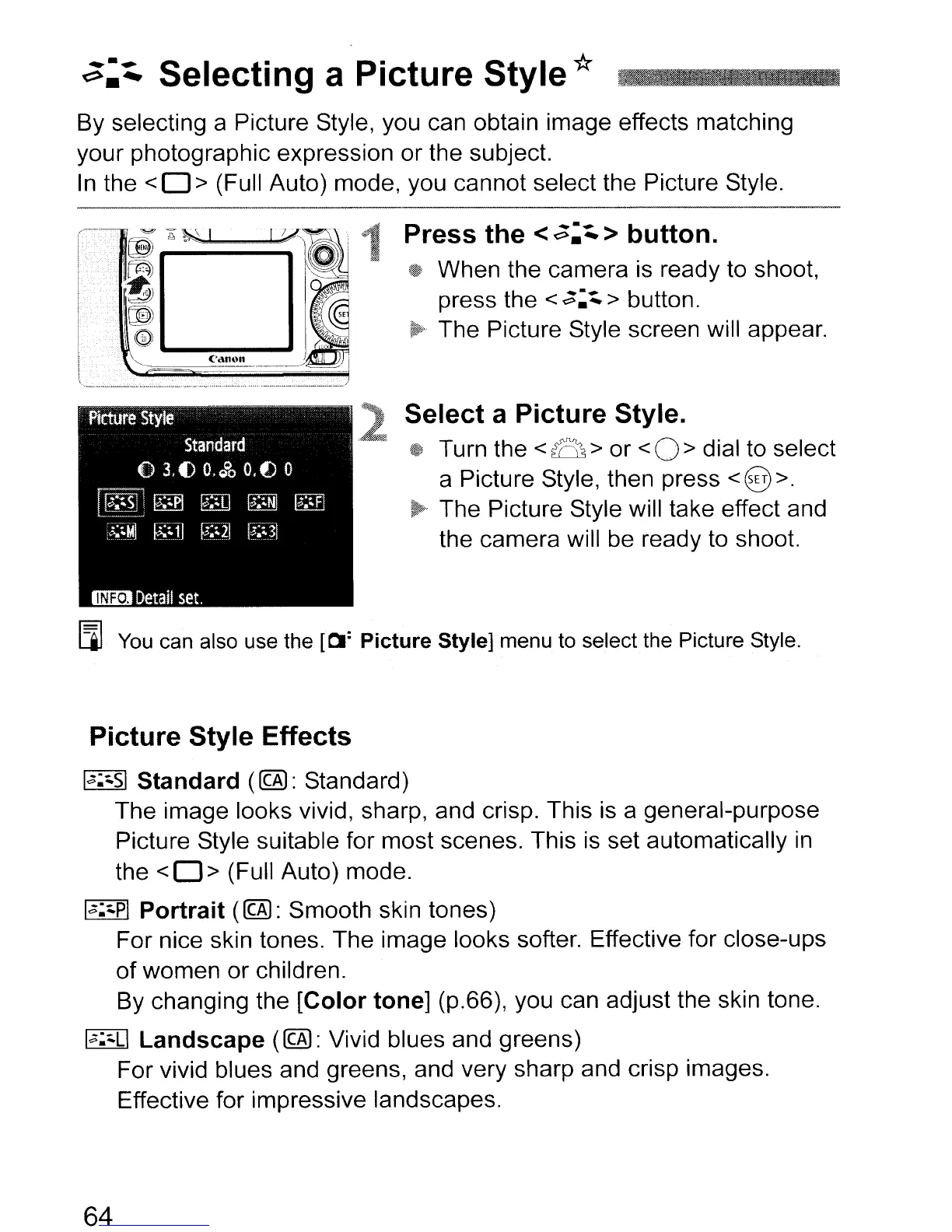
Press
the
<
~:~
>
button.
@F
When the camera is ready to shoot,
press the
<
~:~
> button.
~'
The Picture Style screen will appear.
Select
a
Picture
Style.
·tW
Turn the <
~
> or < 0 > dial to select
a Picture Style, then press
< @>.
~ The Picture Style will take effect and
the camera will be ready to shoot.
~
You
can also use the
[0:
Picture
Style] menu to select the Picture Style.
Picture
Style
Effects
1';;:'51
Standard
(~:
Standard)
The image looks vivid, sharp, and crisp. This is a general-purpose
Picture Style suitable for most scenes. This is set automatically
in
the < 0 > (Full Auto) mode.
I.;::.pl
Portrait
(@):
Smooth skin tones)
For nice skin tones. The image looks softer. Effective for close-ups
of
women or children.
By changing the
[Color
tone]
(p.66), you can adjust the skin tone.
I.;::.LI
Landscape
(~:
Vivid blues and greens)
For vivid blues and greens, and very sharp and crisp images.
Effective for impressive landscapes.
64



 To Next Page