6-16
Using the Fax Functions
Keys to be used for this operation
OK
Status Monitor/Cancel
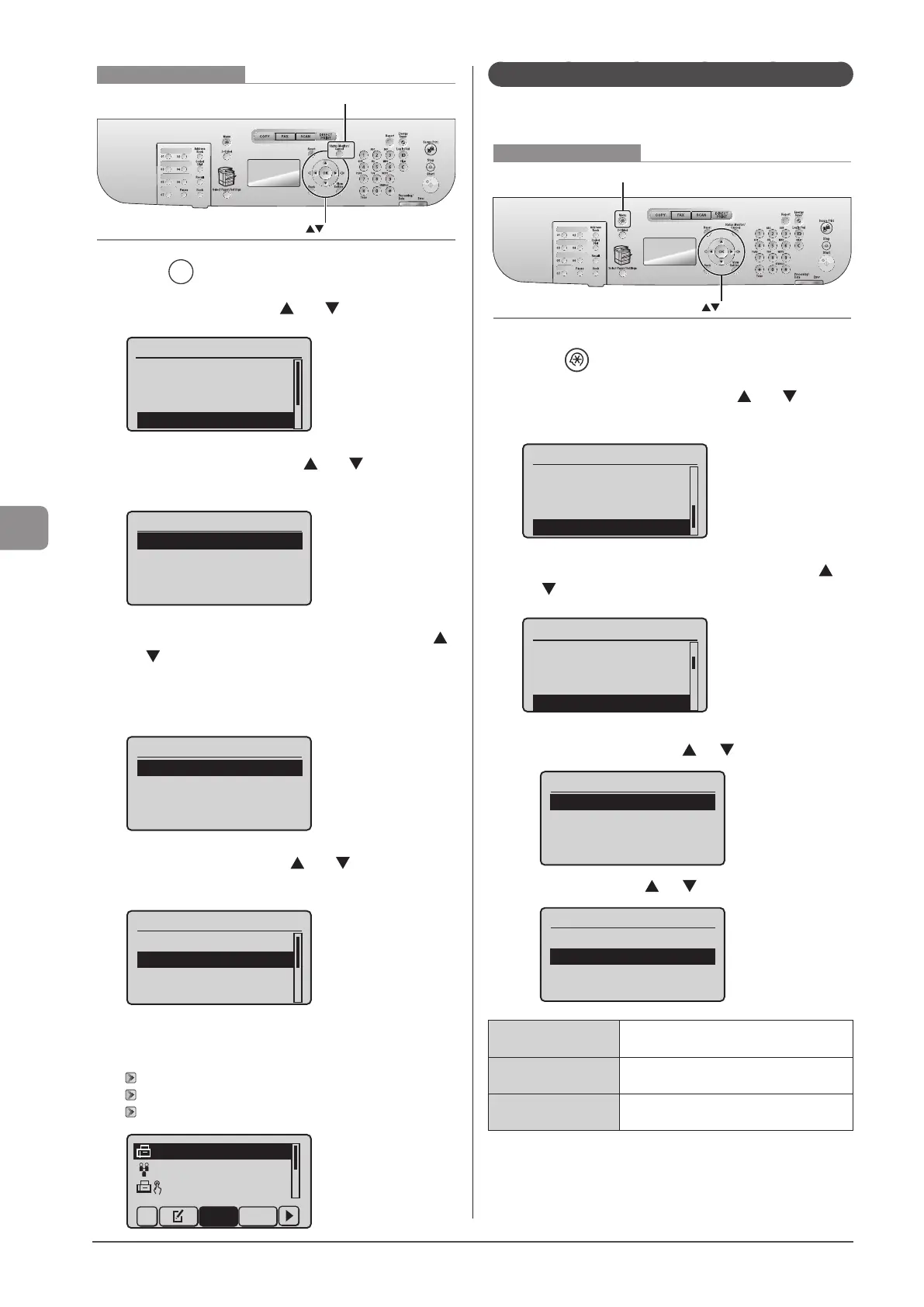
1 Press [ ] (Status Monitor/Cancel).
2 Select <RX Job> using [ ] or [ ] and press [OK].
Status Monitor/Cancel
Device Status
Copy/Print Job
TX Job
RX Job
3 Select <Job Status> using [ ] or [ ] and press
[OK].
RX Job Status/History
Job Status
Job History
4 Select the job that you want to forward using [ ]
or [ ] and press [OK].
You cannot forward received faxes when
• the machine is in the middle of receiving another fax
• the machine starts printing a job after it has received a fax
RX Job Status
12:52AM Receiving
5 Select <Forward> using [ ] or [ ] and press
[OK].
Details
<Delete>
<Forward>
Job Number: 0004
Status: Waiting to
...
6 Specify the forwarding destination.
See the following sections to specify destinations.
“Specifying destinations using one-touch keys” (→P. 6-4)
“Specifying destinations using coded dial codes” (→P. 6-4)
“Specifying destinations using the address book” (→P. 6-5)
CANON 0123456789
GroupA 2 Destin
...
User01 01234567
...
All A-Z
Configurating Operations for Transfer Errors
When received documents are transferred or when a transfer error
occurs, its details can be saved in a memory or printed.
Keys to be used for this operation
OK
Menu
1 Press [ ] (Menu).
2 Select <System Settings> using [ ] or [ ] and
press [OK].
Menu
USB Direct Print Se
...
Printer Settings
Adjustment/Maintena
...
System Settings
3 Select <Store/Print when Fowarding> using [ ]
or [ ] and press [OK].
System Settings
Communication Manag
...
Select Country/Regi
...
Forwarding Settings
Store/Print When Fow
To print a transferred document
(1) Select <Print Images> using [ ] or [ ] and press [OK].
Print Images
Store Images in Memo
...
(2) Select settings using [ ] or [ ] and press [OK].
Print Images
Off
On
Only When Error Occu
...
<Off>
When a document is transferred, that
document is not printed.
<On>
When a document is transferred, that
document is printed.
<Only when Error
Occurs>
Only when a transfer error occurs, that
document is printed.








 To Next Page