3-12
Copying
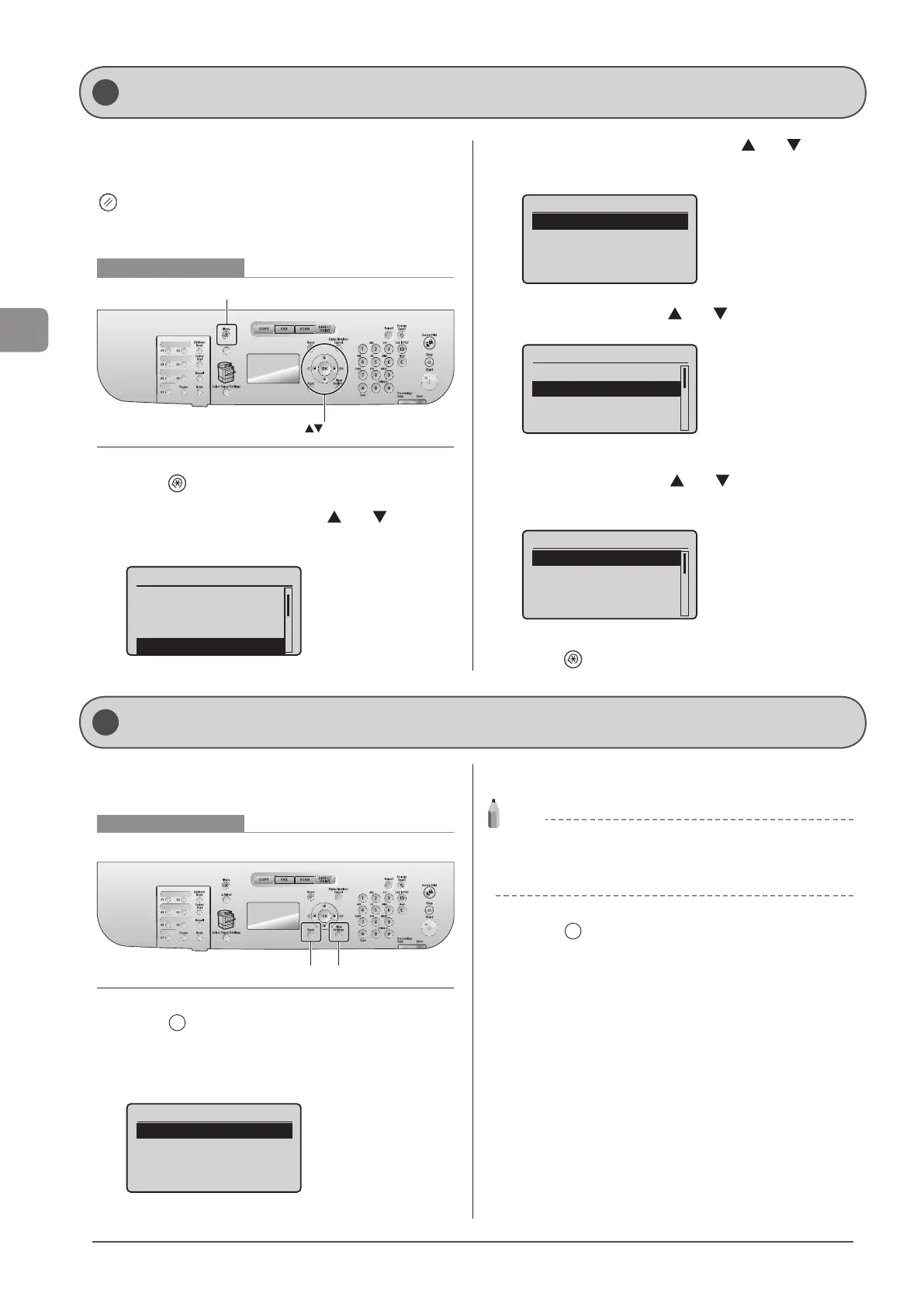
The default settings are a set of standard settings
predetermined by the machine. These settings become
effective when the machine is turned OFF and ON, or when
[
] (Reset) is pressed to revert to the default settings. You
can change the following default settings based on your
needs.
Keys to be used for this operation
OK
Menu
1 Press [ ] (Menu).
2 Select <Copy Settings> using [ ] or [ ] and
press [OK].
Menu
Preferences
Timer Settings
Common Settings
Copy Settings
3 Select <Change Defaults> using [ ] or [ ] and
press [OK].
Copy Settings
Change Defaults
4 Select the item using [ ] or [ ] and press [OK].
Change Defaults
<Apply>
No. of Copies: 1
Density: 0
Original Type: Text
...
+
-
For more information, see “Copy Settings” (→P. 3-4).
5 Select <Apply> using [ ] or [ ] after you have
specified the setting and press [OK].
Change Defaults
<Apply>
No. of Copies: 1
Density: 0
Original Type: Text
...
+
-
6 Press [ ] (Menu) to close the menu screen.
You can confirm the settings of copy function which have been
changed from the default setting.
Keys to be used for this operation
Back View Settings
1 Press [ ] (View Settings).
The current settings in the machine are displayed.
* If you have not changed the default settings, the message <No
settings have been changed.> is displayed.
View Settings
Density: +1
Original Type: Text/
...
Sharpness: +1
2 Check your settings.
NOTE
You can change those settings
Select items and press [OK] to display a setting screen for those
items, where you can change those settings.
3 Press [ ] (Back) to return to the standby display.
Changing the Default Settings
Viewing Copy Settings







 To Next Page