9-5
Troubleshooting
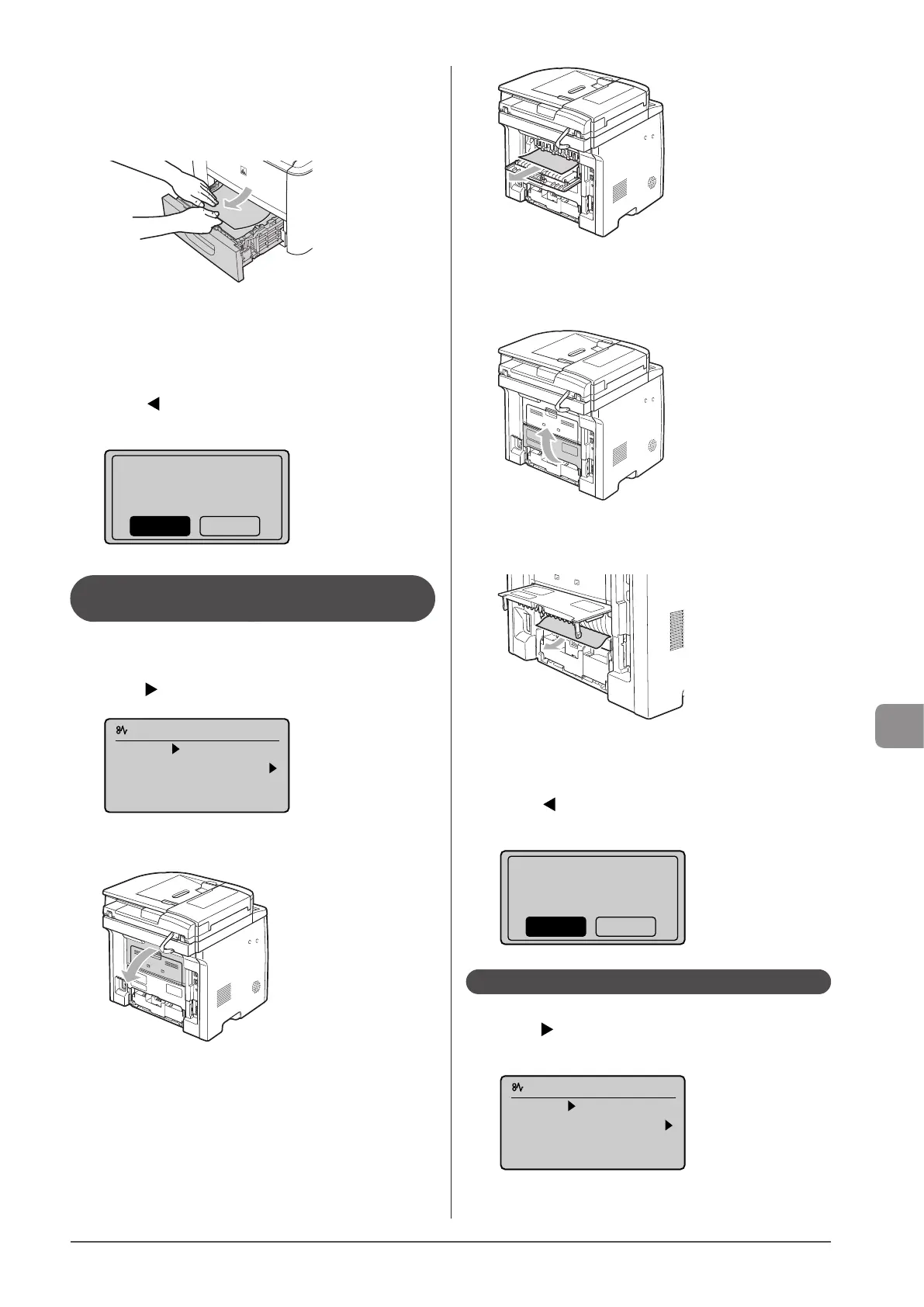
If paper is jammed in the optional paper drawer (Drawer 2), also
pull out this drawer halfway.
3 Remove the jammed paper by pulling it out
gently.
4 Set the paper drawer.
If the optional paper drawer (Drawer 2) is installed, close the
optional paper drawer also.
5 When the following screen appears, select <Yes>
using [ ] and press [OK].
The machine is ready to print.
Is all of the jammed
paper removed?
Yes No
Paper Jams in the Back Cover and Duplex
Unit
Referring to the procedure on the display, follow the steps
below to remove jammed paper.
1 Press [ ].
Paper jam.
Press [ ] to
display steps.
(End: Press OK)
2 Open the back cover.
3 Remove the jammed paper by pulling it out
gently.
4 Close the back cover.
5 Open the lower rear cover.
6 Remove the jammed paper by pulling it out
gently.
7 Close the lower rear cover.
8 When the following screen appears, select <Yes>
using [ ] and press [OK].
The machine is ready to print.
Is all of the jammed
paper removed?
Yes No
Paper Jams in the Front Cover
1 Press [ ].
Press [OK] to exit the operation screen.
Paper jam.
Press [ ] to
display steps.
Close back cover
if it is open.







 To Next Page