7-2
Using the Scan Functions
Scanning Using Keys on the Operation
Panel
You can scan a document using the keys on the operation
panel.
Note
To scan documents by operating
See “Scan” in the e-Manual.
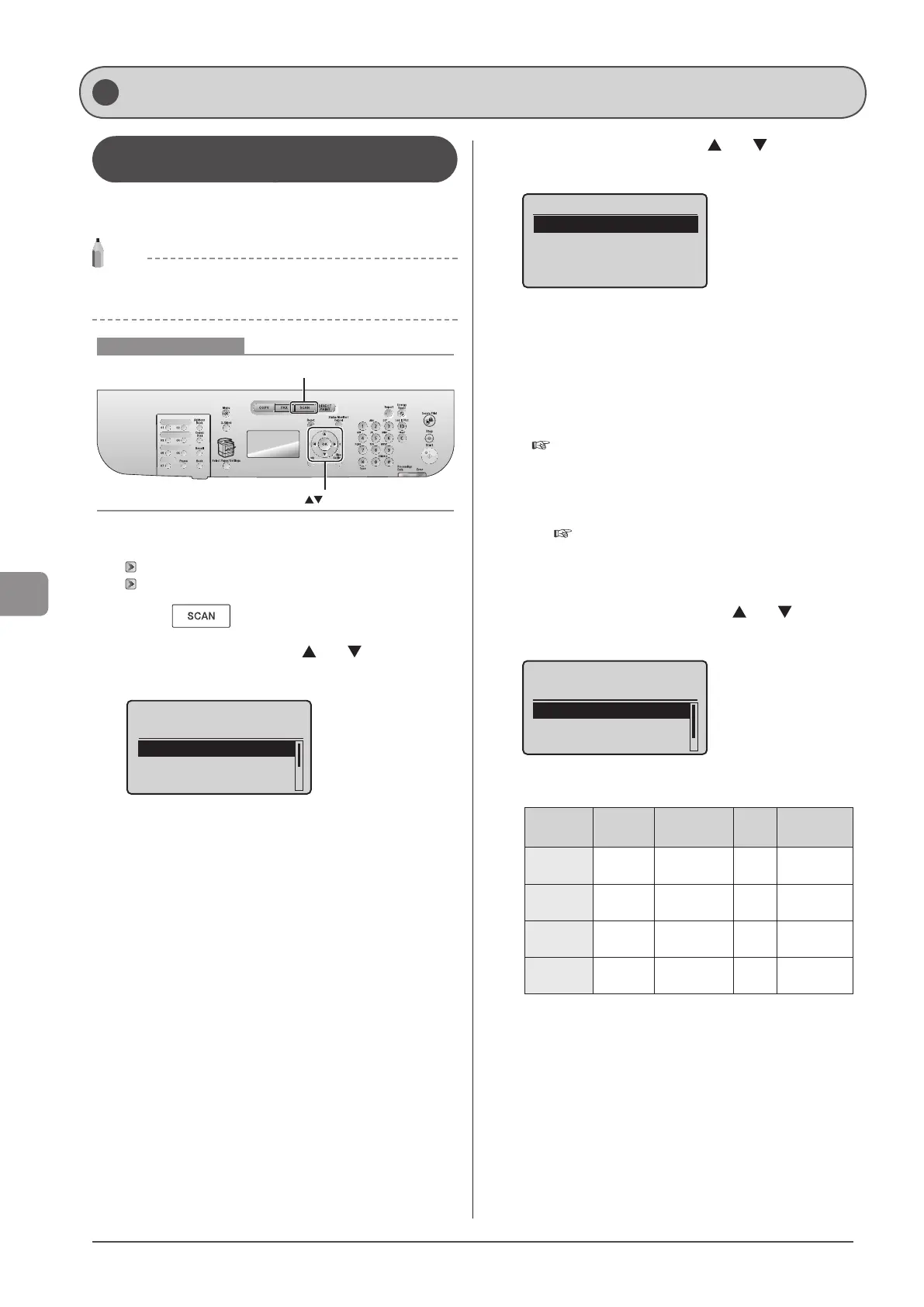
Keys to be used for this operation
OK
SCAN
1 Place your document.
“Loading Paper” (→P. 2-9)
“Supported Document Types” (→P. 2-2)
2 Press [ ].
3 Select <Computer> using [ ] or [ ] and press
[OK].
Select the scan type.
Computer
Remote Scanner
Memory Media
4 Specify a destination using [ ] or [ ] and press
[OK].
Specify destination.
EXAMPLE1
EXAMPLE2
• When multiple computers are connected the computer
connected by a USB cable is listed at the top.
• When a computer is connected by a USB cable this screen is not
displayed.
• If more than ten computers are connected via a network the
eleventh and subsequent computers are not displayed (you
cannot scan). Reduce the number of computers connected to
this machine via a network.
e-Manual→Scanning→Scanning Paper Documents
and Saving Them to a Computer (USB & Network
Connection)→Registering the Scanner in MF Network Scan
Utility
* You can change the names for the displayed computers.
e-Manual→Scanning→Scanning Paper Documents
and Saving Them to a Computer (USB & Network
Connection)→Using the MF Toolbox
5 Specify the scan settings using [ ] or [ ] and
press [OK].
Select Scan Type
Scan: Press OK
Color Scan
B&W Scan
Custom 1
Scanning operation starts.
The scanner settings are specified by default as follows.
Scan
Mode
Resolution
File
Type
PDF
Settings
Color Scan Color 300 dpi PDF
Searchable/
Compact
B&W Scan
Black and
White
300 dpi TIFF -
Custom 1 Color 300 dpi
JPEG/
Exif
-
Custom 2 Color 300 dpi PDF
Searchable/
Standard
Scanning from the feeder
After saving the document, the display returns to the basic
scanning screen.
Scanning from the platen glass
Proceed to Step 6
Basic Scan Operations







 To Next Page