9-4
Troubleshooting
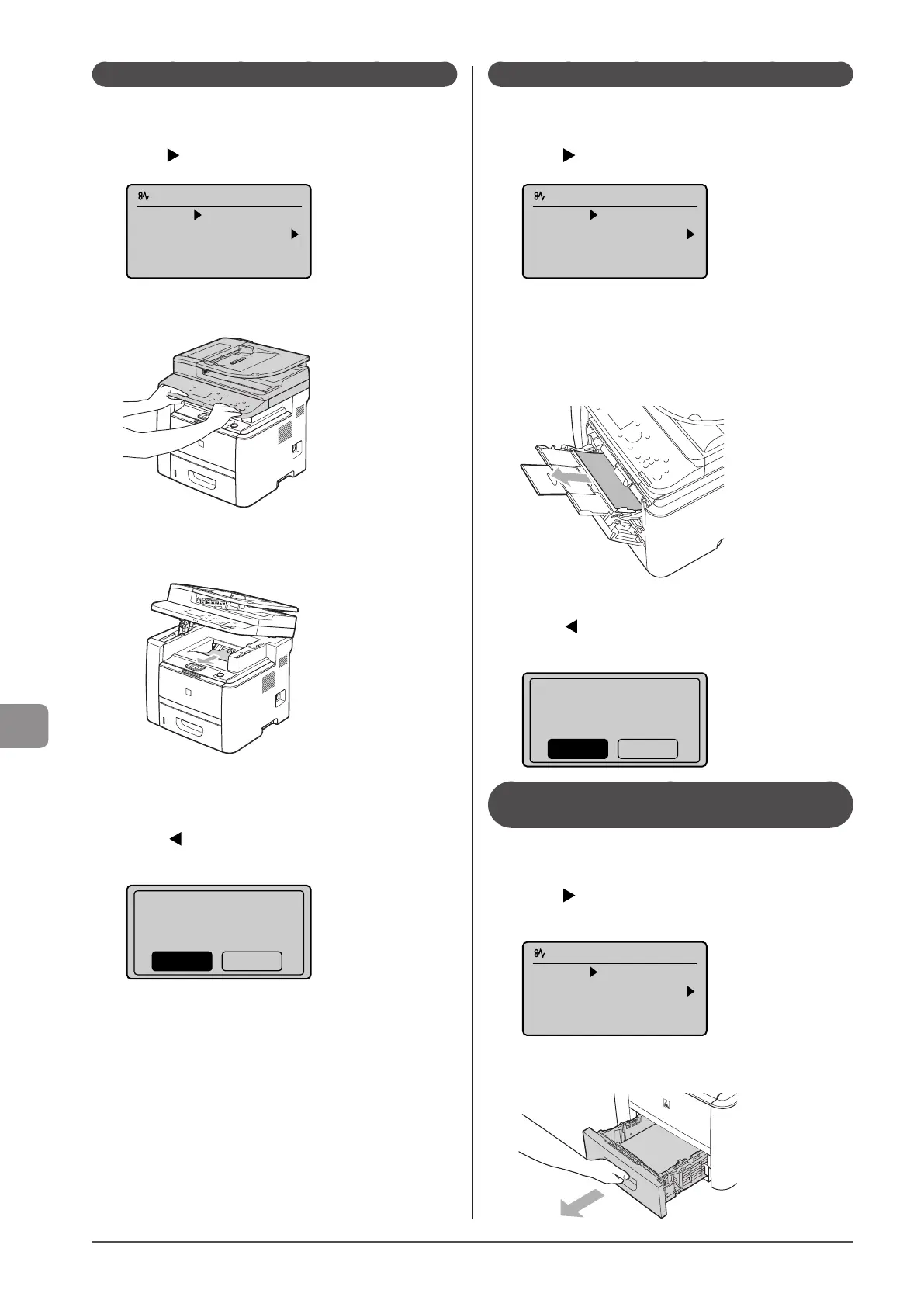
Paper Jams in the Output Area
Referring to the procedure on the display, follow the steps
below to remove jammed paper.
1 Press [ ].
Paper jam.
Press [ ] to
display steps.
(End: Press OK)
2 Lift the scanning platform.
3 Remove the jammed paper by pulling it out
gently.
4 Lower the scanning platform.
5 When the following screen appears, select <Yes>
using [ ] and press [OK].
The machine is ready to print.
Is all of the jammed
paper removed?
Yes No
Paper Jams in the Multi-Purpose Tray
Referring to the procedure on the display, follow the steps
below to remove jammed paper.
1 Press [ ].
Paper jam.
Press [ ] to
display steps.
(End: Press OK)
2 Remove the jammed paper by pulling it out
gently.
If it cannot be removed easily, do not pull it out forcibly. Perform
the procedure at the position that is indicated on the message
display.
3 When the following screen appears, select <Yes>
using [ ] and press [OK].
The machine is ready to print.
Is all of the jammed
paper removed?
Yes No
Paper Jams in the Paper Drawer (Drawer
1 or 2)
Referring to the procedure on the display, follow the steps
below to remove jammed paper.
1 Press [ ].
Press [OK] to exit the operation screen.
Paper jam.
Press [ ] to
display steps.
(End: Press OK)
2 Pull out the paper drawer halfway.







 To Next Page