7-16
Troubleshooting
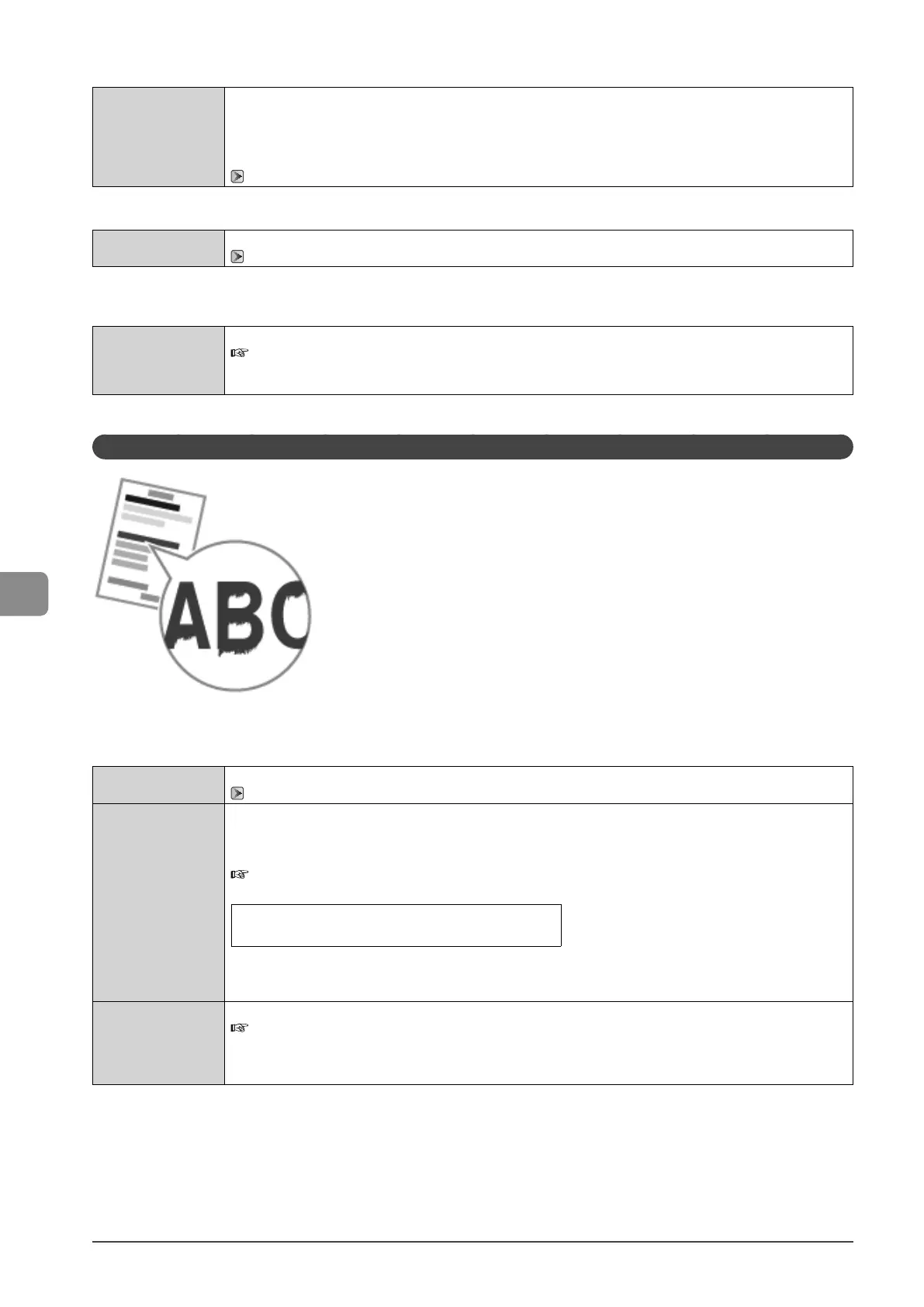
<Cause 1> Paper type setting is not specified properly.
Solution
Properly specify the paper type setting.
* If you are using coarse paper, select one of the followings.
• <Rough 1 (16 lb Bond-24 lb Bond)>
• <Rough 2 (24 lb Bond-32 lb Bond)>
• <Rough 3 (45 lb Cover-60 lb Cover)>
“Setting a Paper Size and Type” (→P.2-14)
<Cause 2> Appropriate paper is not being used.
Solution
Replace the paper with which can be used with this printer.
“Paper Requirements” (→P.2-6)
<Cause 3> Depending on the environment (in low temperature environments), toner may not be fixed sufficiently, and
output may be less clear.
Solution
Change the <Special Mode K> setting to <On> from the operation panel.
e-Manual → Maintenance → Special Mode
* Change of environment may improve the toner fixation, even without changing the setting.
* If you use this mode, printing speed becomes slow.
The Printed Paper Has Vertical Streaks
Perform one of the following solutions according to the cause.
<Cause 1> Depending on the paper type or the operating environment, vertical streaks may appear on the printed paper.
Solution 1
Replace the paper with new paper in an unopened package.
“Paper Requirements” (→P.2-6)
Solution 2
When copying
Change the <Special Mode Z> setting from the operation panel.
When printing from a computer
Change the [Special Print Adjustment] setting from the print driver.
e-Manual → Maintenance → Special Mode
The level of improvement according to the setting option is as following.
<Off> → <Mode 1> → <Mode 2> → <Mode 3> → <Mode 4>
(low)
(high)
* Change of paper type or environment may reduce the streaks, even without changing the setting.
* As you select an option that has higher effect, printing density becomes lower. Outlines of printed text or images
may be less clear, or images may be slightly jagged.
Solution 3
Change the <Special Mode D> setting to <On> from the print driver.
e-Manual → Maintenance → Special Mode
* Change of paper type or environment may reduce the streaks, even without changing the setting.
* This mode is more effective than <Special Mode Z>, however, printing speed becomes slow.
* This mode has higher priority than <Special Mode Z>.














 To Next Page