3-6
Copying
Copy Settings
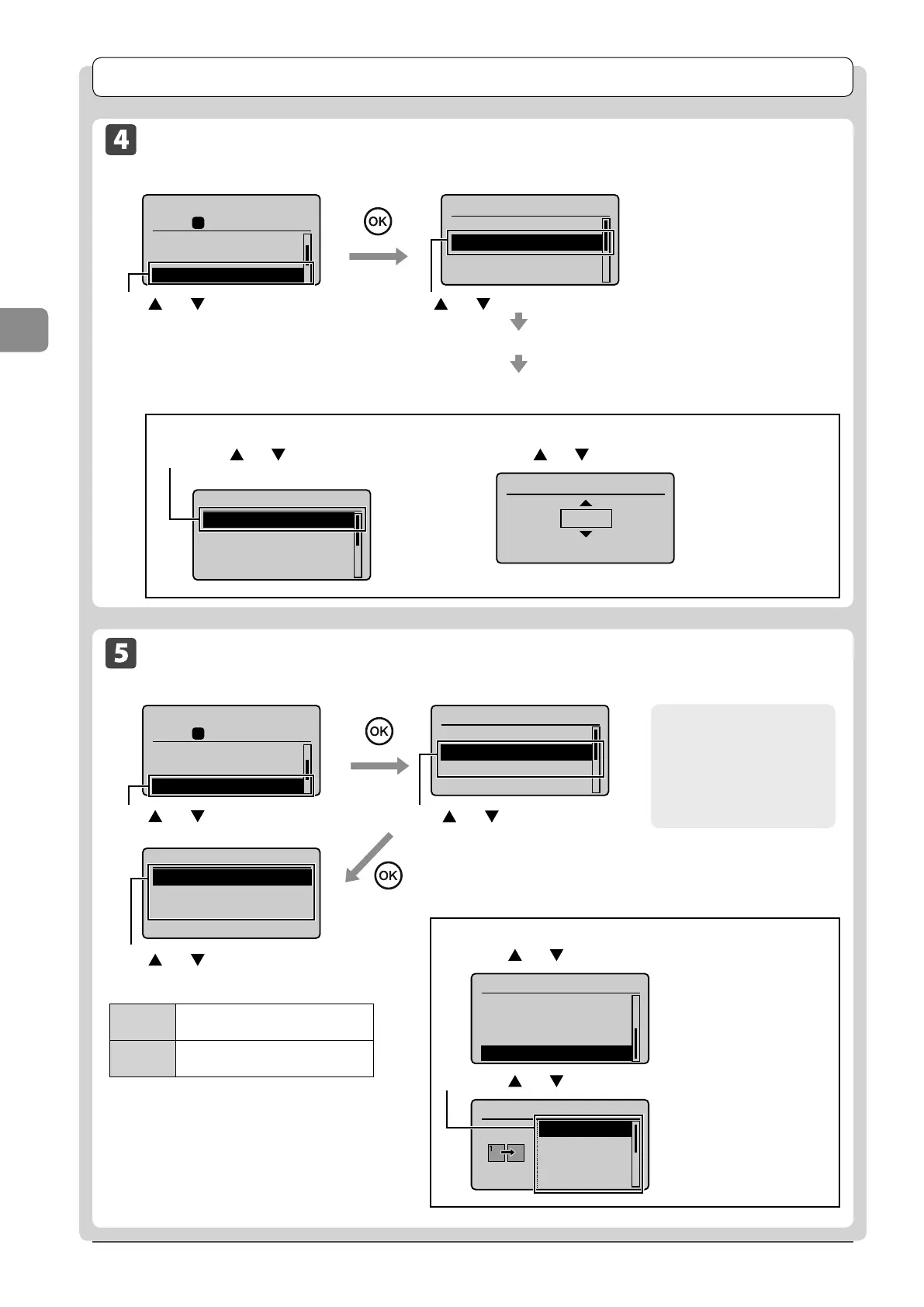
Enlarging/Reducing Copies
Copy mode screen Setting screen
Copy: Press Start
100% LTR
Original Type: Text
...
2-Sided: Off
Copy Ratio: 100% Dir
1
01
Copy Ratio
Custom Ratio
100% Direct
400% Max
200%
Press [
] or [ ] to select the copy ratio → [OK]
Load paper of the output size (→P.2-9)
Register the output paper size (→P.2-14)
For the preset zoom, you can select
from the following setting values.
• 100% Direct • 50%
• 400% Max • 25% Min
• 200%
• 129% STMT → LTR
• 78% LGL → LTR
• 64% LTR → STMT
For custom ratio
(1) Press [
] or [ ] to select <Custom Ratio>
→ [OK]
Copy Ratio
Custom Ratio
100% Direct
400% Max
200%
(2) Press [ ] or [ ] to specify the ratio → [OK]
Custom Ratio
100 %
(25-400)
Press [ ] or [ ] to select <Copy
Ratio>
Multiple Documents onto One Sheet (N on 1)
Copy mode screen Setting screen
Copy: Press Start
100% LTR
2-Sided: Off
Copy Ratio: 100% Di
...
N on 1: Off
1
01
N on 1
Off
2 on 1
4 on 1
ID Card Copy
Scan Size
LTR
LGL
STMT
Press [
] or [ ] to select
<2 on 1> or <4 on 1>
Press [
] or [ ] to select the size of the
original document → [OK]
Press [ ] or [ ] to select <N on 1>
About margins among
documents
When you copy in an N
on 1 layout, margins are
created among the reduced
documents.
When specifying the layout
(1) Press [
] or [ ] select <Select Layout> → [OK]
N on 1
2 on 1
4 on 1
ID Card Copy
Select Layout
(2) Press [ ] or [ ] select the layout → [OK]
Select Layout
2 on 1 (1)
2 on 1 (2)
4 on 1 (1)
4 on 1 (2)
<2 on 1>
Reduce two-page documents to fit
on one sheet of paper.
<4 on 1>
Reduce four-page documents to fit
on one sheet of paper.














 To Next Page