3-4
Copying
Copy Settings
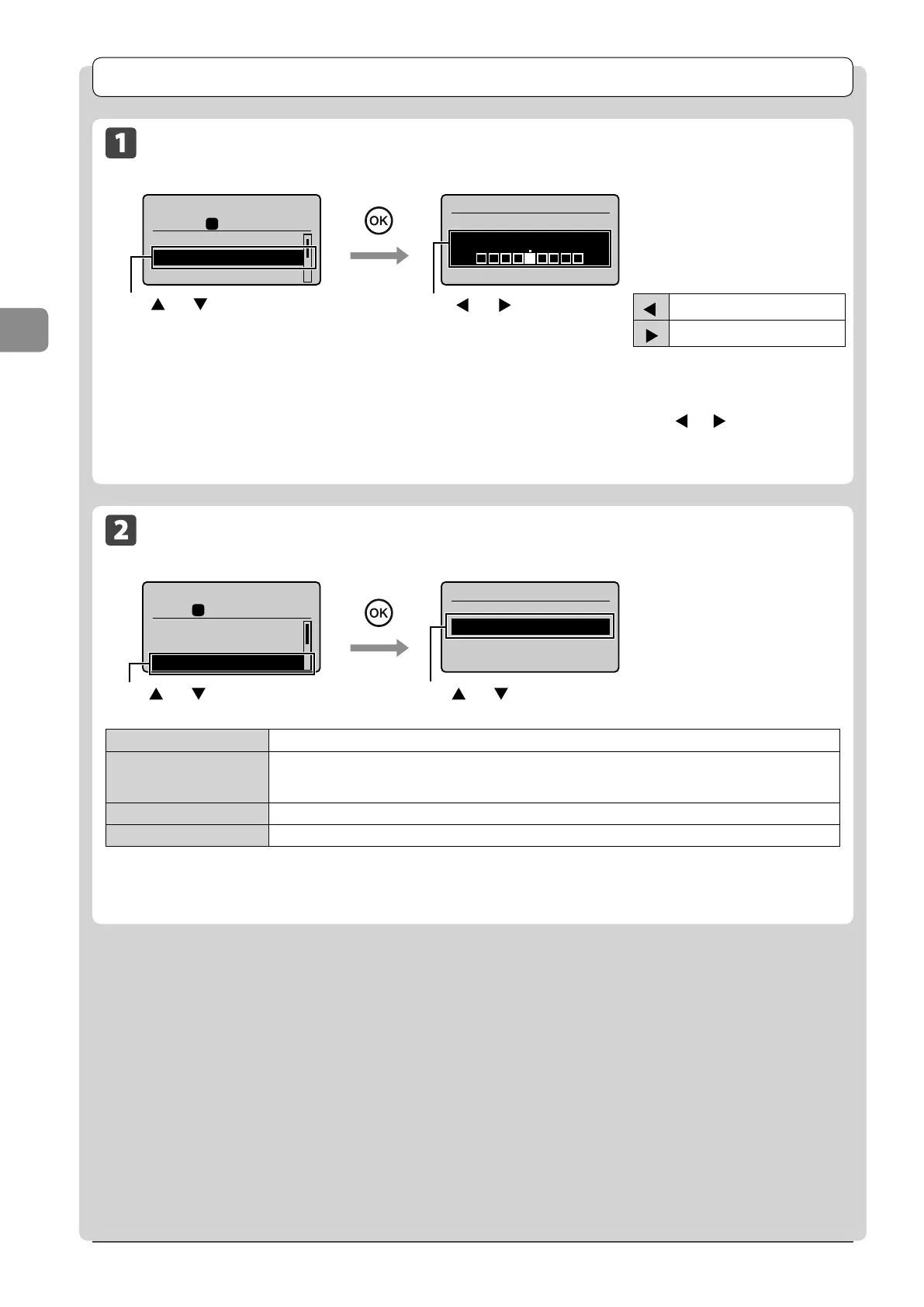
Adjusting the Density
Copy mode screen Setting screen
1
01
Copy: Press Start
100% LTR
No. of Copies: 1
Density: 0
Original Type: Text
...
+
-
Density
Auto Density
Manual Density
- +
Press [ ] or [ ] to adjust the
density → [OK]
* Select <Auto Density> to copy with the density that is suitable for the
document. If other than <Text> is set as <Original Type>, <Original Type> will
be changed to <Text> when you select <Auto Density>.
* You can adjust <Manual Density> by pressing [ ] or [ ], when either of
<Auto Density> or <Manual Density> is selected.
[
]
Makes the copy density lighter.
[
]
Makes the copy density darker.
Press [ ] or [ ] to select
<Density>
Selecting Image Quality (Copy)
Copy mode screen Setting screen
Copy: Press Start
100% LTR
No. of Copies: 01
Density: 0
Original Type: Text/
1
+
-
01
Original Type
Text
Text/Photo (High Spee
Text/Photo
Photo
<Text> This setting is suitable for documents that contain text without photos or illustrations.
<Text/Photo (High Speed)>
This setting is suitable for documents that contain text and photos. This setting scans the document at a low
resolution.
This setting scans the document at a low resolution.
<Text/Photo> This setting is suitable for documents that contain text and photos.
<Photo> This setting is suitable for the documents that contain photos printed in a magazine.
Press [ ] or [ ] to select the appropriate settings
for the document →[OK]
Press [ ] or [ ] to select <Original
Type>
* If <Density> is set to <Auto Density>, <Density> will be changed to <Manual Density> when you select <Text/Photo (High Speed)>,
<Text/Photo>, <Photo>.














 To Next Page