3-5
Copying
Copy Settings
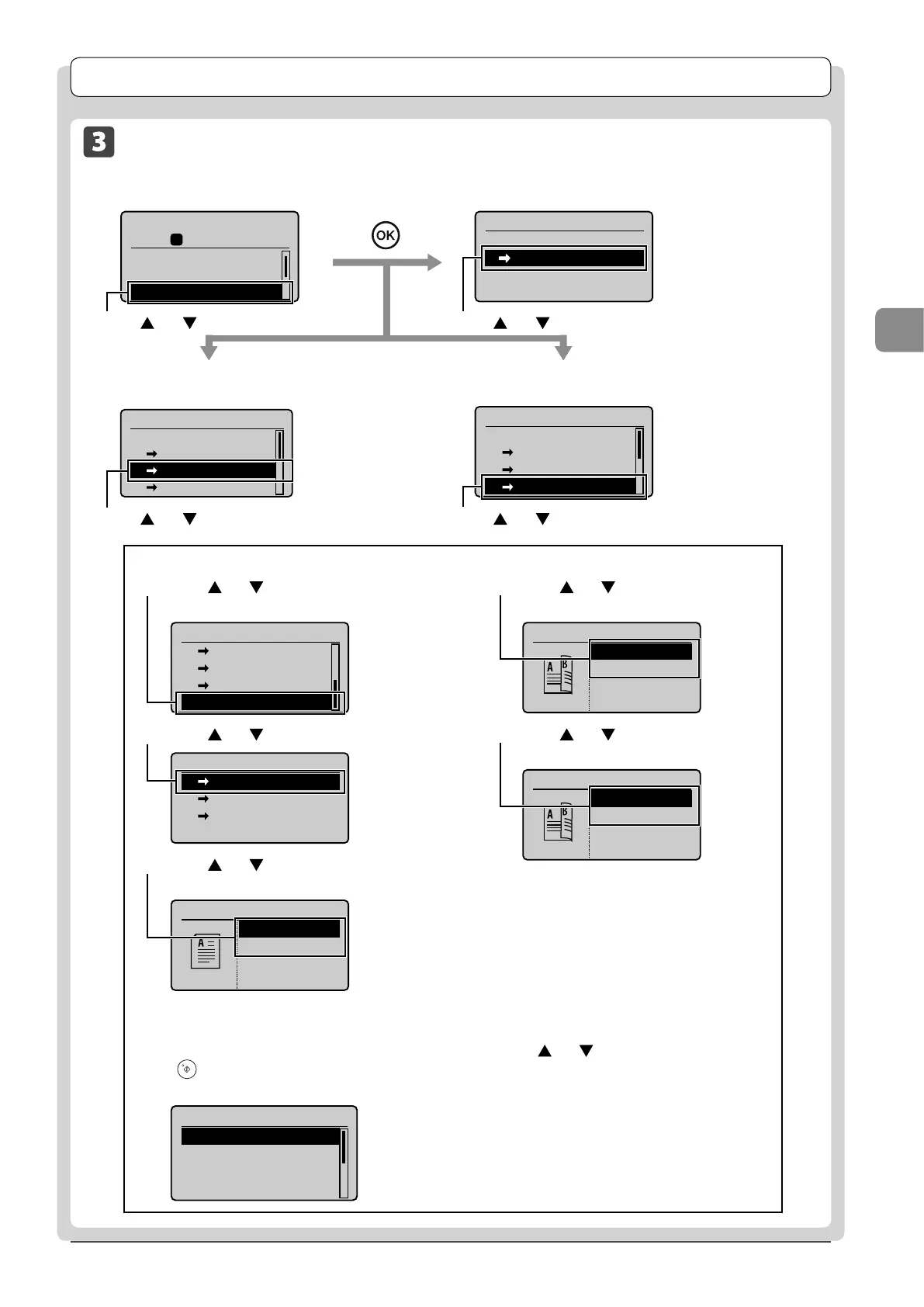
2-Sided Copying
Copy mode screen Setting screen
Copy: Press Start
100% LTR
Density: 0
Original Type: Text
...
2-Sided: Off
1
+
-
01
2-Sided
Off
1 2-Sided
Format Settings
Setting screen Setting screen
2-Sided
Off
1 2-Sided
2 2-Sided
2 1-Sided
2-Sided
Off
1 2-Sided
2 2-Sided
2 1-Sided
Press [ ] or [ ] to select <1→2-Sided> → [OK]
Press [
] or [ ] to select <2→1-Sided> → [OK]
Press [ ] or [ ] to select <2-Sided>
Press [
] or [ ] to select <2→2-Sided> → [OK]
If you want to specify 2-Sided copying format
(1) Press [
] or [ ] to select <Format Settings>
→ [OK]
2-Sided
1 2-Sided
2 2-Sided
2 1-Sided
Format Settings
(2) Press [ ] or [ ] to select <1 →2-Sided> → [OK]
Format Settings
1 2-Sided
2 2-Sided
2 1-Sided
(3) Press [ ] or [ ] to select the orientation
of the document → [OK]
Original Orientation
Portrait
Landscape
(4) Press [ ] or [ ] to select the original
format → [OK]
Original Format
Book Type
Calendar Type
(5) Press [ ] or [ ] to select the finishing
format → [OK]
Finishing Format
Book Type
Calendar Type
If you place documents on the platen glass
(1) Place the next document, and the press
[
] (Start).
* Repeat the procedure until all documents are scanned.
Scan Next: Press Start
<Start Copying>
<Cancel>
SheetxCopy:001x01
Density: 0
+
-
(2) Press [ ] or [ ] to select <Start Copying>,
and then press [OK].
● 1-sided documents → 2-sided copies
● 2-sided documents → 1-Sided copies ● 2-sided documents → 2-sided copies














 To Next Page