7-4
Troubleshooting
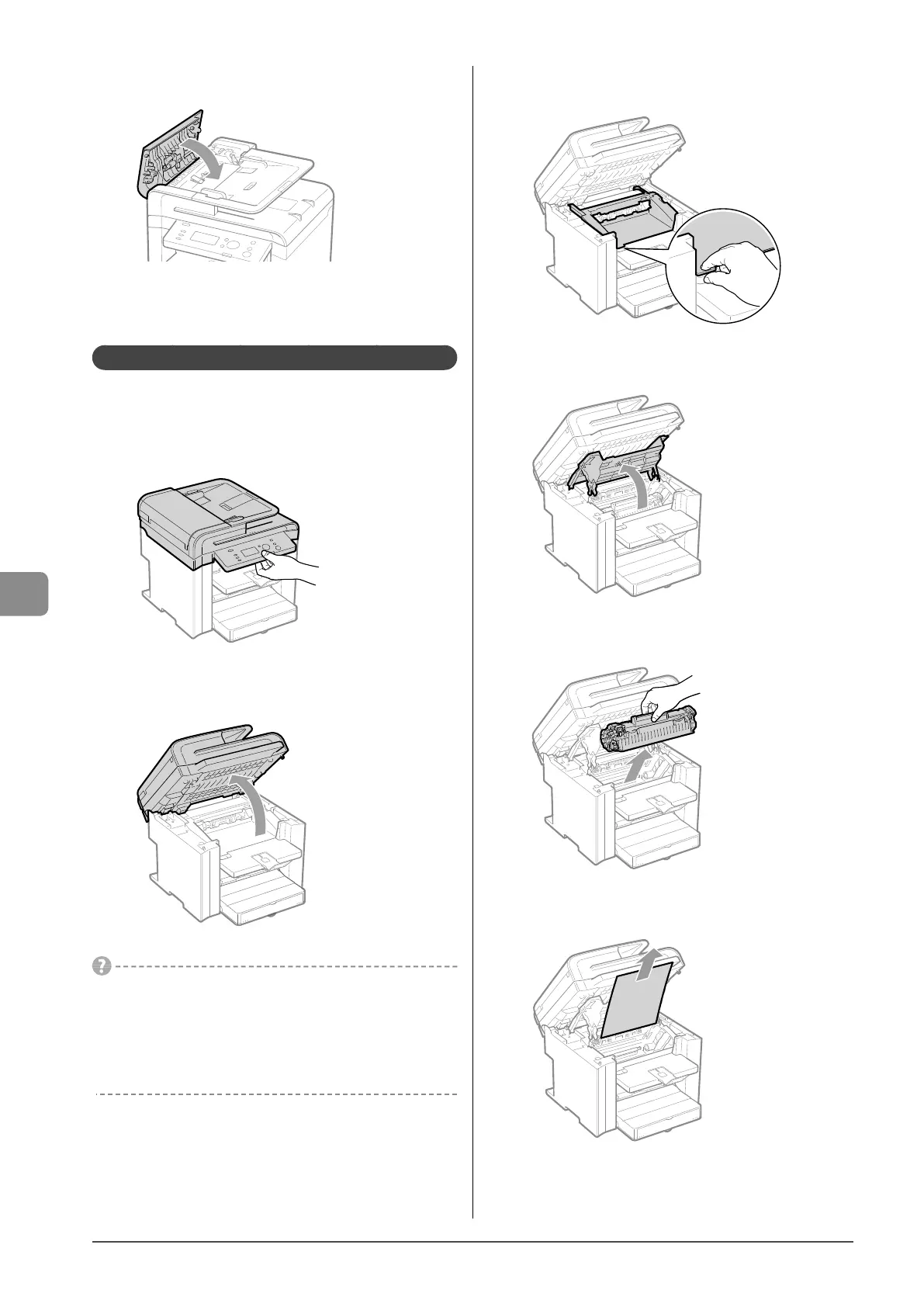
9 Close the feeder cover.
10
Place documents in the feeder.
Paper Jams Inside the Machine
Referring to the procedure on the display, follow the steps
below to remove jammed paper.
1 Hold the operation panel.
2 Lift the scanning platform.
If you cannot lift the scanning platform
Ensure that the feeder is completely closed.
Do not try to forcefully lift the scanning platform, as this may
damage the machine.
* If you set thick documents such as a book, the feeder may not be
completely closed. Remove the documents.
3 Hold the grip on the left front side of the toner
cover.
4 Open the toner cover.
5 Remove the toner cartridge.
6 Remove any jammed paper by pulling it gently.
If you do not see the leading edge of the jammed paper
Do not force to pull the paper, and proceed to step 7.














 To Next Page