3-3
Copying
Checking and Canceling Copy Jobs
You can check detailed information about copy jobs. Also, you
can cancel copy jobs while the jobs are in process.
NOTE
If the processing/Data indicator on the operation panel
is:
Turned on/blinking A job is being processed.
Turned off No jobs are in the memory.
Canceling using the Stop Key
1 Press [ ] (Stop).
* If only one job is processing or waiting, you can stop the job by
pressing [ ] (Stop) twice.
2 When multiple jobs are being processed, press
[ ] or [ ] to select a job to be canceled, and then
press [OK].
3 When <Cancel?> appears, press [ ] or [ ] to
select <Yes>, and then press [OK].
You can cancel the print job also by pressing [ ] (Stop).
The copy job is canceled.
Cancel?
<No>
<Yes>
Details
* To check the job before canceling, press [ ] or [ ] to select
<Details>, and then press [OK].
Checking and Canceling using the Status
Monitor/Cancel Key
1 Press [ ] (Status Monitor/Cancel).
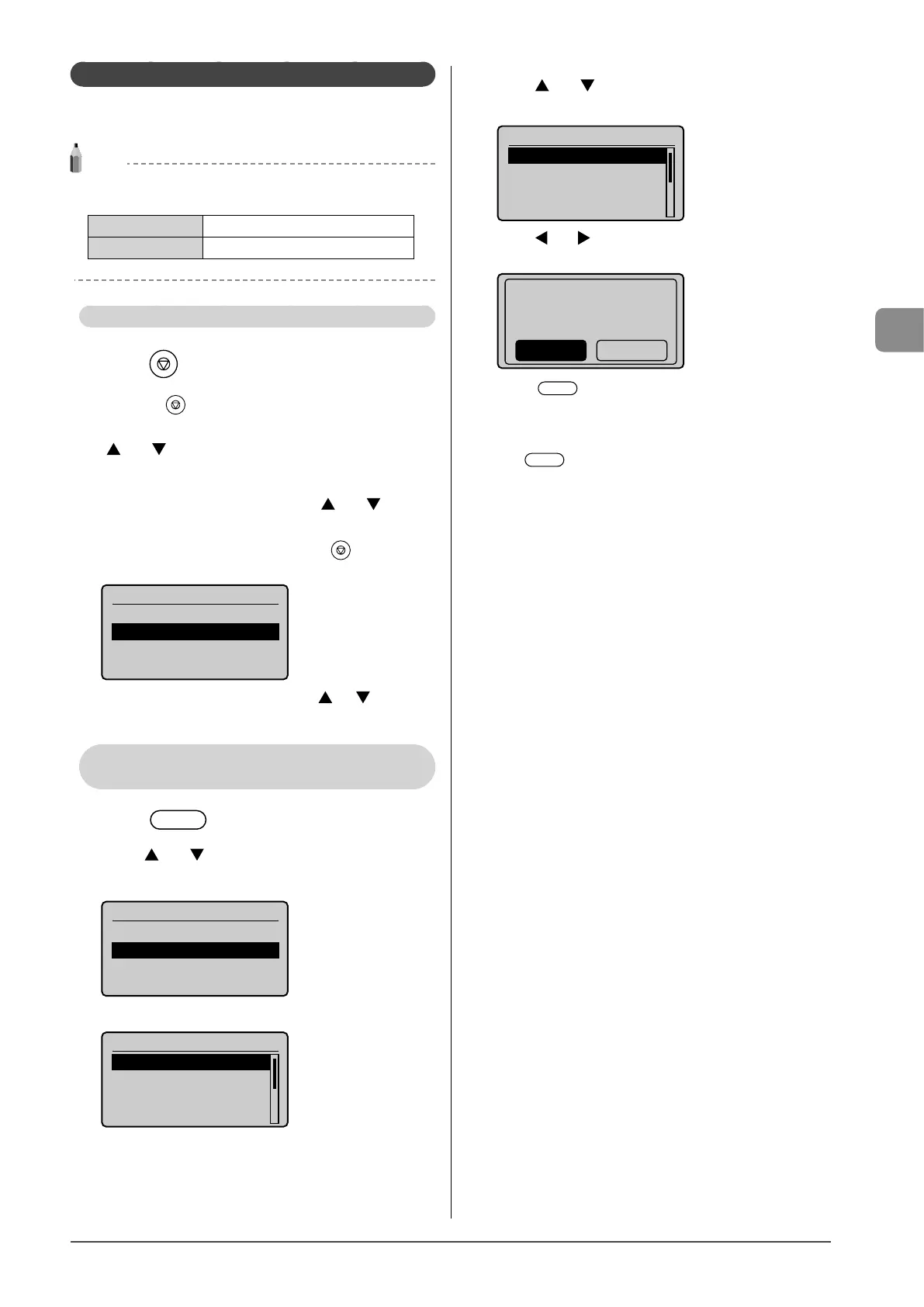
2 Press [ ] or [ ] to select <Copy Job Status>, and
then press [OK].
Status Monitor/Cancel
Device Status
Copy Job Status
Print Job Status
The detailed information is displayed.
Copy Job Status
<Cancel>
Job Number: 0001
Status: Copying
Time: 01/01 12:52 AM
● For canceling
(1) Press
[ ] or [ ]
to select <Cancel>, and then press
[OK].
Copy Job Status
<Cancel>
Job Number: 0001
Status: Copying
Time: 01/01 12:52 AM
(2) Press [ ] or [ ] to select <Yes>, and then press [OK].
The copy job is canceled.
Cancel?
NoYes
(3) Press [ ] (Status Monitor/Cancel) to close the
screen.
● For checking only
Press [
] (Status Monitor/Cancel) to close the screen.














 To Next Page