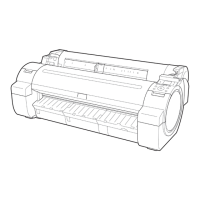
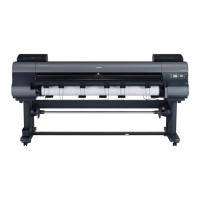
•
Printing Office Documents (Windows) →P.41
•
Printing Office Documents (Mac OS X) →P.42
Printing Office Documents (Windows)
Printing Office Documents (Windows)
This topic describes how to print office documents based on the following example.
•
Document: Office document created using word-processing or spreadsheet programs
•
Page size: A4 (210.0 × 297.0 mm [8.3 × 11.7 in])
•
Paper: Sheets
•
Paper type: Plain Paper
•
Paper size: A4 (210.0 × 297.0 mm [8.3 × 11.7 in])
1
Choose Print in the application menu.
2
Select the printer in the dialog box, and then display the printer driver dialog box.(See "Accessing the Printer
Driver Dialog Box from Applications(Windows) →P.183 ")
3
Make sure the Main sheet is displayed.
4
In the A Media Type list, select the type of paper that is loaded. In this case, click Plain Paper.
5
After confirming that D Easy Settings is selected, click Office Document in the E Print Target list.
Note
• You can check the settings values selected in the E Print Target list by clicking G View Settings.
iPF760
Printing Office Documents (Windows)
User's Guide
Enhanced Printing Options Printing Photos and Office Documents
41


 To Next Page
 Loading...