Operation
Overlap Control
Press the OVERLAP button to turn the overlap control on or off.
Overlap can be turned off for situations that include:
• Spraying Rinse Water
• Troubleshooting
• No GPS Signal
• Other
Mapping
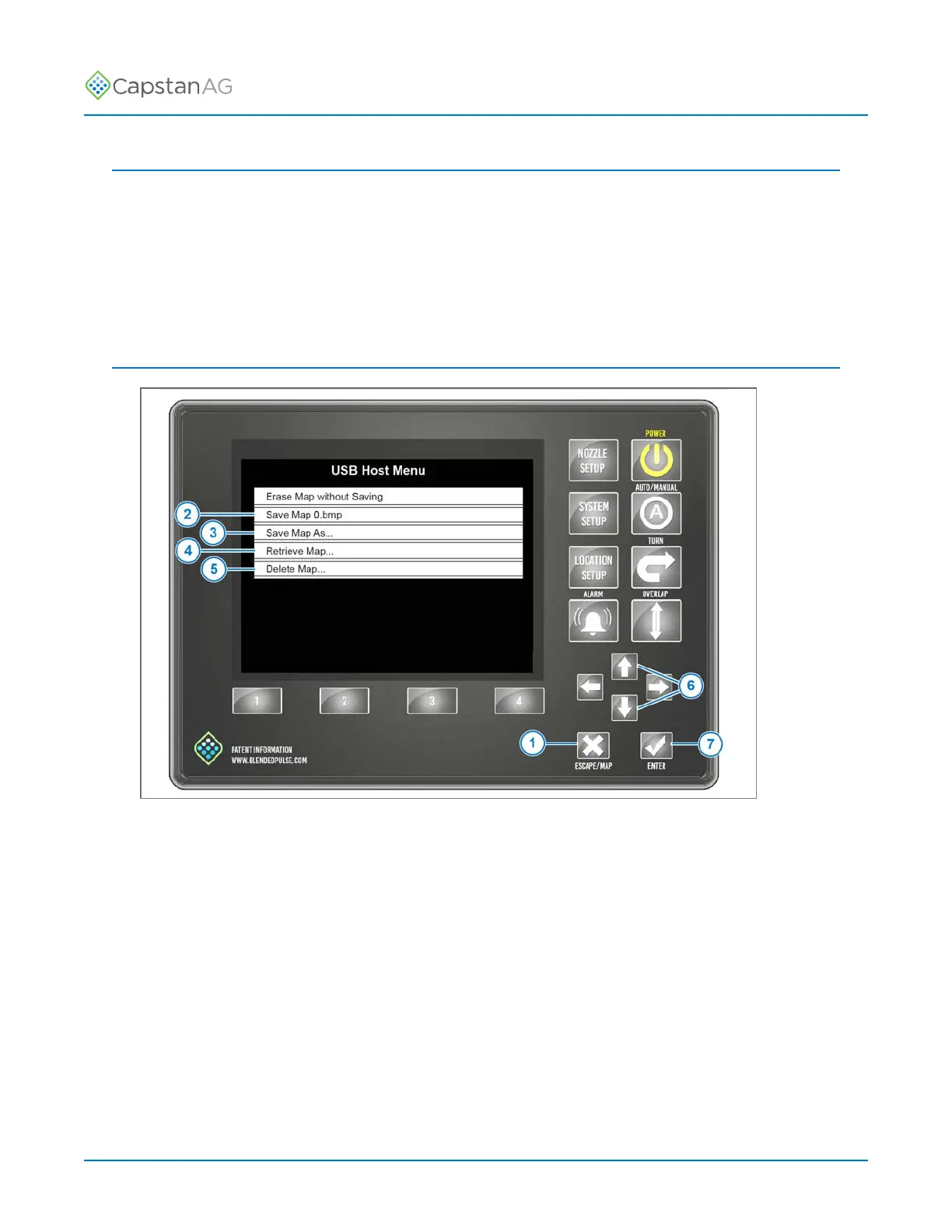
Fig. 39:
Make sure that the OVERLAP is off before you enter the MAP menu.
Press the ESCAPE/MAP button (1) to go to the Save Map Menu.
From the Save Map Menu, maps can be viewed, saved, deleted, moved, copied, etc.
Maps are stored in bitmap format and can be viewed with MS-Paint or a similar picture viewer
program.
Maps can also be made on CapMaps
™
Software on your computer and uploaded to the CapView
display. For more information, see CapMaps
™
—Boundary Mapping.
A new map is started when the CapView is turned on, and the OVERLAP button is selected.
The system establishes a map origin and must stay within a 3-mile radius of the origin point.
If the map range is exceeded, an error message will show (Map out of bounds), and the alarm will
sound.
If the Save Map #.bmp (2) is selected, the map will be saved, and a new map will start.
©
2020 Capstan Ag Systems, Inc. 79 PinPoint
™
II



 To Next Page