Operation
Convert a Shapefile into a PinPoint
™
II Map
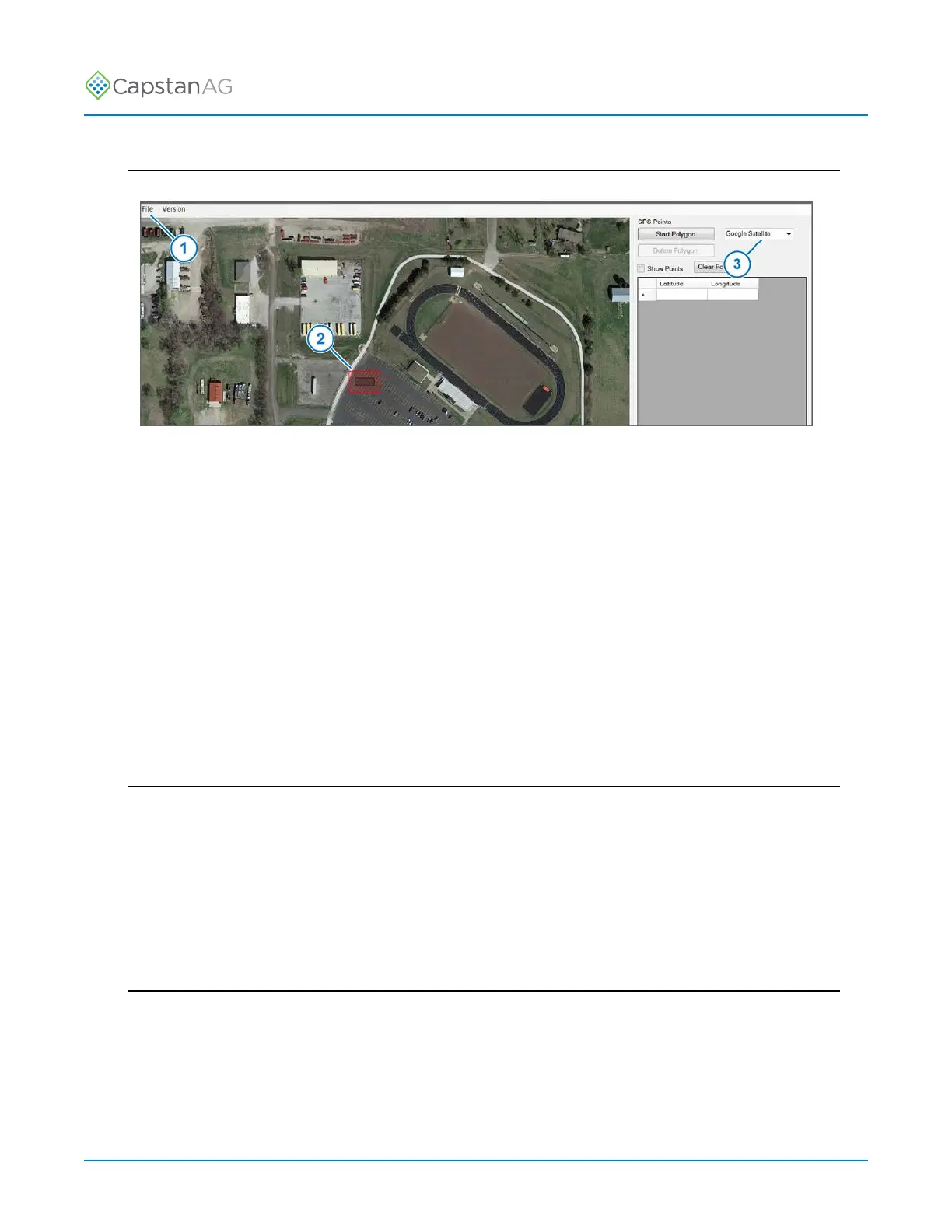
Fig. 50:
1. Open the CapMaps
™
Software shapefile converter application.
2. Go to: File > Open Shapefile (1).
3. Select the desired shapefile to open.
The shapefile will show in red (2) on the Google map.
4. If desired, change the type of map (3) that you would like to view.
• Google Maps
• Google Earth/Satellite
• Wiki Maps
• Open cycle maps
• Closed cycle maps
5. To save a shapefile as a PinPoint II boundary files, select File > Save As PinPoint II Map.
Important: Make sure that you save the map to an external memory device, like a thumb drive.
Convert a Batch of Shapefiles to PinPoint
™
II Maps
1. Open the CapMaps
™
software shapefile converter application.
2. Go to: File > Batch PinPoint 1 Map Conversion.
3. Select the desire shapefiles to convert.
All converted shapefiles will save as PinPoint II Maps to the external memory device with the
same name as the original files.
4. To view the converted shapefiles, select: File > Open Shapefile and select the desired file.
Uninstall the CapMaps
™
Software
If you have a previous version of the CapMaps
™
Software on your computer, you must uninstall that
version before installing a new version of the software.
©
2020 Capstan Ag Systems, Inc. 87 PinPoint
™
II



 To Next Page