Operation
Select Save Map As... (3) to give the map a specific name.
Select Retrieve Map... (4) to load a map that has already been made.
Select Delete Map... (5) to delete the current map.
RECOMMENDATION: If you are done spraying the field, select Delete Map....
Press the UP or DOWN arrow buttons (6) to select the desired map setting.
Press the ENTER button to save.
To shortcut to the Save Map Menu, press the ESCAPE button (7).
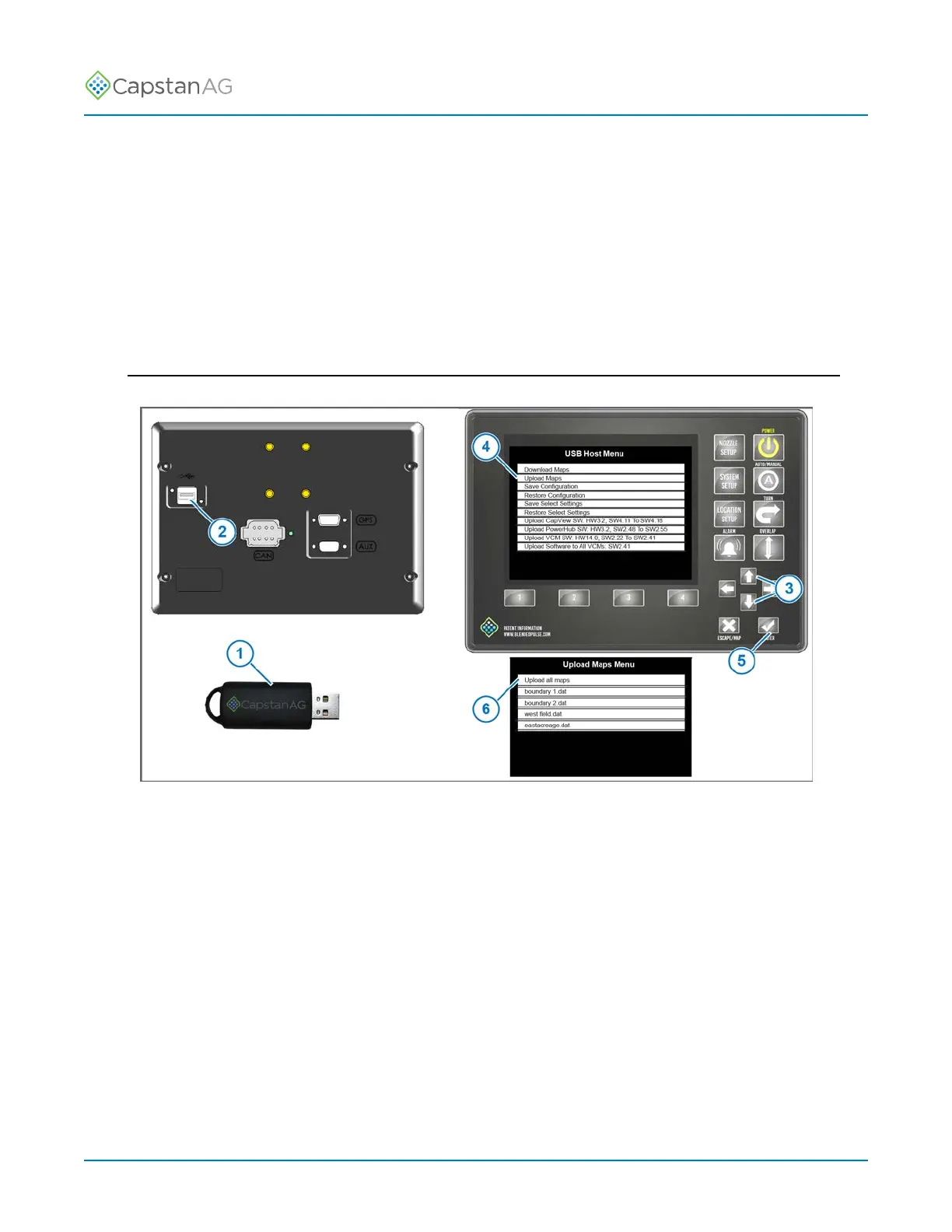
Upload a Boundary File to the CapView
Fig. 40:
1. Insert the thumb drive (1) into the back of the CapView display (2).
The USB Host Menu will show on the display screen.
2. Use the up or down arrow button (3) to select Upload Maps (4).
3. Press the ENTER button (5).
The Upload Maps Menu will show.
4. Select the desired map(s) or select Upload all maps (6).
5. Press the ENTER button.
The upload is complete when the blue scroll bar at the bottom of the screen disappears.
6. Remove the thumb drive from the CapView.
©
2020 Capstan Ag Systems, Inc. 80 PinPoint
™
II



 To Next Page