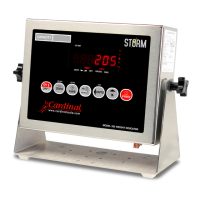
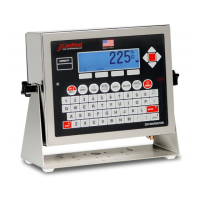
8200-0753-0M Rev A 225D Weight Digital Indicator
Calibration
If, after test loading the scale, it is determined that adjustments are required, follow the
procedure below. Note that this section describes the procedure necessary to calibrate a
Digital Truck Scale.
1. Before any adjustments are made, turn on the power to the 225D indicator.
2. Drive a test truck across the scale at least three times in each direction prior to
calibrating the scale.
3. Before sealing can be done, the 225D indicator must be calibrated to the scale. A
division size of 10 lbs should be selected and the auto-zero function turned off. Refer to
the standard 225 Weight Indicator Installation and Technical Manual, 8200-M698-O1.
All digital cells are pre-calibrated in the factory for span. That means that span calibration is
not necessary to start making weights. Only a zero calibration is necessary. However, a Smart
Calibration is still usually necessary to trim the corners and sections of a scale.
Navigating to the DLC Calibration Menu
1. Enter SETUP by pressing SHIFT+RED_KEY.
2. Press ENTER.
3. Press DOWN to get to SETUP MENU #2.
4. Select SETUP SCALE #X where ‘X’ is the scale number.
5. Press DOWN to get to SCALE X SETUP MENU #2.
6. Enter 10 and press ENTER to open the DLC calibration menu.
1. SMART CALIBRATION
2. ZERO CALIBRATION
3. TRIM CELL(S)
4. SPAN ADJUST
Enter Selection: 0
EXIT


 To Next Page