11
4.1 - Touch screen display
SmartVu
TM
is a 4.3-inch colour touch screen with quick display
of alarms, current unit operating status, etc. It allows for web
connectivity and custom language support (control parameters
displayed in the language selected by the user).
■ If the touch screen is not used for a while, the screen backlight
will be turned o. The control system is always active and
the operating mode remains unchanged. Press anywhere on
the screen and the Home screen will be displayed.
■ It is recommended to use a stylus for the navigation via the
touch screen (not provided with the controller).
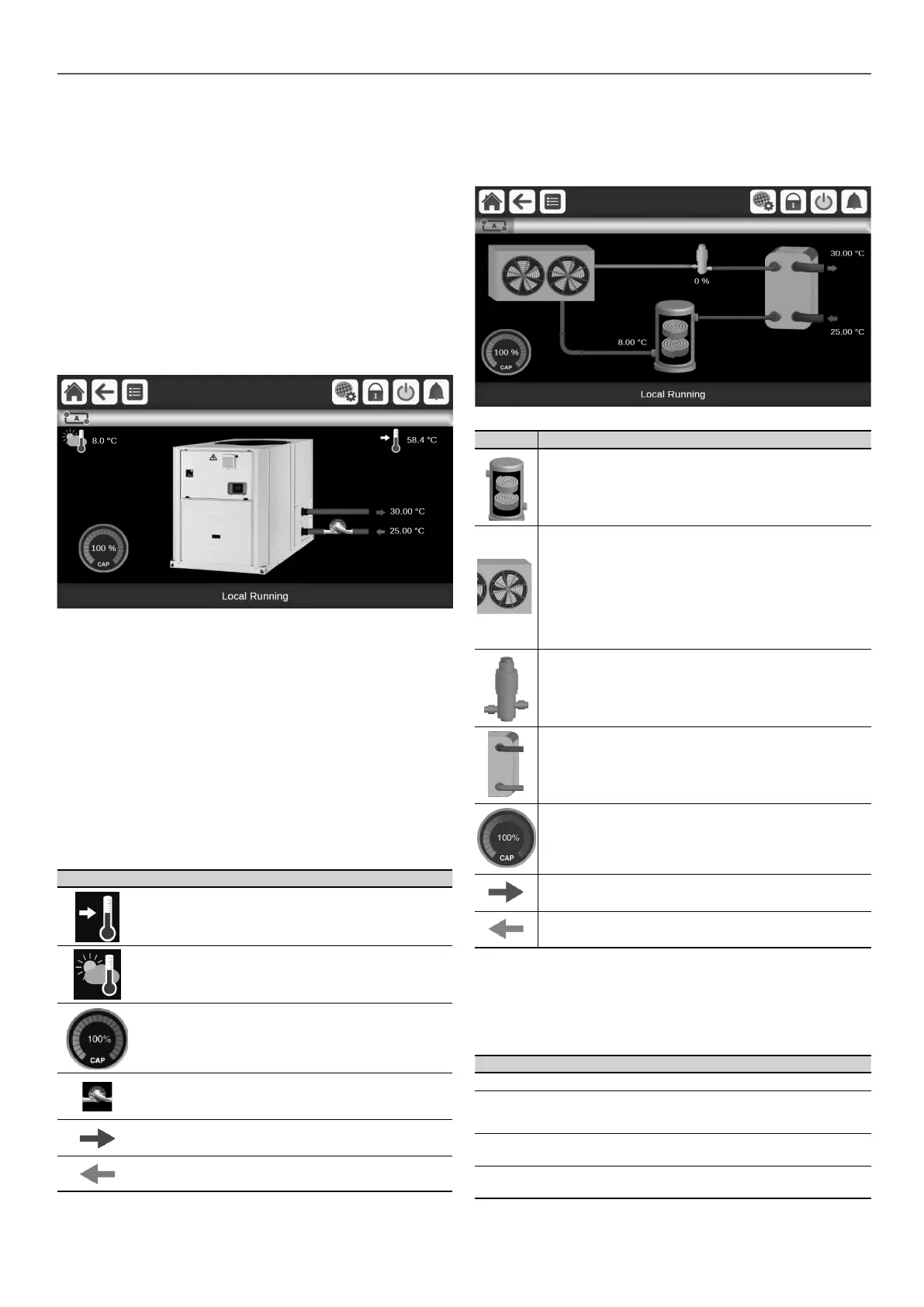
4.2 - Home screen (synoptic view)
The home screen is the starting point of the controller. It is also
the rst screen shown after starting the user interface.
B
D
E
C
Example: Home screen (web interface)
The picture of the synoptic view presented above includes the
subheader which is displayed only when the controller is accessed
via the web interface (see section 7.1).
Legend
1. Header buttons (see section 4.5)
2. Subheader buttons (see section 4.6)
3. Synoptic view / Circuit view (see section 4.3)
4. Information message box (see section 4.4)
Please note that the picture of the chiller is for illustration only and it
may dier from the actual look of the chiller that is available on eld.
The picture of the chiller displayed on the home screen differs
depending on the unit size.
The home screen allows you to monitor basic information about
the operation of the chiller and its working conditions.
Icon Description
Setpoint: This parameter is used to display the
currently selected setpoint. Press the icon to modify the
setpoint (possible only when logged in!).
Outdoor Air Temperature (OAT): This parameter is
displayed only in case of units tted with OAT sensor.
Unit capacity: The gauge shows current unit capacity.
Pump status: Press the icon to go to pump
parameters. The pump image is animated when the
ow switch is “on”.
Leaving Water Temperature: This parameter shows
current leaving water temperature.
Entering Water Temperature: This parameter shows
current entering water temperature.
4 - USER INTERFACE: OVERVIEW
4.3 - Circuit view
The circuit view is available only from a PC web browser.
■ To access the circuit view, please press the Circuit view button
(see section 4.6).
B
C
D
E
Icon Description
(1) Compressor is used to squeeze the compressor
refrigerant gas and turn it into high pressure gas. The
image is animated when at least one scroll compressor is
running in the circuit.
(2) Evaporator absorbs heat from the outside air by rejecting
the cold out of the unit; it does the opposite of the Condenser
which is transferring the heat out of the unit. Evaporator
converts liquid refrigerant into vapour. Evaporator fans are
animated when fans are running.
Please note that the number of fans given in the picture may be dierent
from the actual number of fans installed on the unit. The speed of fans
does not reect its real speed.
(3) EXV is used to control the ow of refrigerant into the
evaporator. The circuit view displays the current position of
the electronic expansion valve.
Valve position is given in %, where 0% means closed
position and 100% means open position.
(4) Condenser is a heat exchanger used to heat the uid
(pure water) by cooling down the high pressure gas.
Circuit capacity: The gauge shows current circuit capacity.
Leaving Water Temperature: This parameter shows
current leaving water temperature.
Entering Water Temperature: This parameter shows
current entering water temperature.
4.4 - Information message box
The information displayed in the status bar at the bottom of
the screen includes relevant messages related to actions taken
by the user.
Message Description
SUCCESS
Displayed when the requested action is executed.
INTERNAL
COMMUNICATION
FAILURE!
Displayed when the main application is not
running.
HIGH FORCE IN
EFFECT!
Displayed when the controller rejects the “Force”
command (applicable only to status menus).
ACCESS DENIED!
Displayed when trying to perform actions not
allowed at current access level.





 To Next Page