13
4.7 - Other buttons
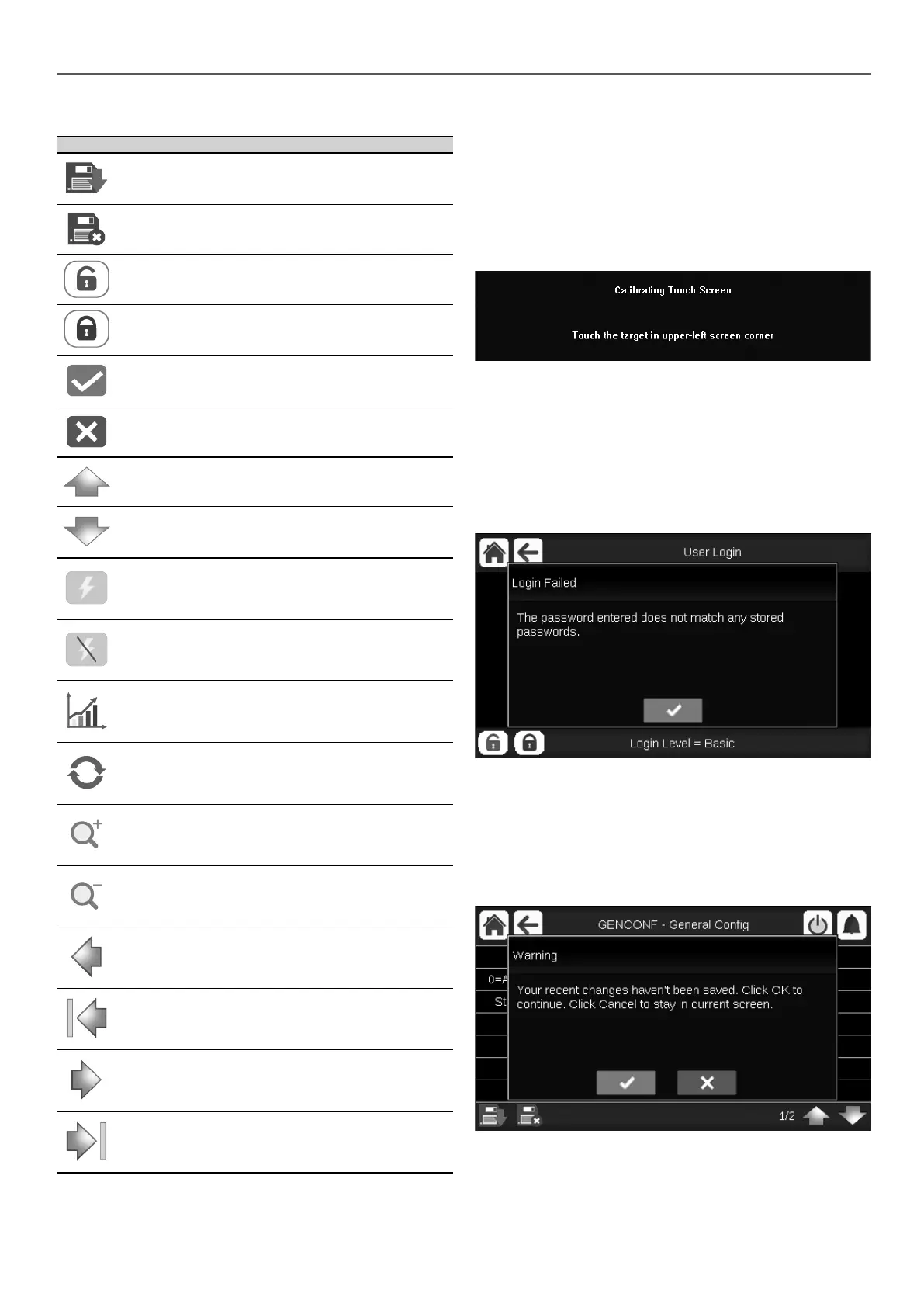
Button Description
Save button: Press the button to save the modication.
Cancel button: Press the button to cancel the
modication.
Log in button: Press the button to log in at specic
access level.
Log o button: Press the button to log o.
Conrm button: Press the button to conrm the
modication.
Cancel button: Press the button to cancel the
modication.
Up button: Press the button to scroll up.
Down button: Press the button to scroll down.
Force button: Press the button to force the parameter.
Remove Force button: Press the button to remove
the forced parameter.
Trending button: Press the button to display trends.
Refresh button: Press the button to refresh the view.
Zoom in button: Press the button to magnify the
current view.
Zoom out button: Press the button to expand the
current view.
Left button: Press the button to go to the left.
Rewind button: Press the button to go to the left faster
than normal.
Right button: Press the button to go to the right.
Fast-forward button: Press the button to go the right
faster than normal.
4.8 - Screen calibration
The purpose of screen calibration is to make sure that the software
acts correctly upon pressing icons on the user interface.
To calibrate the screen
1. Press and hold anywhere on the screen.
2. The calibration process will start.
3. Please follow instructions displayed on the screen:
“Touch the target in (...) screen corner”
4.9 - Warning messages
Warning messages are used to inform the user that a problem
occurred and the requested action cannot be completed successfully.
Login failure
If the wrong password is provided, the following warning message
will be displayed:
“The password entered does not match any stored passwords”
■ Press the Conrm button and type the correct password (see
section 5.7).
4.10 - Saving modications
In case a parameter has been changed, but not saved with the
Save button, the following warning message will be displayed:
“Your recent changes haven’t been saved (...)”
■ Press the Conrm button to continue without saving the
modication.
■ Press the Cancel button to come back to the current screen
and then save the modication with the Save button.
4 - USER INTERFACE: OVERVIEW






 To Next Page