114
115
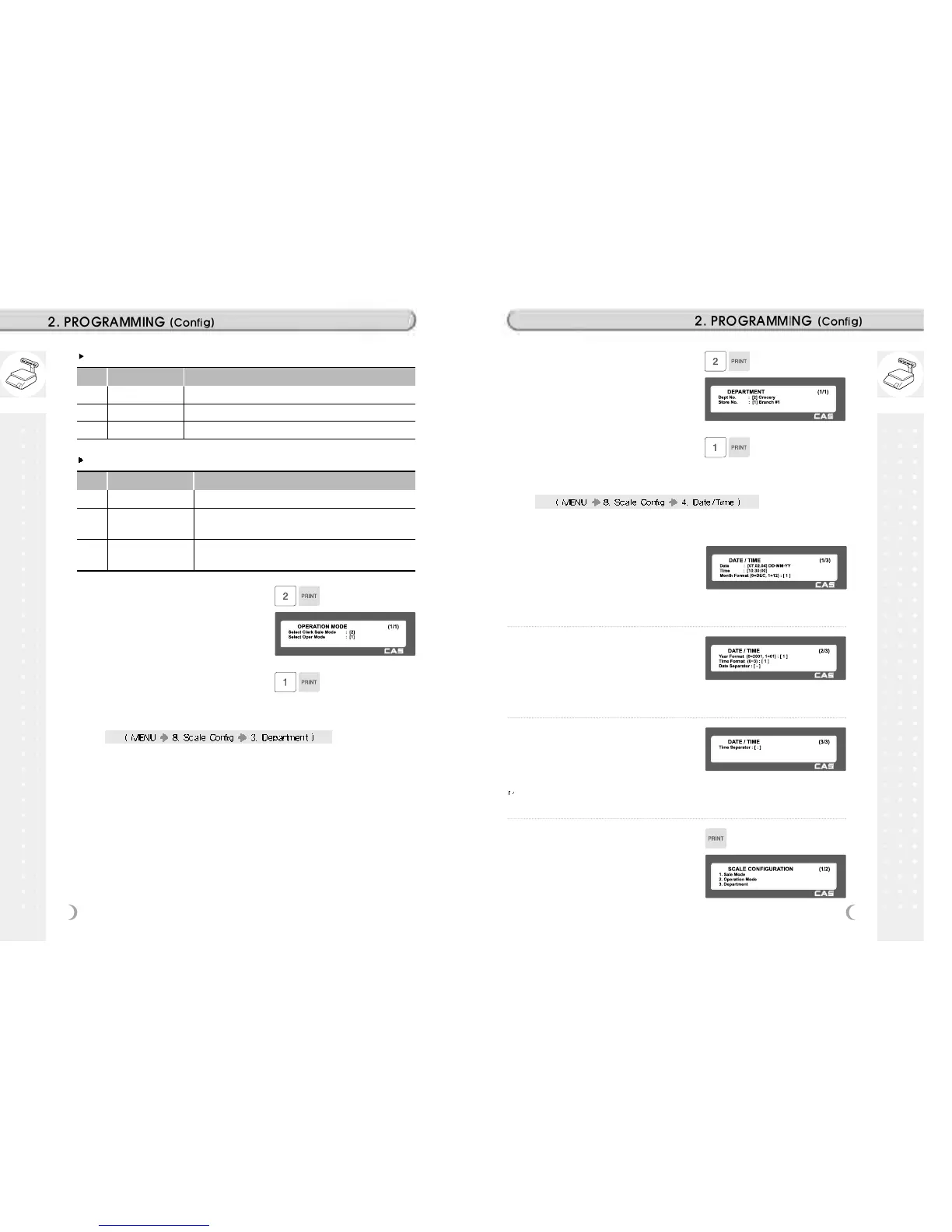
Clerk Modes
No. Clerk Modes Description
1 No Clerk Sales clerk do not log in and makes sales using PRINT key.
2 Standard Clerk Sales clerk can make sales when he/she logs in.
3 Floating Clerk Plural sales clerks can make sales using own clerk ID.
Operation Modes
No. Operation Modes Description
1 Registration Normal sales mode.
2 Repack
Normal sales mode but not included in total sales
data(report). Good for clerk training.
3 Manager
In this mode user can access all of functions without any
permission.
1. Select appropriate “CLERK MODE
”and “OPERATION MODE”.
EX) Clerk Mode=Standard Clerk
EX) Operation mode=Registration
2.14.4 Department (Menu code 1830)
This section shows how to select current department where scale is
being used. User can use (call up) PLUs only for current department
selected in sales mode.
For example, if current department selected is GROCERY user can call
up items registered only in GROCERY department. If user would like to
use PLUs registered in other department than current department he/she
should change scale s department setting.
Store No. represents Store Name (or branch number) on label/ticket
printed.
1. Select “DEPARTMENT No.” and
“STORE ID”.
EX) DEPARTMENT No.= 2 (Grocery)
EX) Store No.= 1 (Branch #1)
1. Set appropriate “DATE”, “TIME”, and
“MONTH FORMAT”.
EX) DATE= [07.02.04]
EX) TIME= [10:30:00]
EX) Month Format= [1]
2.14.5 Date & Time (Menu code 1840)
This section is to set scale s DATE & TIME appropriately.
2. Set “YEAR FORMAT”, TIME FORMAT
and separator for “DATE”.
EX) Year Format (0=2001, 1=01) = [1]
EX) Time Format(0~3) = [1]
EX) Date Separator = [-]
3. Set separators for “TIME”, using
ASCII code table on page
EX) Time Separator = [:]
4. Press “PRINT” key to save it and go
out to SCALE CONFIGURATION main
menu.
Please refer to “ASCII Code Table” (chapter 4.4) to input special characters
in Date or Time separator.


 To Next Page