33
32
No Item Description
22 Tare / Tare No.
You can enter tare weight manually or enter No. of tare data.
(By-weight PLU)
23
% Tare
0~99.99 You can enter tare weight as percentage of item. If
you set it to 20%, 20% of item is tare weight.
0~99.99 You can enter tare limit.
24
Tare % Limit %tare < = % limit -> Gross weight is printed
%tare > % limit -> Net weight is printed
25 Barcode No.
This value can be from 0 to 99, If Global Setting is YES, it is
not shown.
26. Barcode2 No. This value can be from 0 to 99
27. Picture No. Image no
28 Produced Date
(0~999) This is subtracted to the current date in order to be
calculated.
29 Packed Date
(0~999) This is added to the current date in order to be
calculated.
30 Packed Time (0~99) If you set it to 0, it is not printed
31 Sell-by Date
(0~9999) This is expirations date that is numbered in days and
added to the Packed On date in order to be calculated. If you
set it to 0, it is not printed
32 Sell-by Time (0~99) If you set it to 0, it is not printed
33 Cook-by Date
(0~9999) This is expirations date that is numbered in days and
added to the Packed On date in order to be calculated.
34 Ingredients No. (0~999) Enter ingredients
35 Traceability No. (0~99) Enter traceability No.
36 Bonus For future use.
37 Nutri. Fact No. (0~500) Enter nutrition fact ID
38 Sales Msg No. (0~99) Enter sales message No.
39 Reference PLU Dept. (0~99) Enter reference department No.
40 Reference PLU No. (0~999999) Enter reference PLU No.
41 Coupled PLU Dept. (0~99) Enter coupled PLU department
42 Coupled PLU No. (0~999999) Enter coupled PLU No.
No Item Description
43 # of Link PLU (0~2) Enter the number of linked PLU.
44 Link PLU1 Dept. (0~99) Enter PLU1 department No.
45 Link PLU1 No. (0~999999) Enter PLU1 No.
46 Link PLU2 Dept. (0~99) Enter PLU2 department No.
47 Link PLU2 No. (0~999999) Enter PLU2 No.
These items are shown on the display when you select By Weight PLU.
These items are shown on the display when you select By Count or By PCS
PLU.
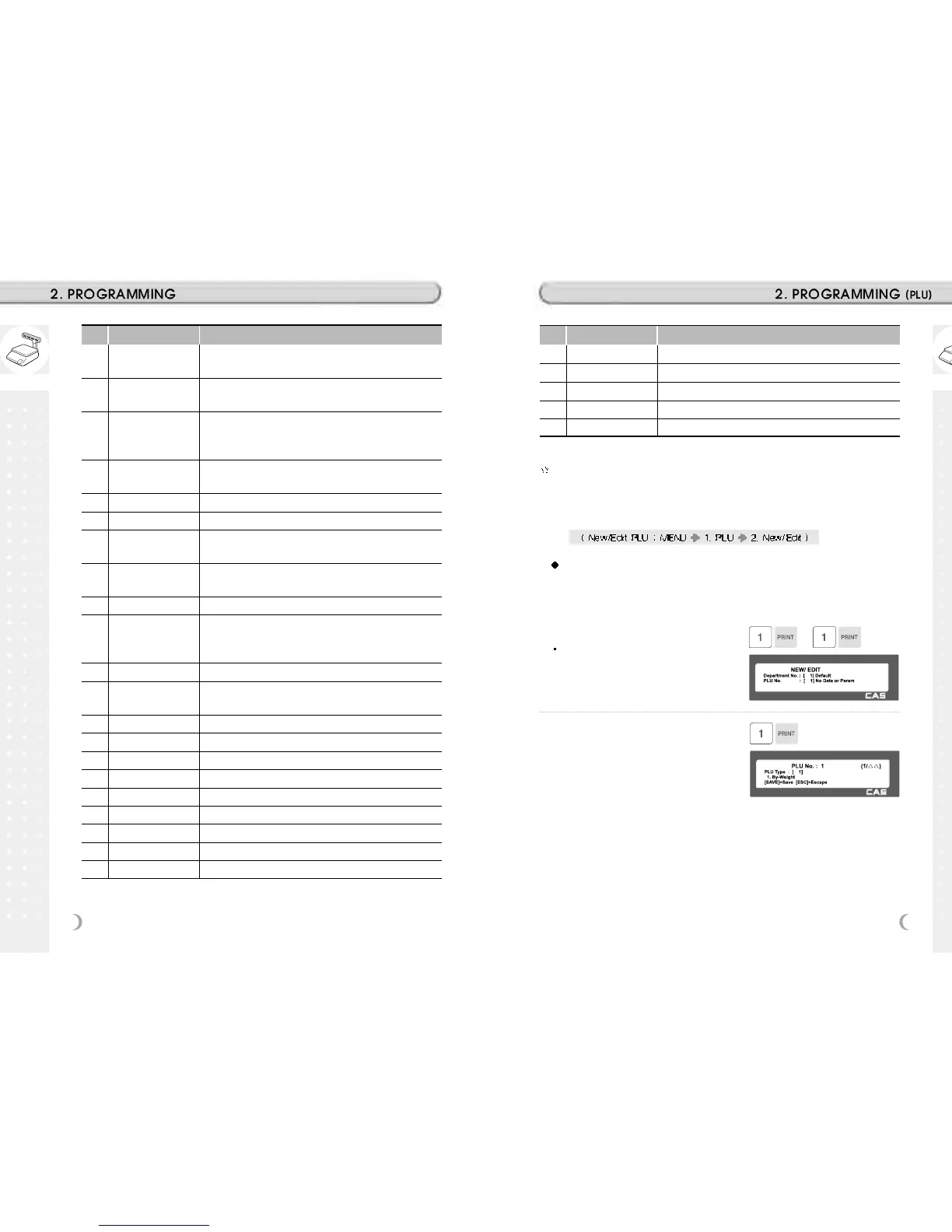
2.1.1 Create By-Weight PLU (Menu code 1120)
You can press the SAVE key at anytime to save the current PLU data
and if you want to exit without saving, press the ESC key.
Note: You may experice different item menus. You can modify menu items at
menu (1144)
1. Enter Department No. and PLU No.
Department should be set previously
EX) Department No. = [ 1 ] Default
PLU No. : [ 1 ]
2. Select PLU Type
1. By Weight
2. By Count
3. By PCS
EX) BY-Weight Item
By-Weight PLUs are priced as price-per-
weight; for example, $3.99/lb or $1.99/kg.
You must weigh these PLUs before you can
execute a sales transaction.


 To Next Page