Chapter 6: Sequence Application 125
Chapter 6:
Sequence Application
The Sequence application provides you with the tools you need to
work with explicit sequences and recursive type sequences. Starting
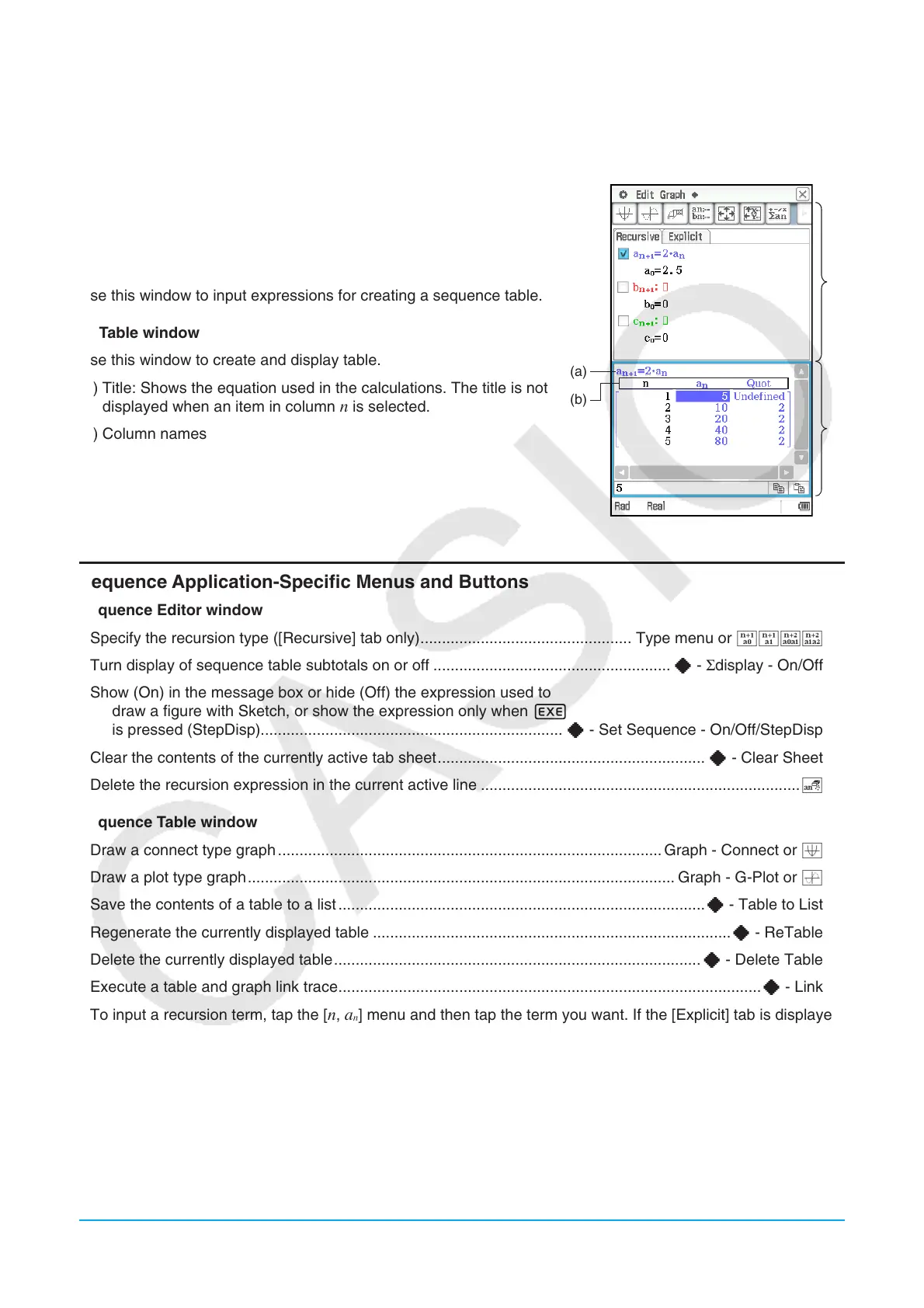
up the Sequence application displays two windows.
1 Sequence Editor window
Use this window to input expressions for creating a sequence table.
2 Table window
Use this window to create and display table.
(a) Title: Shows the equation used in the calculations. The title is not
displayed when an item in column
n is selected.
(b) Column names
1
2
(a)
(b)
Sequence Application-Specific Menus and Buttons
Sequence Editor window
• Specify the recursion type ([Recursive] tab only) ................................................. Type menu or ^&*(
• Turn display of sequence table subtotals on or off ....................................................... a - Σdisplay - On/Off
• Show (On) in the message box or hide (Off) the expression used to
draw a figure with Sketch, or show the expression only when E
is pressed (StepDisp)...................................................................... a - Set Sequence - On/Off/StepDisp
• Clear the contents of the currently active tab sheet .............................................................. a - Clear Sheet
• Delete the recursion expression in the current active line ..........................................................................w
Sequence Table window
• Draw a connect type graph ......................................................................................... Graph - Connect or $
• Draw a plot type graph ................................................................................................... Graph - G-Plot or !
• Save the contents of a table to a list .....................................................................................a - Table to List
• Regenerate the currently displayed table ...................................................................................a - ReTable
• Delete the currently displayed table .....................................................................................a - Delete Table
• Execute a table and graph link trace ..................................................................................................a - Link
• To input a recursion term, tap the [
n, a
n
] menu and then tap the term you want. If the [Explicit] tab is displayed,
you can also use the toolbar’s B to input a term-n.
Sequence RUN window
• Input the “rSolve” function ........................................................................................................... Calc - rSolve
• Input the “Σ” function ........................................................................................................................... Calc - Σ
• Use the [
n, a
n
] menu to input recursion expression terms. You can also use the [a
0
, a
1
] menu to input system
variables ranging from a
0
to c
2
.













 To Next Page