Chapter 8: Geometry Application 152
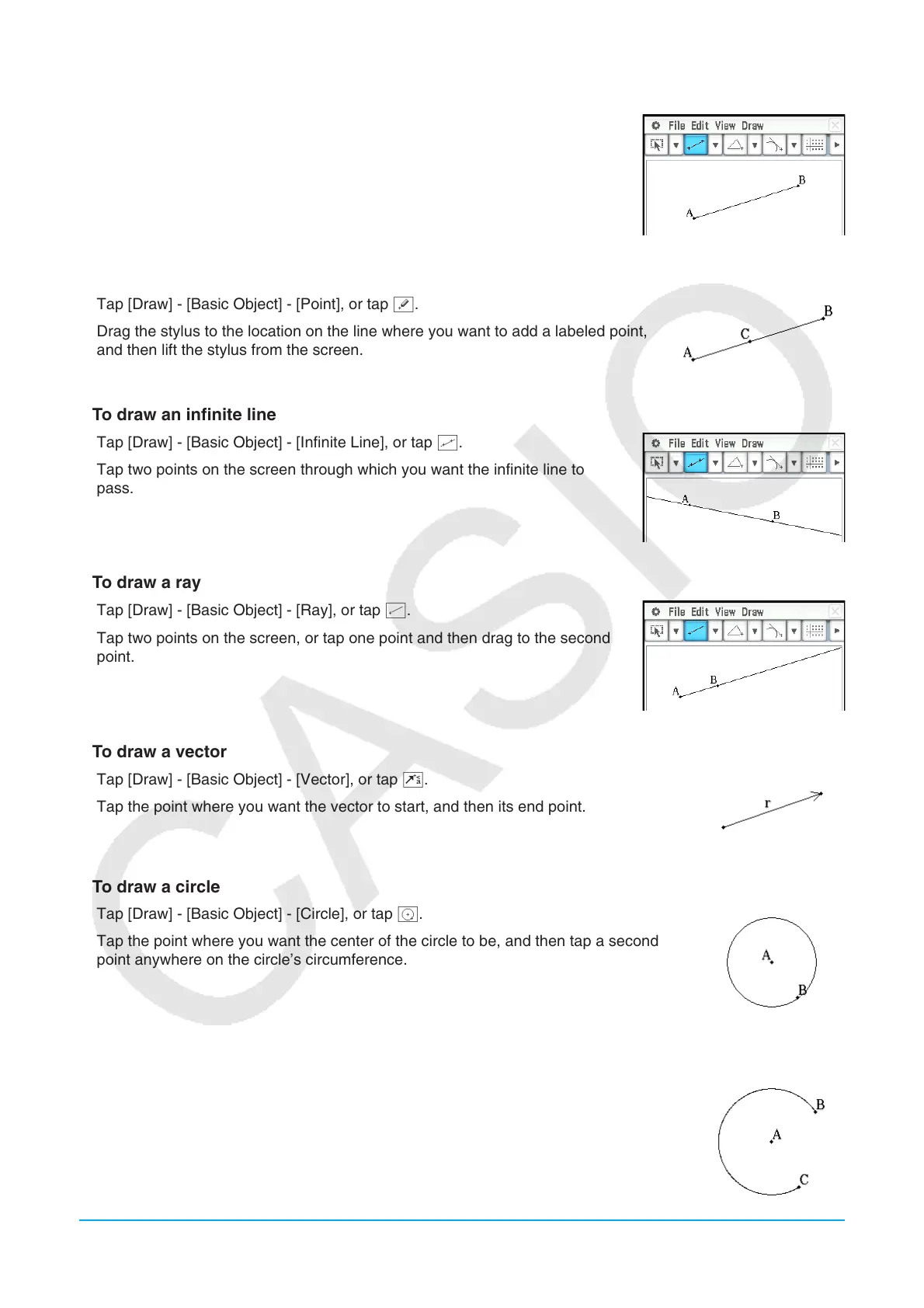
u To draw a line segment
1. Tap [Draw] - [Basic Object] - [Line Segment], or tap y.
2. Tap the screen where you want the line segment to begin, and a point will be
drawn, and then tap the point where you want it to end.
u To add a labeled point to an existing line
1. Tap [Draw] - [Basic Object] - [Point], or tap [.
2. Drag the stylus to the location on the line where you want to add a labeled point,
and then lift the stylus from the screen.
u To draw an infinite line
1. Tap [Draw] - [Basic Object] - [Infinite Line], or tap w.
2. Tap two points on the screen through which you want the infinite line to
pass.
u To draw a ray
1. Tap [Draw] - [Basic Object] - [Ray], or tap b.
2. Tap two points on the screen, or tap one point and then drag to the second
point.
u To draw a vector
1. Tap [Draw] - [Basic Object] - [Vector], or tap H.
2. Tap the point where you want the vector to start, and then its end point.
u To draw a circle
1. Tap [Draw] - [Basic Object] - [Circle], or tap U.
2. Tap the point where you want the center of the circle to be, and then tap a second
point anywhere on the circle’s circumference.
u To draw an arc
1. Tap [Draw] - [Basic Object] - [Arc], or tap P.
2. Tap the point where you want the center of the arc to be, and then tap a second point
to designate where you want the arc to start.
3. Tap a third point, which is where you want the arc to end.













 To Next Page