Note If the expected Wi-Fi network was not found, or if no network was found
at all, click the Find Networks button again to re-attempt to search for
networks.
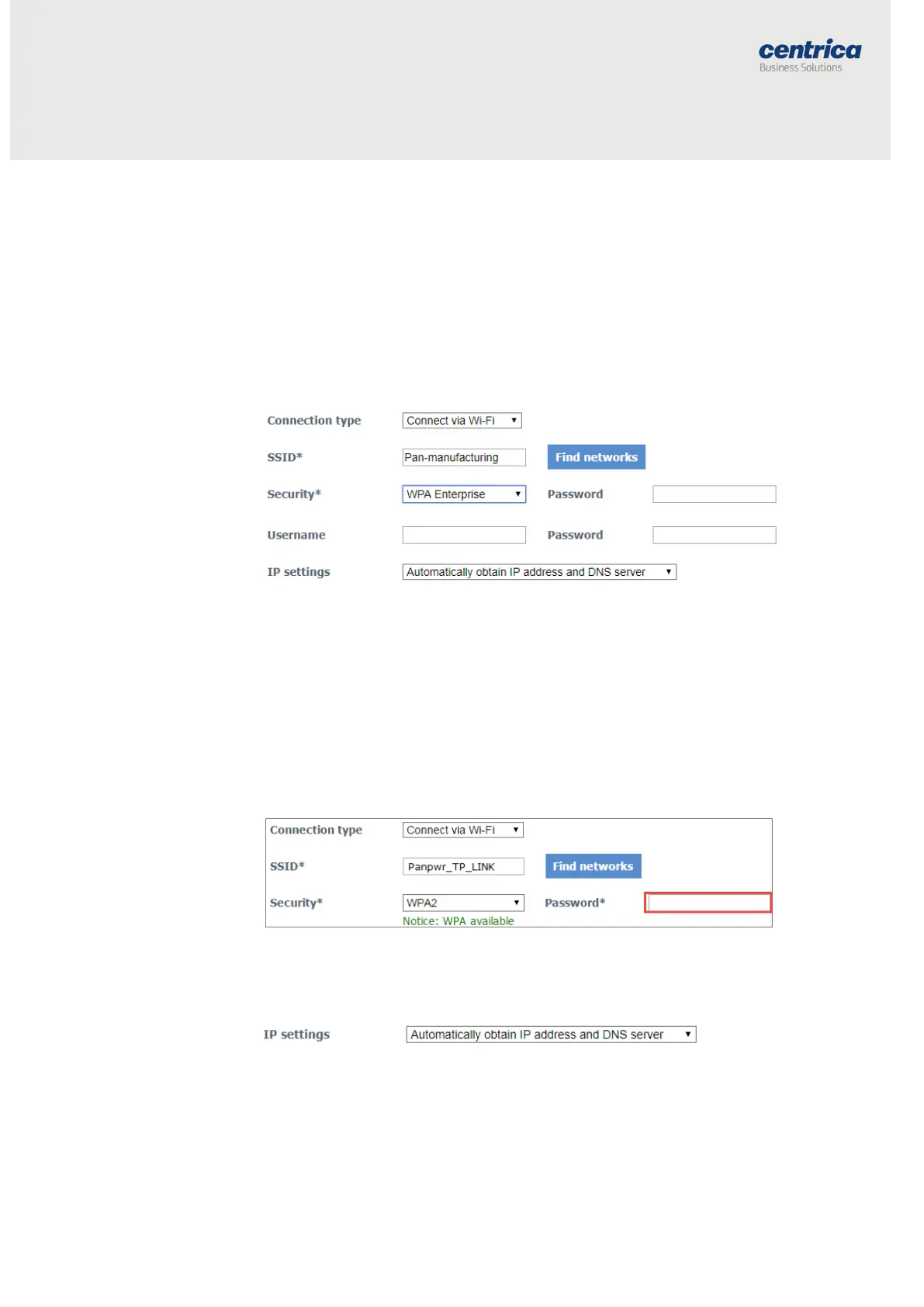
4. Select the network you want to use and click Apply. If the network
supports a mixed encryption mode, the WPA available notice
appears on the screen.
5. For Open, WEP, and WPA security, enter the password in the field
highlighted in the screen above.
6. For enterprise WPA and enterprise WPA2 security, enter your
password in the field shown below (this is for use with RADIUS
server authentication).
Note WPA2 Enterprise using client-certificate authentication is currently not
supported.
7. In IP Settings, select how the bridge receives its IP address and DNS
settings. By default, both are provided by the DHCP server:



 To Next Page