Note In some cases, it may take up to several minutes for the bridge to obtain
an IP address; however, if the Link LED is off for more than five minutes, the
bridge may require replacement, please contact support.
It is recommended to wait a few minutes before troubleshooting.
Verifying the Wi-Fi or Cellular Connectivity
You can test the connection to the PowerRadar server or the Internet as
described in this section.
How to Proceed
1. Access the bridge web interface.
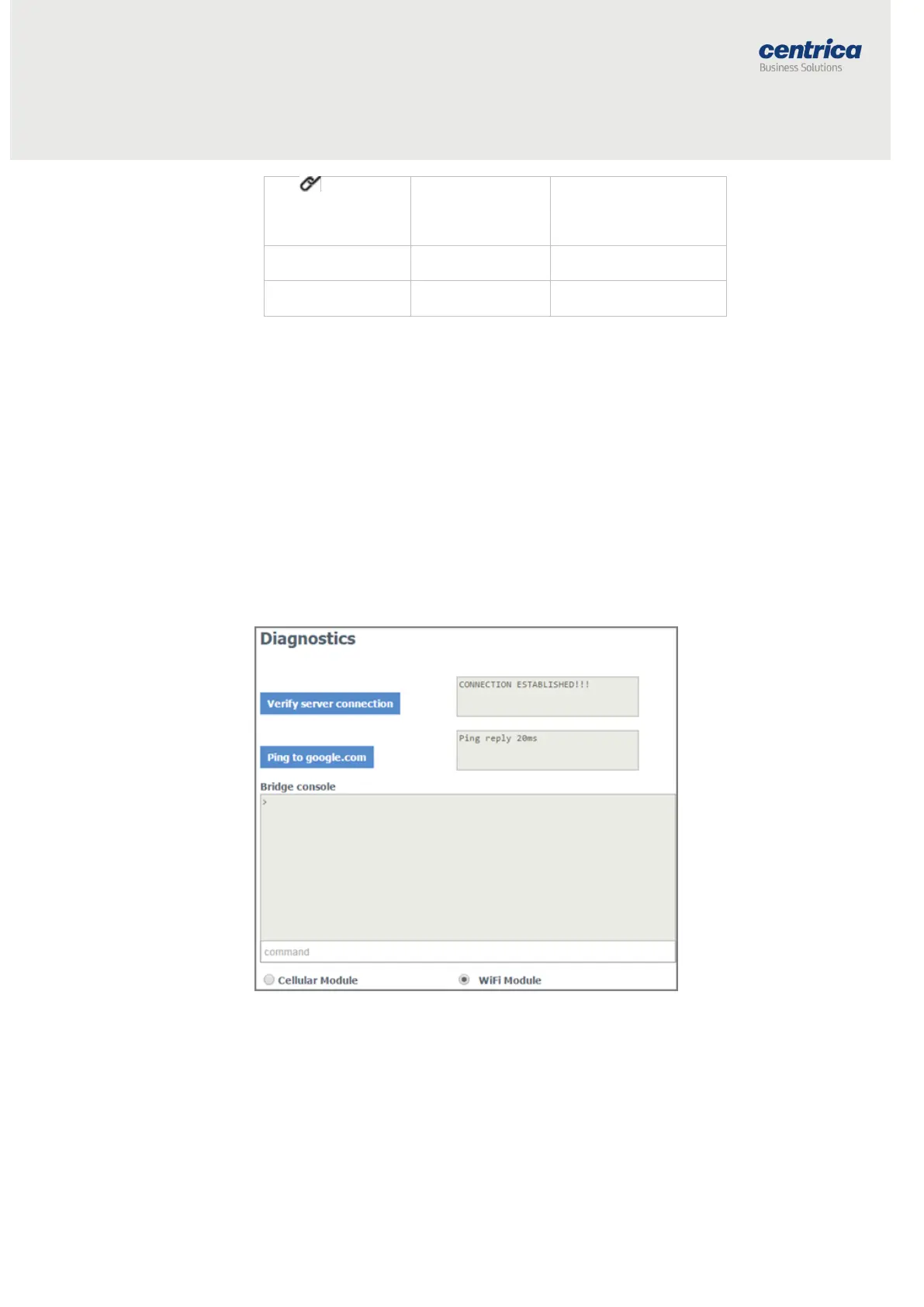
2. Select Diagnostics.
3. Click Verify server connection to make sure the bridge
communicates with the PowerRadar server.
If there is no connection, check the bridge configuration parameters and
network settings. The connection to the PowerRadar server uses port 8051 or
443.
Note This method will not work if you configured the bridge to work in LAN, and
your PC is connected to the bridge.



 To Next Page