By default, both are panpwr. We recommend changing them once you access
the tool. See Modifying the Default Credentials for the Bridge Web Interface.
Note Modifying the default user and password is strongly recommended to
enhance the bridge security and avoid unauthorized access to the configuration
screens.
3. Select Login.
Configuring the Bridge for Wi-Fi Connection
If the bridge communicates with the server over Wi-Fi, you will need to
configure which Wi-Fi network and settings to use.
Prerequisites
Ask your network administrator for the following information:
SSID and password to access the network.
Username, certificate text, and RSA private key for networks requiring
certificates.
For Wi-Fi and ethernet connections, verify that the system administrator has
opened ports 8051/443 for inbound/outbound TCP/IP traffic. In addition, verify
that DHCP & DNS ports are open (67/68, 53) and NTP port are open (123).
How to Proceed
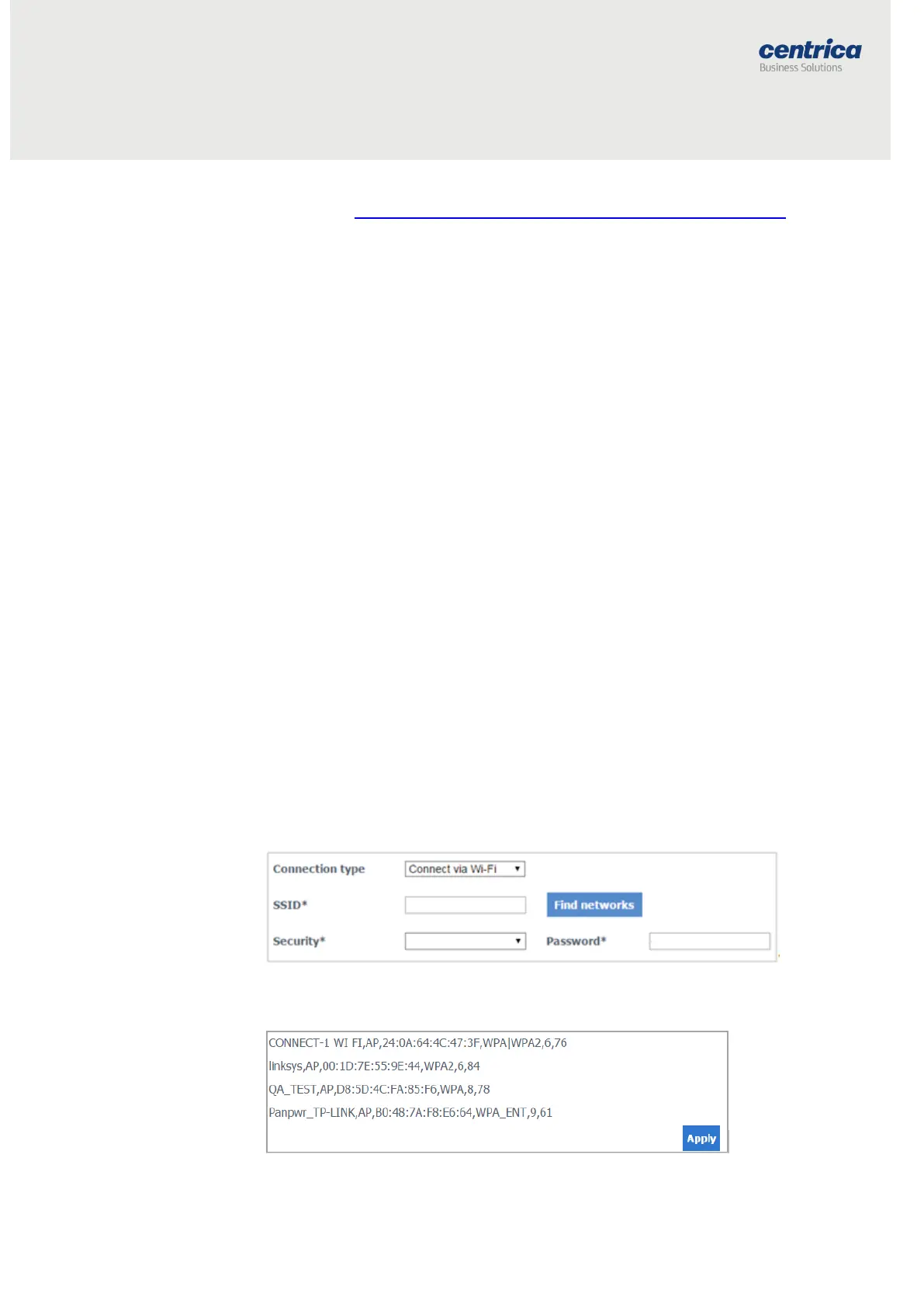
1. In Connection Type, select Connect via Wi-Fi.
2. To enable the system to find the SSID (network name) and Security
(encryption method used), click Find networks.
3. Otherwise, enter these values manually.
The display shows a list of networks in your vicinity.



 To Next Page