Viewing the Configuration Status
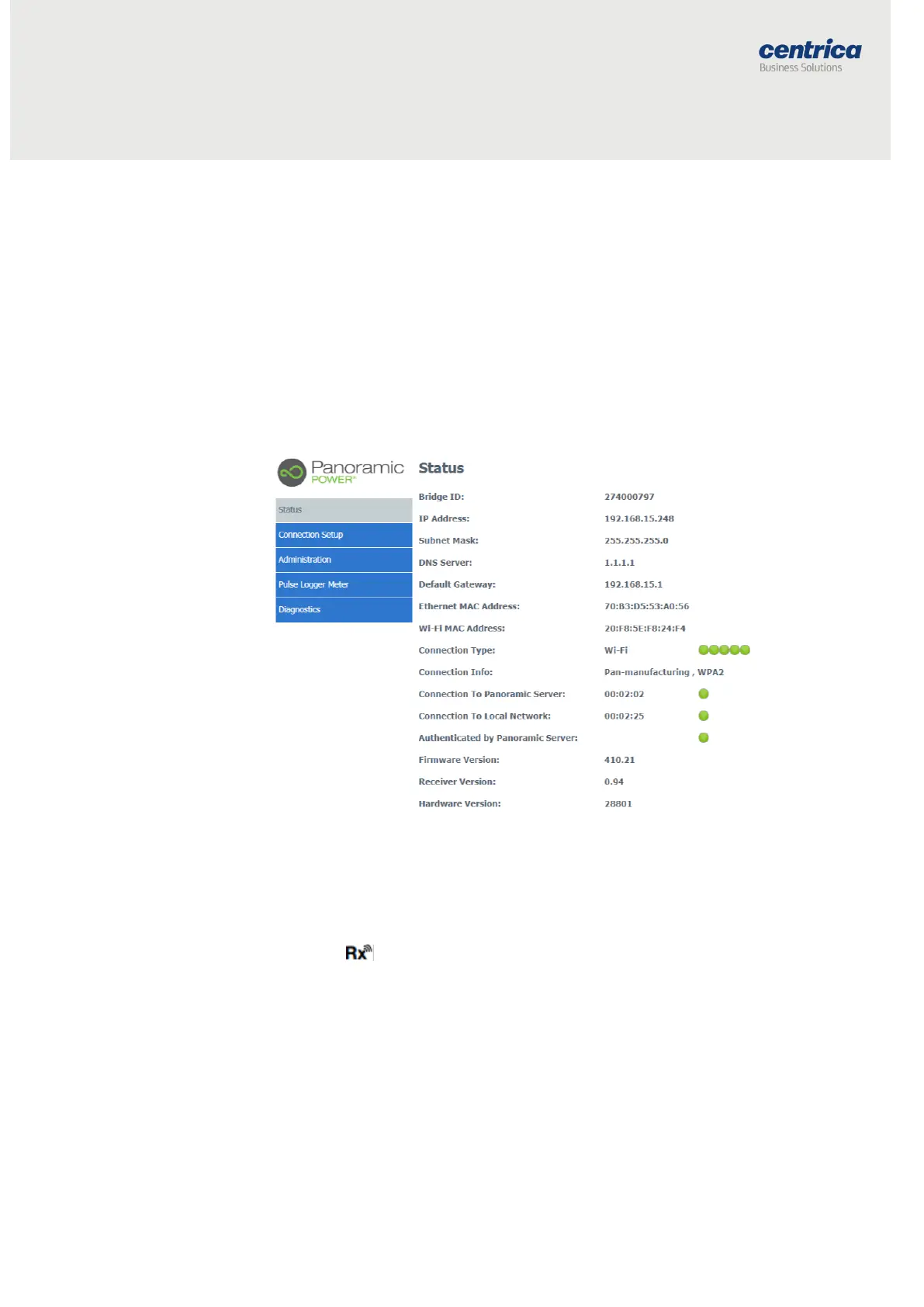
Access the Status page to view information such as:
Bridge versions (if asked by the support team)
Configured interface
Connection details (allocated IP, etc.)
Connection status (for example, if the bridge managed to connect to the local
network)
Quality of connections.
How to Proceed
1. Disconnect the bridge from the power source and reconnect it. Note
that this is only if you just saved configuration settings.
2. Press the Configuration button for approximately 5 seconds, until
the LED light is solid red.
3. Access the bridge web interface by entering 10.0.0.10 in the
browser.
4. Check the status of the configuration.
Green indicators appear in the Status page if the bridge connects with the local
network and the cloud-based PowerRadar server.
If the system does not reestablish connection with the PowerRadar server,
access the Diagnostics page for further testing.



 To Next Page