Loading the Bridge Configuration from a Configuration File
You can use the configuration file for setting up other bridges that have similar
requirements. For example, if bridges in a chain of stores share the same
Internet connection type and access points, you can prepare one configuration
file and use it for configuring other bridges in these locations.
You can also load the configuration file onto the same bridge if its configuration
gets corrupted.
How to Proceed
1. Access the bridge web interface.
2. Access the Connection Setup page.
3. Select Load Configuration from File.
4. Select the relevant file and click Apply.
5. If necessary, enter the password manually (for example, Wi-Fi
password)
Modifying the Bridge Administration Settings
You can modify the bridge’s default settings or reset all settings, including
connections, to factory defaults.
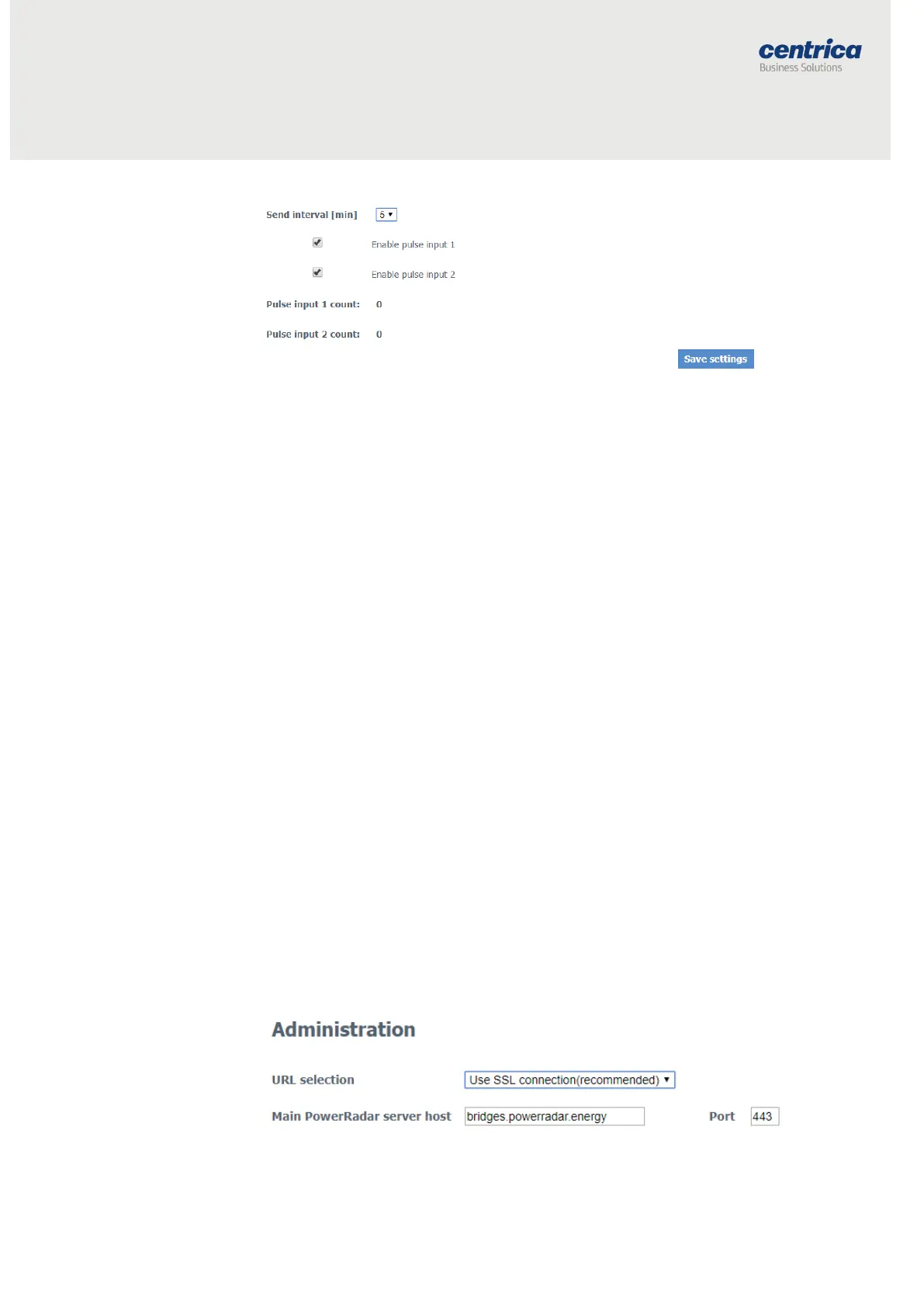
Modifying the Default URL and Port of the PowerRadar Server
To access these fields, select Administration in the bridge web interface. This is
where the URL of the PowerRadar server is provided.



 To Next Page