Instruction Manual CertoClav Vacuum Pro 45 l — Model STE-45-T
11.4.4 Installing updates via SD card
Download the latest update from www.certoclav.com or ask for the latest update for
your device by email to support@certoclav.com. Please indicate the serial number of
your autoclave for the Support Team. You can find the serial number on the type plate
of the autoclave or in the settings. For this, navigate to the Settings Menu by clicking
on the symbol at the top right of the screen. Press on “Device”.
Copy the “update.zip” to the main directory of Micro SD card and plug this into the
push-in compartment on the right of the touchscreen.
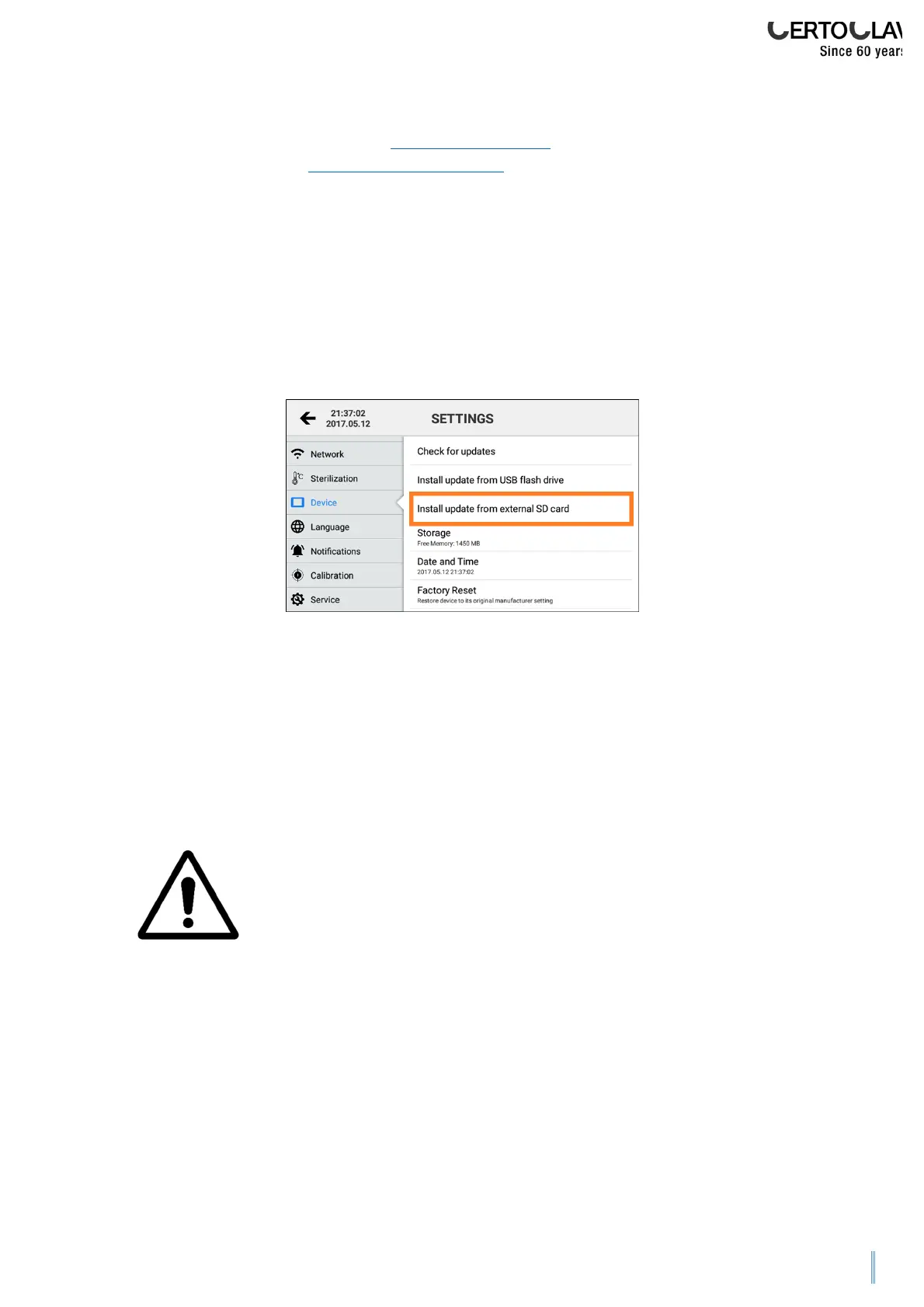
Navigate to the Settings Menu by clicking on the symbol at the top right of the
screen. Press on “Device” and then on “Install update from external SD card”.
If the SD card is not recognised, restart the touchscreen and try again. Follow the
instructions on the screen to install corresponding updates.
11.4.5 Restoring the default settings
Navigate to the Settings Menu by clicking on the symbol at the top right of the screen
and pressing on “Device”. In the detailed view on the right of the screen scroll to the
Restore default settings entry and press on it.
Once you have reset the touchscreen in the default settings, all
protocols and user accounts not previously exported and not
synchronised with the CertoCloud will be deleted.


 To Next Page