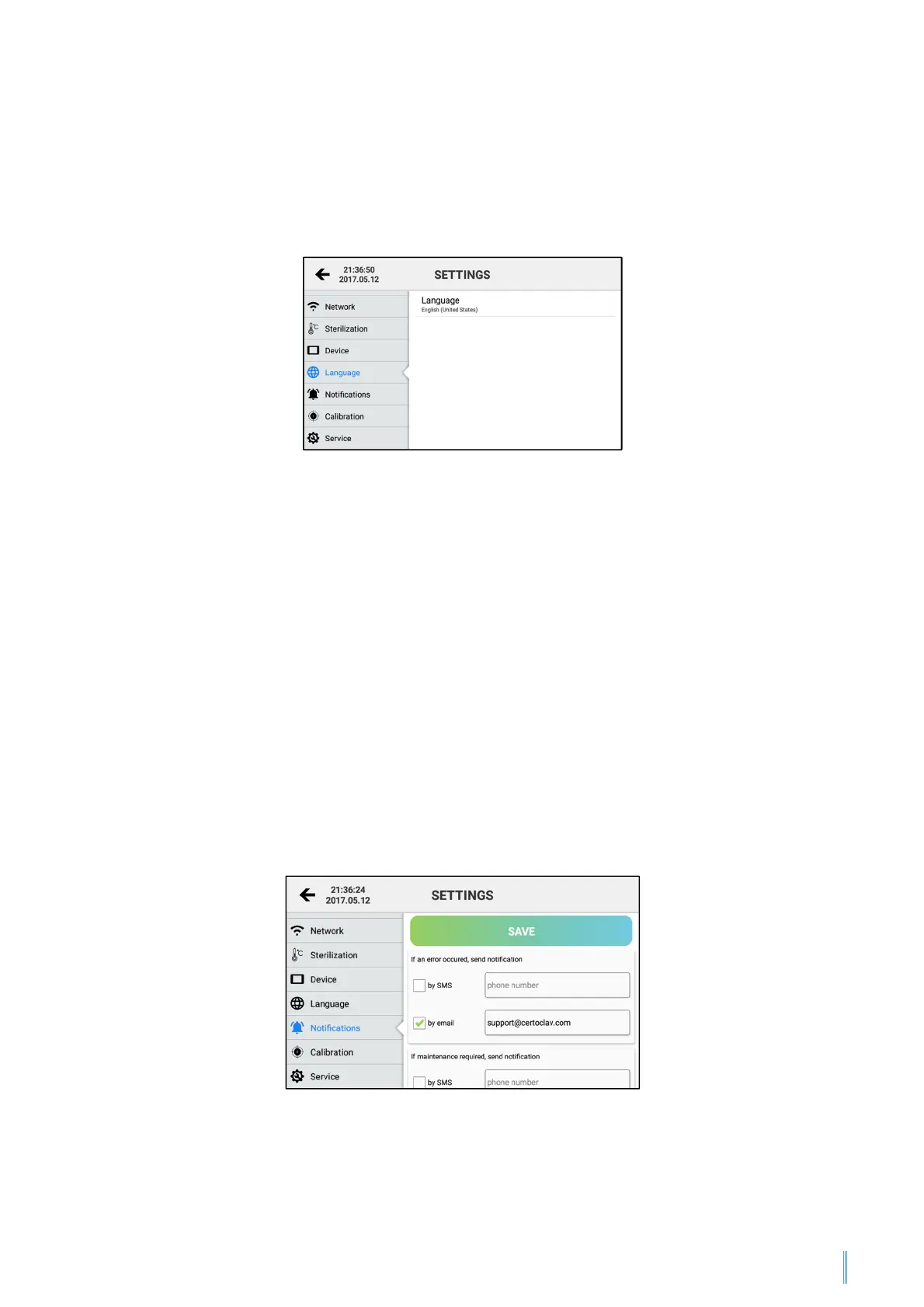
Instruction Manual CertoClav Vacuum Pro 45 l — Model STE-45-T
54
11.4.6 Changing the language
Navigate to the Settings Menu by clicking on the symbol at the top right of the screen
and press on “Language”. Pressing the current language setting in the detailed view
on the right of the screen opens a dropdown list with the languages supported. Select
a language by clicking on the desired language.
11.5 Configuration of SMS and email notifications
If you still do not have a CertoCloud account, you can create a new CertoCloud account
in the Login window.
Note: The autoclave must be connected to the Internet to be able to cerate the
CertoCloud account. Log in with your CertoCloud user account.
To configure SMS and email notifications, navigate to the Settings Menu by clicking on
the symbol at the top right of the screen and pressing on “Notifications”.
If you wish to receive an email if a program is terminated, when maintenance is
necessary or once a program has successfully been executed, activate the relevant
assigned checkbox.
Enter the email address of your choice, which is to be used for the notification. If you
have a CertoCloud account, you can also save a mobile phone number to which
notifications via SMS are to be sent. Then press on “Save” to save the changes.


 To Next Page